Questions and answers
Short answers, each with a link to the full guide. Open a question to read its answer. Can’t find yours? Write to support@welcomebird.com.
Getting started
What do I need to start?
A computer or a phone. Sign up with your email or your phone number at app.welcomebird.com or in the WelcomeBird app, on Android or iPhone, then follow the four setup steps. See Sign up.
Can I set up on a computer?
Yes. Sign up at app.welcomebird.com/sign-up and set up your business there: your details, opening hours, services and booking link, then Go live. On the web you can add several services in that step. You can also stop with Finish later and carry on in the app, or the other way round. See Set up your business.
Do I need the app?
To run your day, yes. Bookings, the calendar, your team’s hours, courts and tables, and the alerts for new bookings are in the WelcomeBird app. You can sign up, set up and go live on the web, then log in to the app with the same account. Your customers never need the app.
What can I do on the web?
The web dashboard at app.welcomebird.com is for the owner. It has a setup guide that shows what is left, the settings you set once (Business details, Opening hours with Closed days, Services, Team invites, Booking rules, Customer messages and Booking link), Billing with your receipts, and Help and support. Bookings and the calendar are in the app. Admins and staff use the app, and come to the web only to delete their account. See The dashboard.
How do I delete my account?
In the app, open More, tap your name, then Delete my account. On the web dashboard, it is under Settings, Account. Staff and admins are removed at once. An owner’s business closes at once and is deleted for good after 30 days; log in before then to restore it. If you cannot log in, follow the steps at welcomebird.com/delete-account. See Delete your account.
How do I get the app?
The WelcomeBird app is coming soon to the App Store and Google Play. Once it is there, search for WelcomeBird in the App Store or Google Play. Or open the dashboard and tap Get the app: scan its QR code with your phone’s camera. Until the app is in the stores, the QR code opens a page with the store buttons, and they open Coming soon. After that, it opens the right store for that phone. Log in with the same email or phone number as on the web. See The dashboard.
How long does setup take?
Setup has four steps: your business, your opening hours, your services and your booking link. It takes a few minutes, in the app or on the web. You can skip the hours, and in the app the service, and finish them later. See Set up your business.
Do I need a website?
No. Your booking page has its own address, for example https://glowstudio.welcomebird.com. Share the link anywhere, or print its QR code for your counter. See Go live.
Can I change my booking link?
Yes, on the web dashboard under Booking link. Your old link and any printed QR code stop working at once, so update them anywhere you shared them. See Booking page.
Does it work for clinics and sports centres?
Can I change my type of business?
Before your first booking, yes: More → Business profile → Business info → Edit. After it, write to support@welcomebird.com.
Bookings and customers
Do my customers need an app or an account?
No. They book on your booking page in any web browser and confirm with a 6-digit code sent to their phone. See How customers book.
Can I still take phone bookings and walk-ins?
Yes. Tap New booking in the app. They go into the same calendar as online bookings, so the time is taken for everyone. See New booking.
Can customers change or cancel a booking?
Yes, from the Manage booking link in their message or Find my booking on your page. By default they can do it until 24 hours before. You can change that in Booking rules. See Manage, reschedule and cancel.
Can I approve each booking first?
Yes. Switch on Bookings need your OK in More → Business profile → Booking rules. New online bookings then wait for you to accept or decline. See Requests.
How do customers check in?
Every confirmation has a check-in code. Tap Scan in the app and point the camera at it, or type the booking number. See Arrived and done.
A customer didn’t get the code
The code goes by SMS to the number they typed. They can check the number, wait for Resend code and tap it, or tap Use a different number. A code works for 5 minutes.
Can customers pick their table?
No. They pick the time; the booking takes the smallest free table that fits. You can move it in the app. See Tables.
Where do I see how the business is doing?
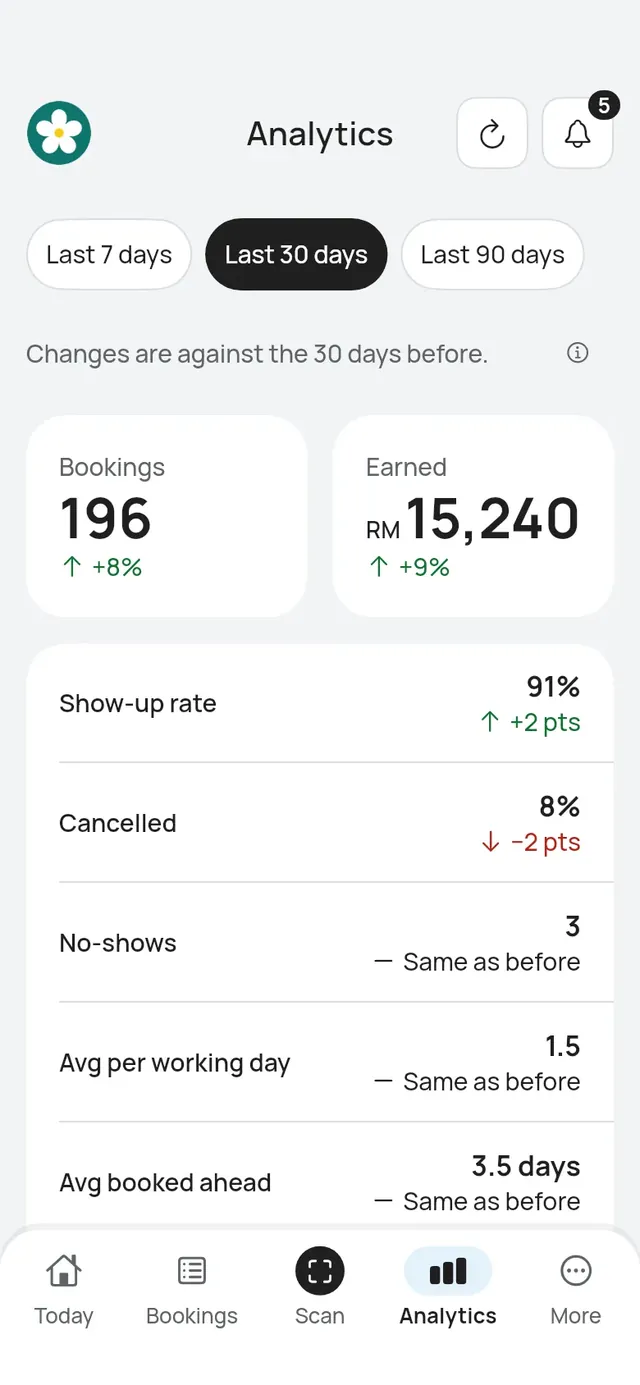
Open Analytics (owners and admins). Choose Last 7 days, Last 30 days or Last 90 days. It shows bookings, earned, the show-up rate, cancellations, no-shows, busiest days and hours, top services, bookings by person and new and returning customers. A restaurant or café also sees Covers and By table. Each change is against the same number of days before.
Your page, services and QR poster
Can I delete a service?
Yes. Pause it first. Once it has no upcoming bookings, tap Remove service. Past bookings keep its name.
Why does my poster say Book with WelcomeBird?
On the Free plan the “Book with WelcomeBird” strip is always at the bottom of your QR poster, as Powered by WelcomeBird is on your booking page. On Pro and Business you can hide it with the Book with WelcomeBird strip switch. The white card with the QR code, Scan to book and your link always stay. See Print your QR poster.
My QR code doesn’t scan
Print the QR code at least 4 cm wide, on matte paper, and put it where light doesn’t shine straight on it. Don’t stretch or crop the image: share or print the file as it comes. If you print at a print shop, give them the Print shop (bleed and crop marks) PDF.
Messages and reminders
What messages do my customers get?
A confirmation when they book, and messages when a booking is moved or cancelled. Each goes by WhatsApp first, by SMS if WhatsApp can’t reach them, and by email. If you turned on the rating ask, they also get a message after the visit asking them to rate it, by WhatsApp, or by email when WhatsApp can’t reach them. See WhatsApp, SMS and email.
When do reminders go out?
24 hours and 2 hours before the booking. No reminders go out between 9:00 PM and 8:00 AM your time. One due then is sent at 9:00 PM the evening before.
Can customers reply to the messages?
No. They come from WelcomeBird’s number, which doesn’t receive replies. Customers contact you with the phone, WhatsApp or email on your booking page.
Why is there no link in the SMS?
Malaysian rules don’t allow links in these text messages. Each SMS tells the customer to open your booking page and choose Find my booking. WhatsApp and email messages have a button.
What happens when my month’s message credits run out?
Until next month, customers who gave an email get their reminders by email. Bookings keep working. The 6-digit codes never use credits. See Message credits.
Do I get told when a booking comes in?
Yes, by a push notification on your phone. See Push notifications. The business’s email also gets requests, change requests and cancellations by customers.
Do OTP codes use message credits?
No. Only WhatsApp and SMS sent to your customers about their bookings use credits. See Message credits.
Plans and payments
How much does it cost?
Free has no monthly fee. Pro is RM 49 a month or RM 490 a year. Business is RM 129 a month or RM 1,290 a year. See Plans for what each plan includes.
Is there a free trial?
Yes. Every new business gets 14 days of Pro, free. No card is needed.
What happens when the trial ends?
You move to Free. Nothing is deleted. Staff, courts or branches over Free’s limits stop taking online bookings until you choose which stay active or change your plan. See Plan limits.
How do I pay for a plan?
Buying a plan isn’t open yet. You’ll pay at app.welcomebird.com, by card or FPX online banking, with a PDF receipt by email. Only the owner can change the plan.
Does WelcomeBird take payments from my customers?
Not yet. Your booking page shows your prices, and customers pay you as they do today.
Can I pay by FPX every month automatically?
No. FPX needs you to approve each payment in your bank. Plans don’t renew on their own yet, by card or by FPX. See Buying a plan.
Why didn’t I get an email from Stripe?
We send the receipt ourselves, with the PDF, from WelcomeBird. It goes to your billing email. See Receipts.
Data and privacy
Where is my data kept? What about PDPA?
Customers give only what a booking needs: a name, a mobile number and an email, and a note if they want to add one.
How long do you keep customer details?
A customer’s name, phone, email and notes on a booking are erased 2 years after the booking ended. The booking then shows Customer details erased.
Who on my team sees customer details?
Owners and admins see every booking. Staff see only their own. See Roles.
Your account
I lost a phone. How do I log it out?
On another phone, open More, tap your name, and find the lost phone under Logged-in phones. Tap Log out under it. Or tap Log out of all other phones. Changing your password logs out every other phone too. See Logged-in phones.
I forgot my password
Tap Log in, then Forgot password? under the password field, and enter your email. Open the link in the email to choose a new password. After you choose it, every phone needs the new password to log in again, this one too. If you are still logged in on a phone, More → your name → Change password → Forgot your current password? sends the same link.
I signed up with my phone. Can I log in with an email too?
Yes. Open More, tap your name, then Set a password. Add your email and type the code we email you, choose a password, then confirm with a code texted to your phone. Your other phones are logged out, and after that you can log in either way. See Your password.
Team and branches
How do I add my team?
Invite them from More → Team in the app, or from Team on the web dashboard, with their email or phone number. They sign up with the same email or number and find the invite in the app. An invite works for 7 days. See Invite someone.
Can customers book someone who doesn’t use the app?
Yes. Use Add without login. Customers can book them, and you add and manage their bookings. See Add without login.
Can I run more than one branch?
Yes. Pro runs up to 3 branches and Business up to 20. Each has its own hours, people and prices, and customers choose a branch on your booking page. See Branches.
A staff member can’t see a booking
Staff see only their own bookings. Owners and admins see everyone’s. See Roles.
Someone I invited can’t find the invite
They must sign up or log in with the exact email or phone number the invite went to. If they signed up with an email, they confirm it first. An invite works for 7 days. You can send it again from their page on Team.