Cover photo and photos
Who can do this: Owner, Admin
Cover photo
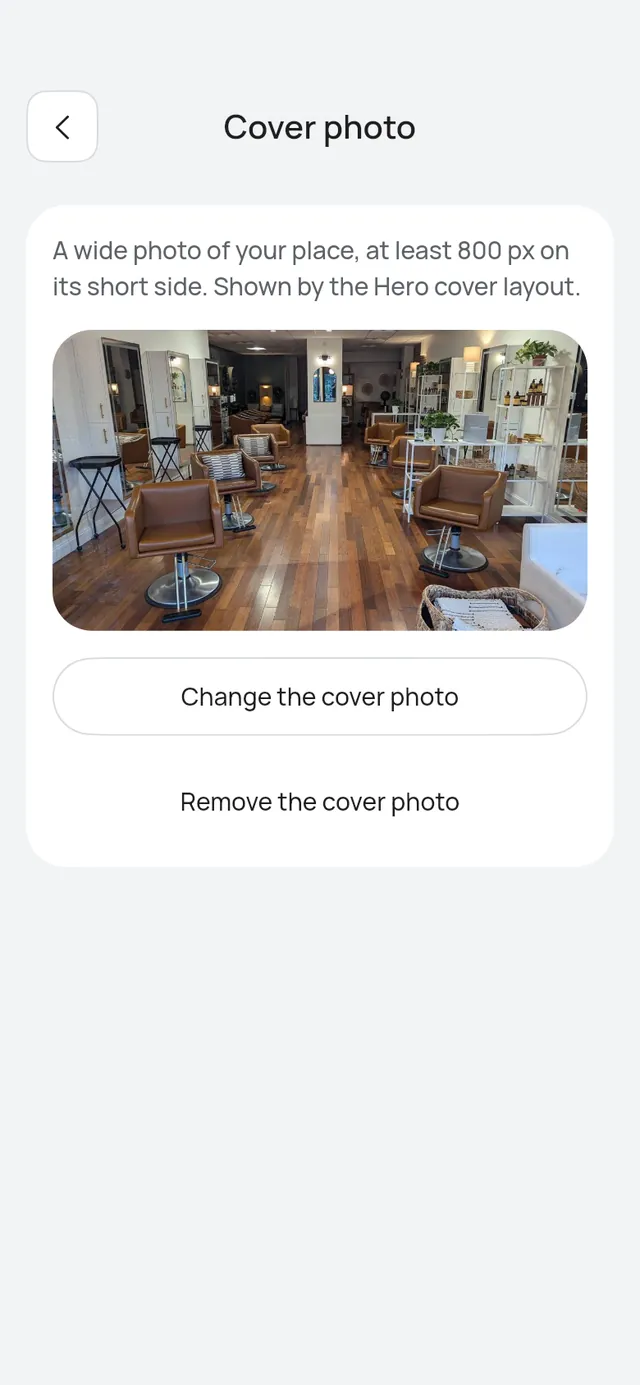
Open More → Business profile and tap Cover photo. The row says Added or Not added.
Use a wide photo of your place, at least 800 px on its short side. The Hero cover layout shows it at the top of your page.
- Tap Add a cover photo, or Change the cover photo to pick another. Changes show on your page at once and the app says Cover photo saved.
- A photo smaller than 800 px on its short side says That picture is too small for a cover. Please choose one at least 800 px on its short side.
- Remove the cover photo asks first: Remove the cover photo? Customers won’t see it on your booking page. Tap Remove, or Keep it.
Photos
When your business has one branch, Photos in More → Business profile opens the pictures on your booking page. They are your branch’s photos.
With two or more branches, each branch has its own photos: open More → Branches, tap a branch, then Photos. See Branches.
Your booking page shows up to 6 photos under Photos, in the order you set:
- Classic list: a Photos card right after Services.
- Hero cover, Category grid and Split: below the services, before the team.
- Tabs: a Photos tab between the team and About.
Customers tap a photo to see it full screen, then swipe or use the arrows for the next one.
When your page has no cover photo and shows a cover at the top (Hero cover, or Show cover photo on), your first photo is the cover, so the gallery starts at your second photo. With only one photo, the page shows it as the cover and no gallery. With no photos, the page has no Photos part at all.
Photos of a service, court or table
Each service, sport, court and table can have up to 3 photos of its own. Your booking page shows the first one beside the item, and customers tap it to see them all. This works on every layout.
Add them on the item’s page, under Photos (optional). See Add and edit a service, Sports, Courts and Tables.