Template
Who can do this: Owner, Admin
Open More → Business profile and tap Template. The row says your page’s colours and layout now, for example Classic · Classic list. A new page starts on Classic, the look it has always had, and keeps it until you choose another.
The preview
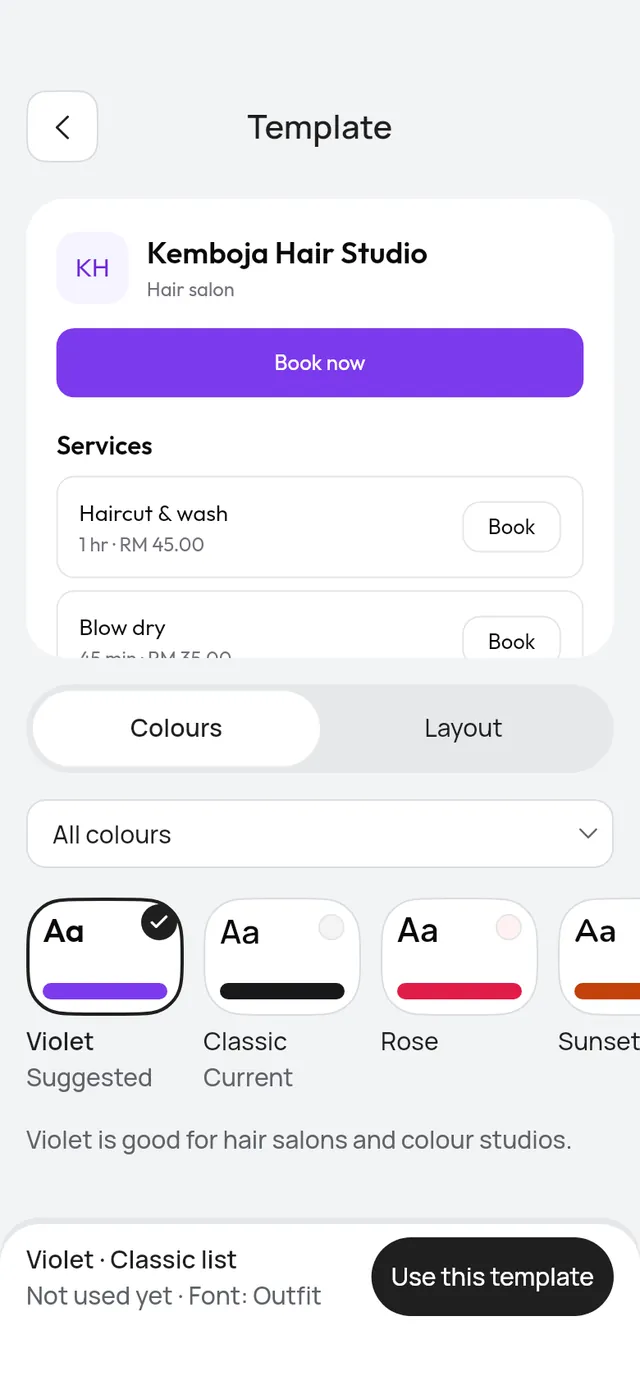
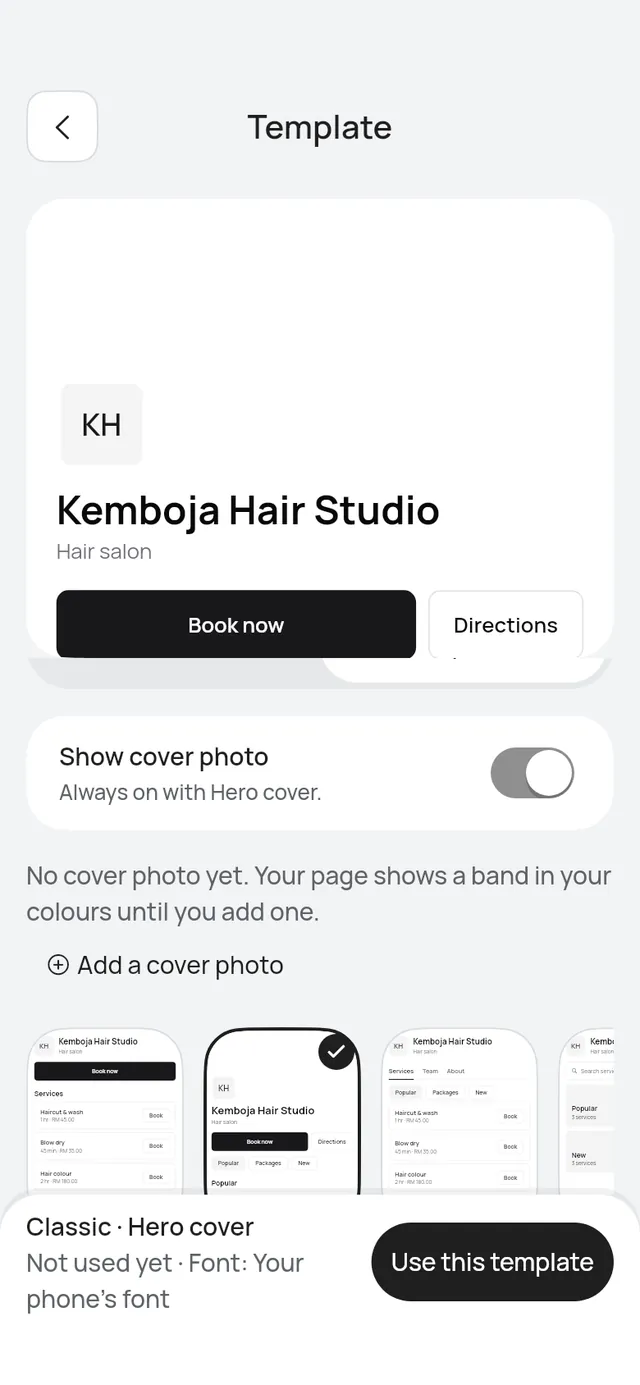
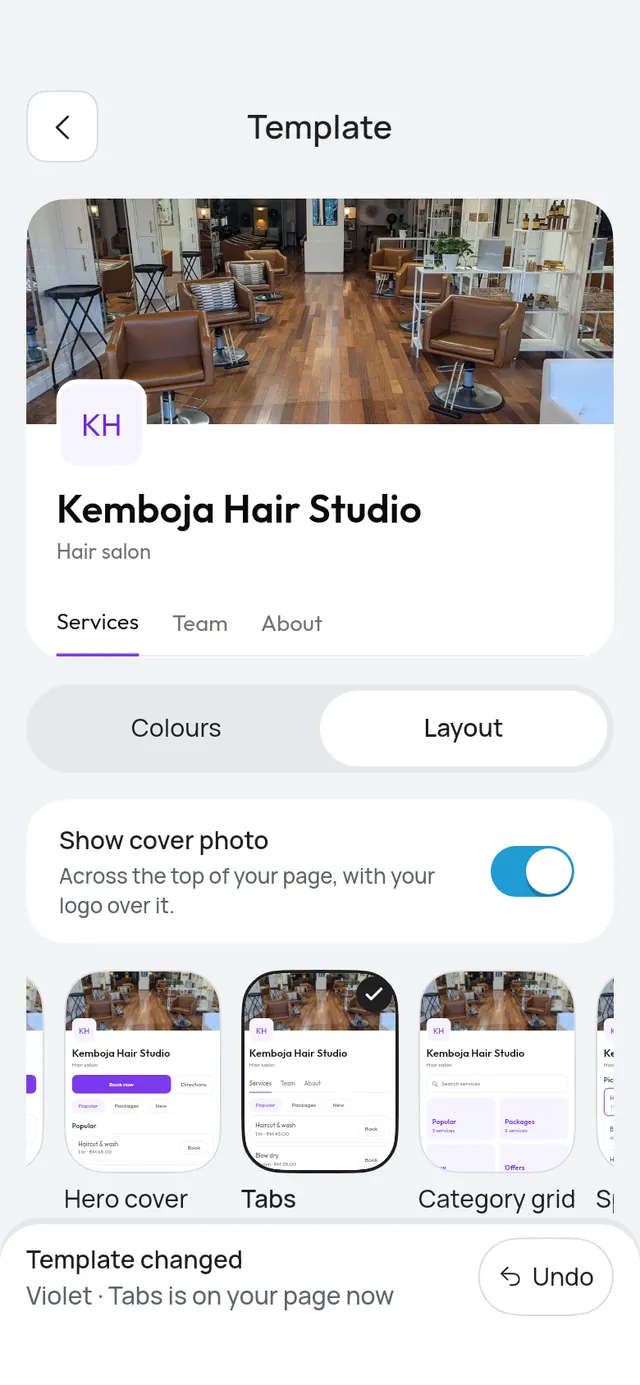
The top of the screen shows your booking page as you pick: your name, your logo, your services, in the colours and layout you have chosen right now. It changes when you tap a colour set, a layout or the cover switch. A line under it says the colours, the layout and the font. Nothing changes on your real page until you tap Use this template.
Colours
There are twelve colour sets. Each one shows its colours, its name and what it is good for, such as Good for: Nails, lashes and brows. Your colours now say Current, and the ones suggested for your kind of business say Suggested.
The chips above them show fewer at a time. The chip starts on All colours. The others are Suggested, a chip for each kind of business, and Dark. Tap a colour set to choose it. The preview changes at once.
Layout
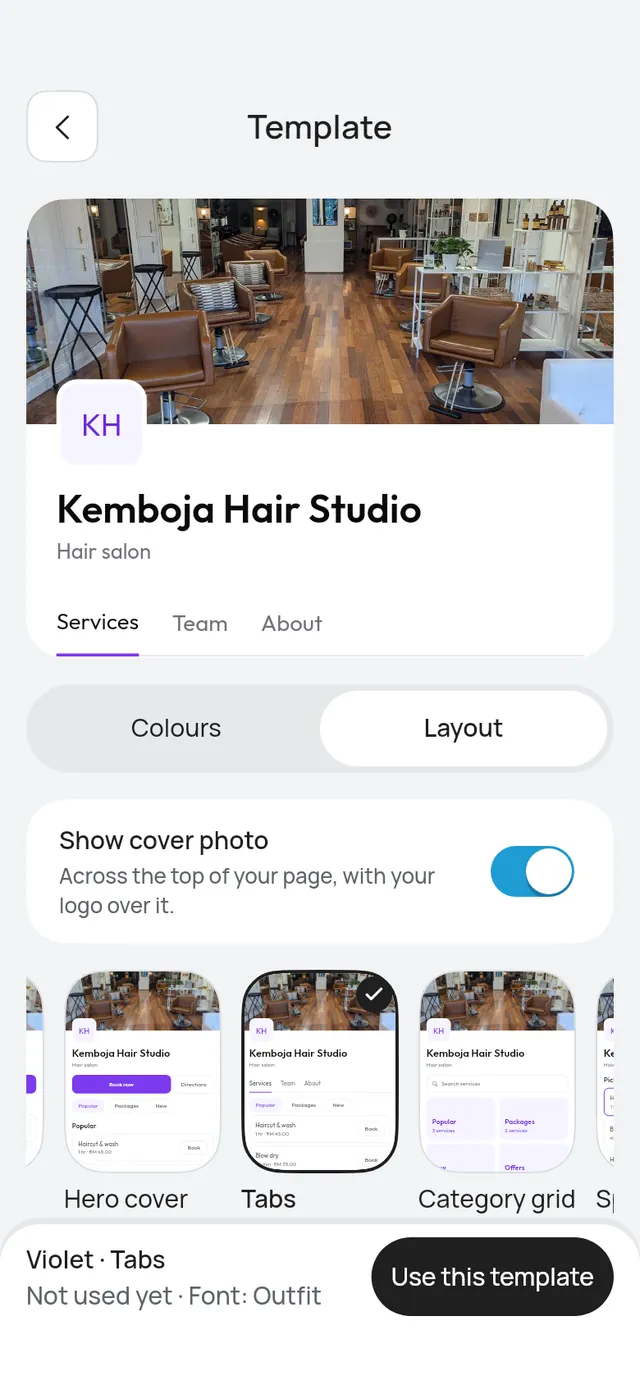
Choose one of five layouts:
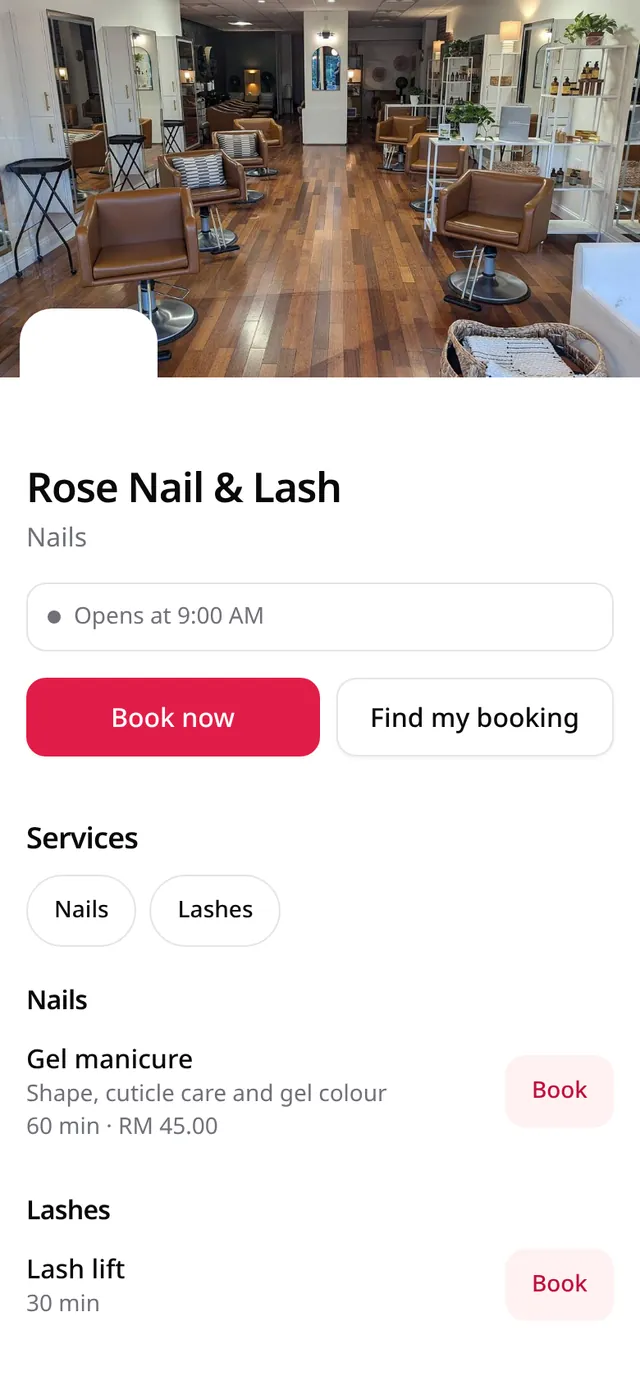
- Classic list: your page as it is today: Book now, services, team, about.
- Hero cover: a big cover photo, your logo over it, services by group.
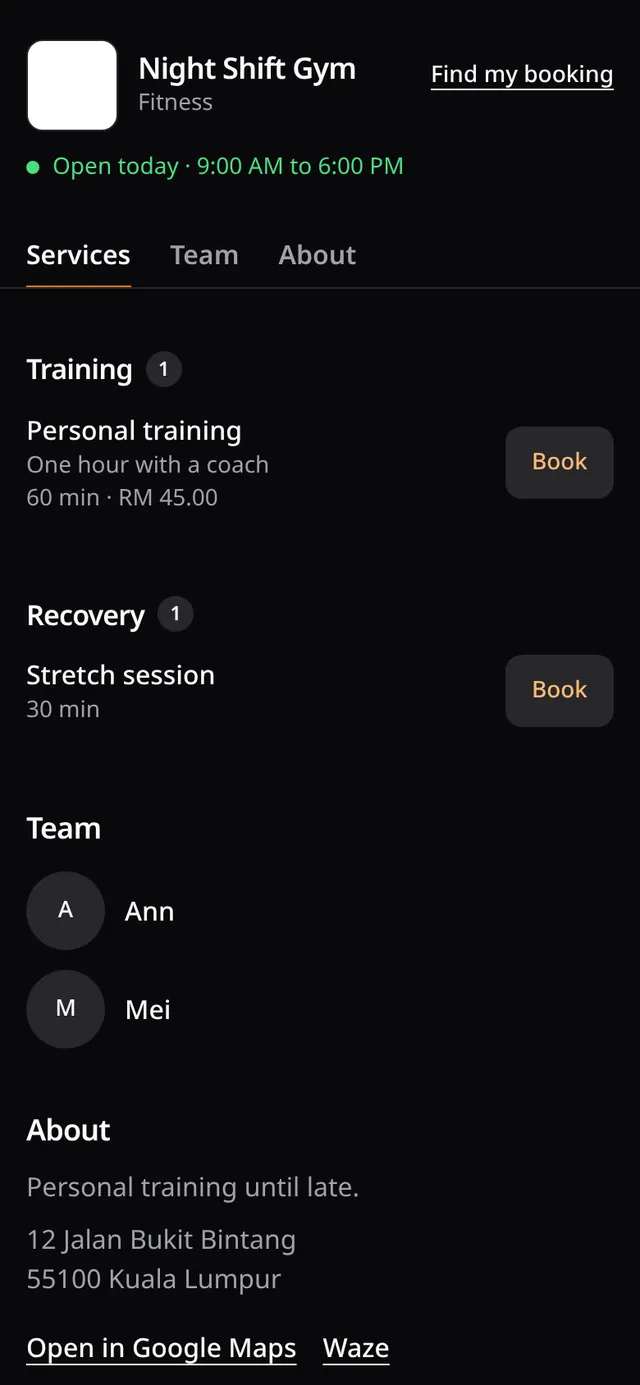
- Tabs: Services, Team and About as tabs; services by group. Tapping a tab shows only that part of the page, and a link can open a tab directly (for example
#teamat the end of your page link). - Category grid: big tiles for each group of services, with search.
- Split with summary: pick a service with a booking summary beside it.
A layout that needs something you haven’t added yet says so, with a link to add it:
- Add a cover photo: Hero cover shows your cover photo. See Cover photo and photos.
- Make two or more service groups: Tabs and Category grid show your groups. See Service groups.
Every layout keeps your phone, address and social links, Find my booking, and a way to book.
Show cover photo
The Show cover photo switch puts your cover across the top of your page, with your logo over it. It works on every layout:
- Classic list, Tabs, Category grid and Split with summary: off, the page starts as it always has. On, your cover is across the top, above the rest. This also shows on the page of each branch.
- Hero cover: the cover is always on, so the switch is on and cannot be turned off. It says Always on with Hero cover.
- No cover photo yet: the switch still works. Your page shows your branch photo if you have one, or a band in your colours, until you add a cover. The screen says which, with Add a cover photo to add it. See Cover photo and photos.
If you change only the switch, the line under the preview says Cover photo on or Cover photo off, then Not used yet.
Use this template and Undo
Tap Use this template. Your colours, layout and cover switch are saved together and your page changes at once. The bar says Template changed, with Undo. Tap Undo to go back to the look you had, cover switch included. When what you chose is already your page’s, the button says This is your template.
If your template was changed on another phone meanwhile, the app says Your template was changed on another device. Showing the latest. and shows the latest.
The template fonts are open fonts under the SIL Open Font License. The app fetches them the first time you open this screen. Until then, or without a connection, the preview uses the app’s own font.
What customers see