Calendar
Who can do this: Owner, Admin, Staff
Open Bookings and tap Calendar. Tap List to go back to the list.
Day, Week and Month
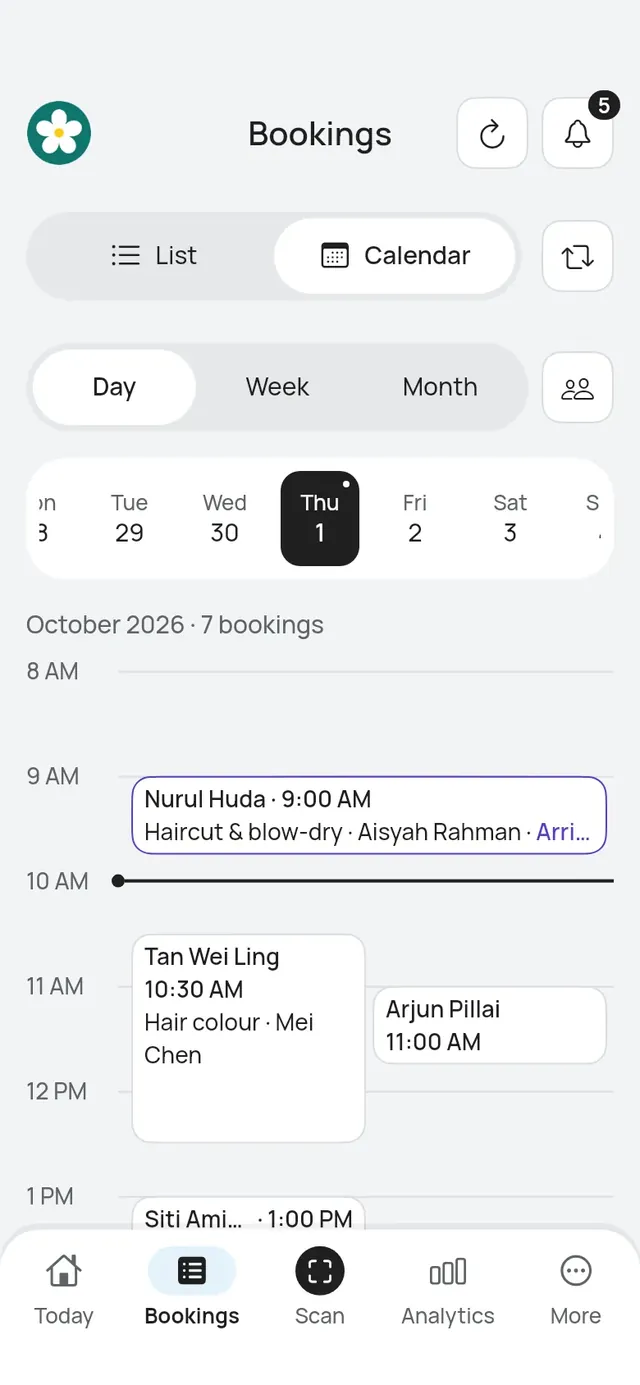
- Day shows the day as a timeline. A line marks the time now. Tap a booking to open it.
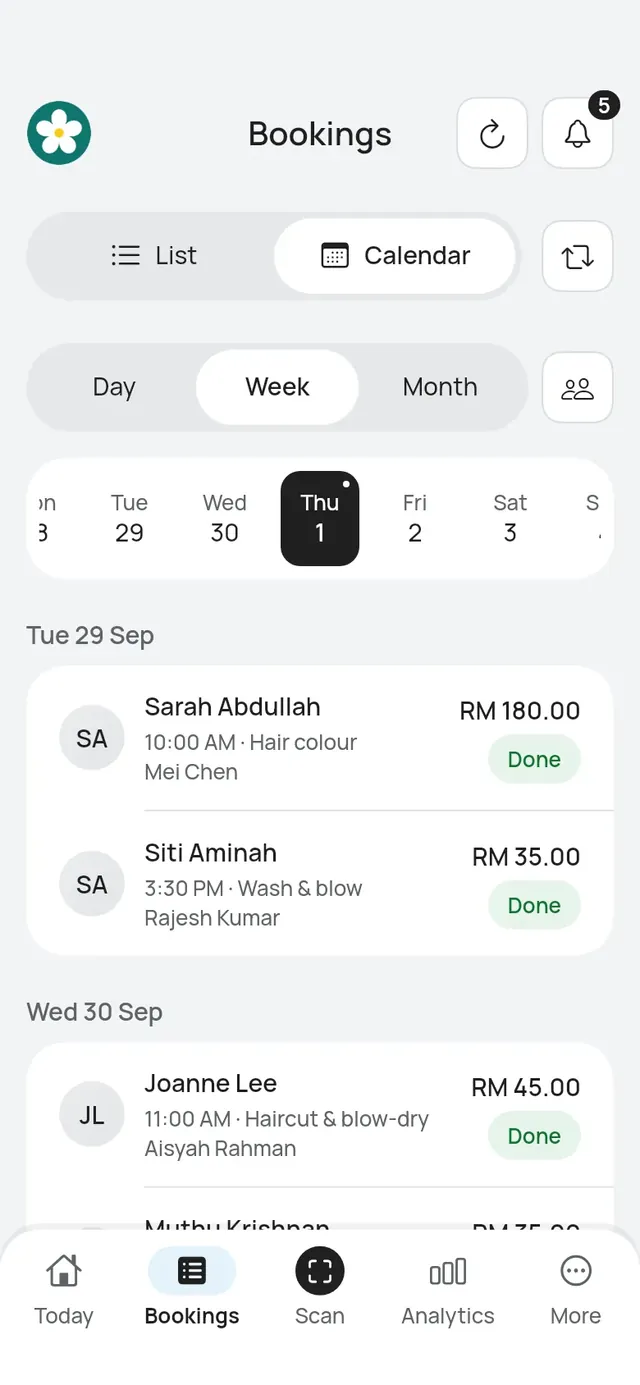
- Week lists each day’s bookings, with the price and status of each.
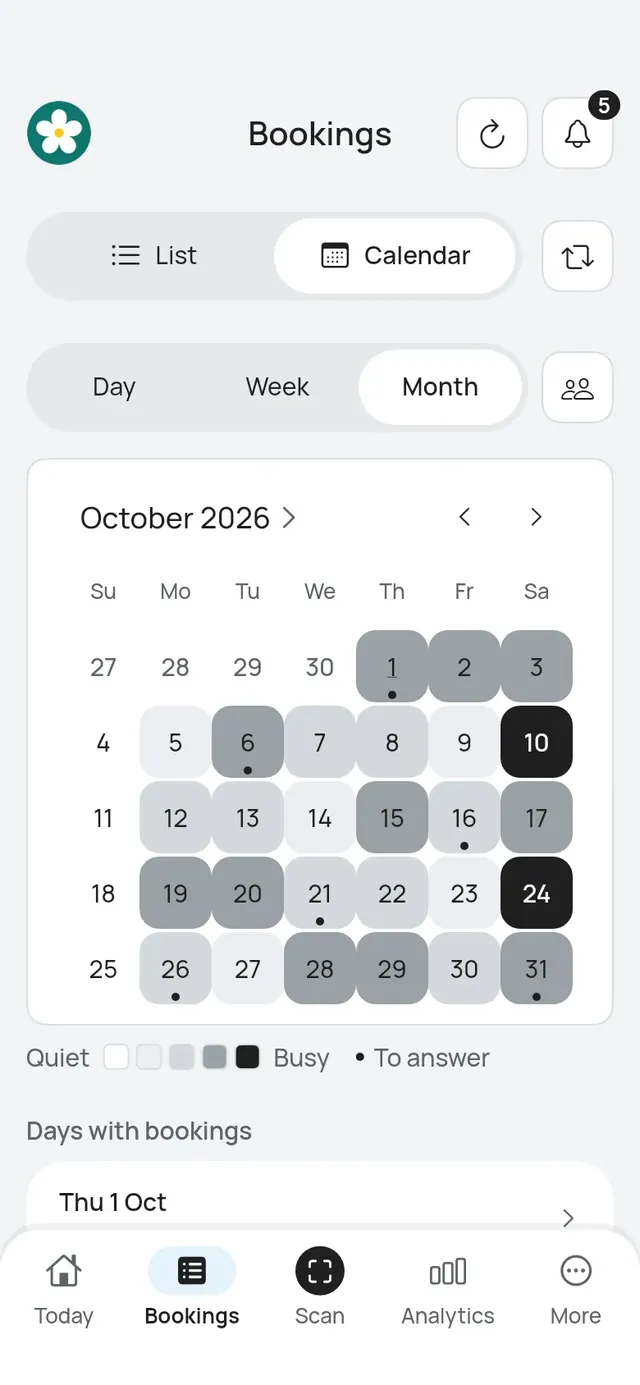
- Month shades each day from Quiet to Busy. A dot marks a day with requests to answer. The list under the calendar gives each day’s bookings.
Swipe the row of days, or tap a day, to move around. The button with the arrows takes you back to today.
Whose calendar
Owners and admins can tap the people button to choose Whose calendar: Everyone, or one person. A sports courts business also lists its Courts. Choose a court to see only that court’s day, then Show everyone to see all again.
A restaurant or café also lists All tables, then each table under its area with its seats. All tables in Day shows the table board; choose one table to see only its day. See The night by table.
Staff always see their own calendar.
On iPad
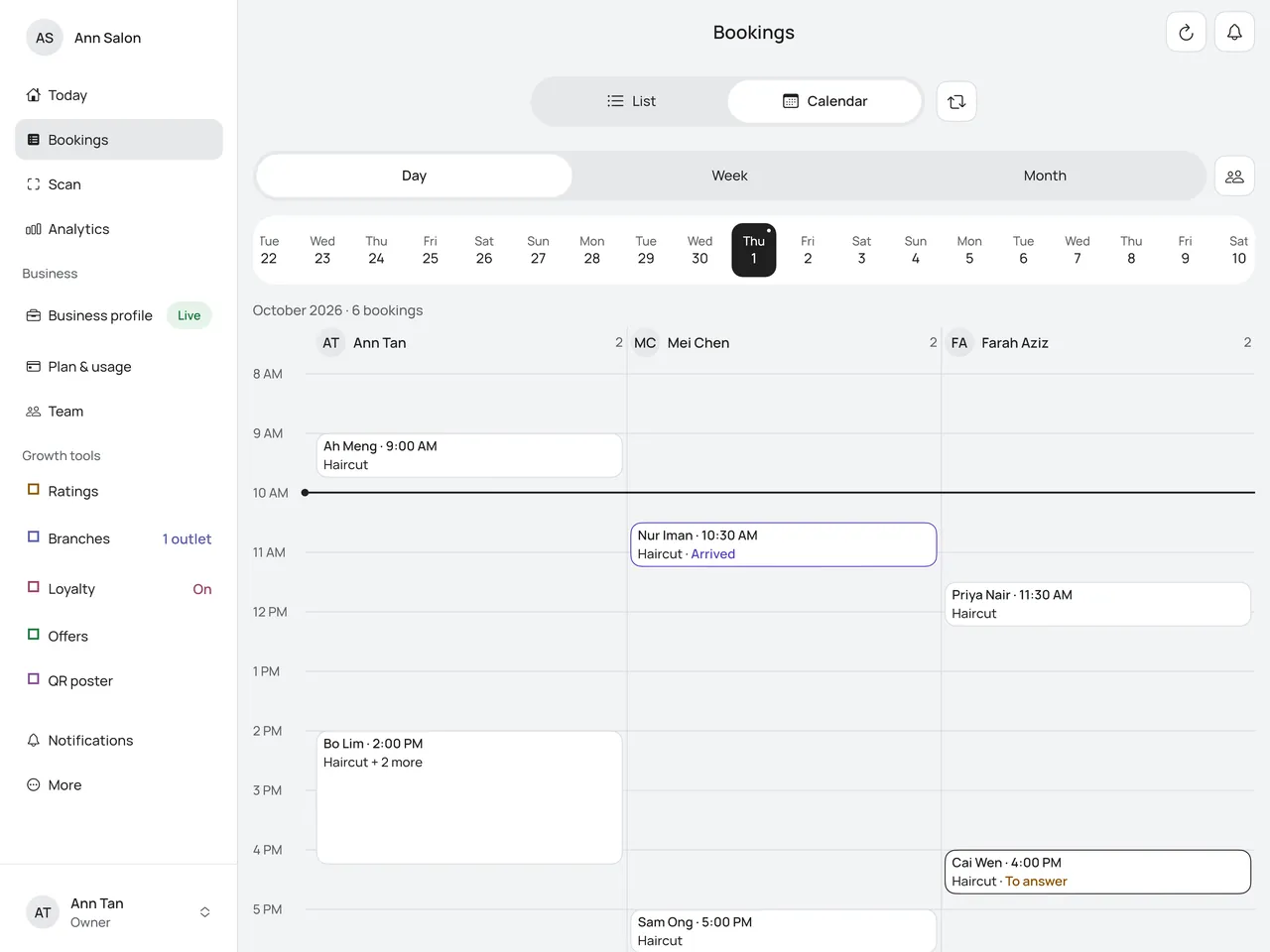
On an iPad or an Android tablet, with the app’s window wide enough, the Calendar uses the whole width, and the row of days shows more days.
In Day, Everyone shows one column for each person on your team, side by side, with their name and how many bookings they have. A sports courts business gets a column for each court too. Each booking sits in its person’s column.
- Others is a column for bookings of someone no longer on your team, so no booking is left out.
- When there are too many people for the columns to fit, the day shows the bookings side by side as on a phone.
- To see one person’s day, tap the people button and choose them.
- A restaurant or café keeps its usual view, and All tables shows the table board.
Week runs across the width. Month keeps its size in the middle.
On iPad mini held upright, the Calendar looks as it does on a phone. See On iPad.
The list
List has three tabs: Upcoming, Past and Cancelled. Search by booking number, name or phone. A name or phone search needs at least 2 characters.