New booking
Who can do this: Owner, Admin, Staff
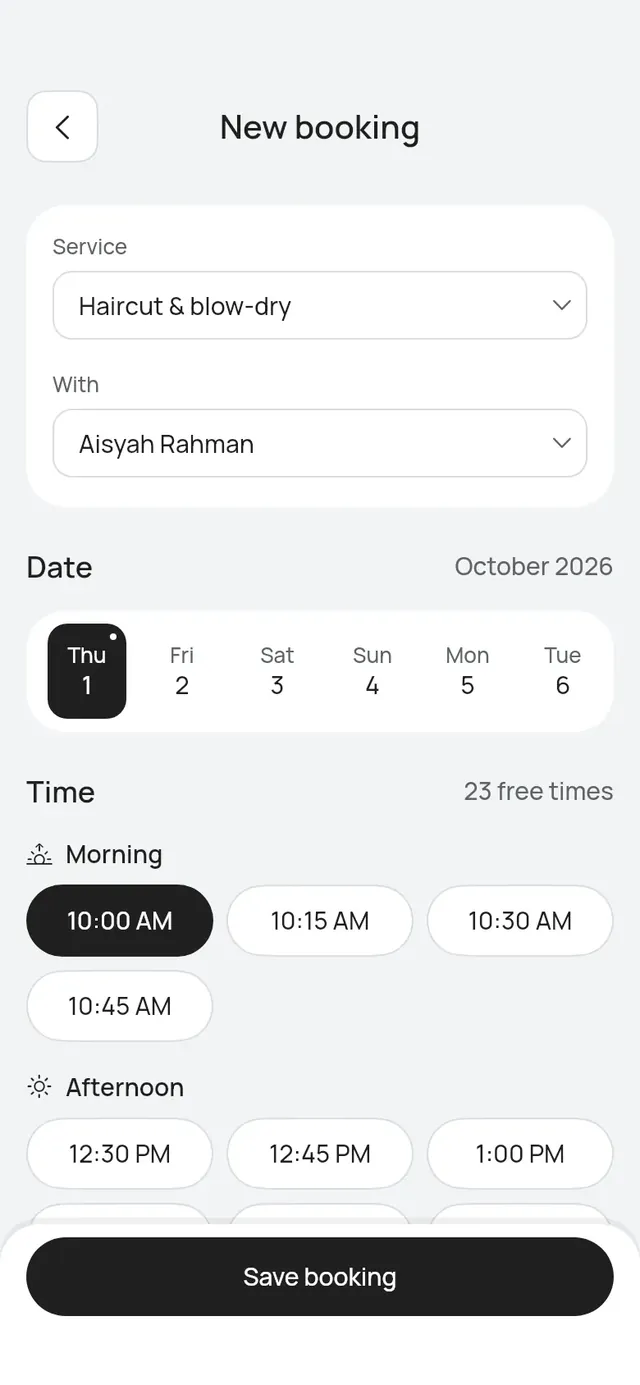
Use New booking for a walk-in or a customer who calls. Tap New booking on Today, or the + button on Bookings.
Add the booking
- Choose the Service.
- Choose who does it under With. Staff book themselves.
- Pick a day in the row of days. You can take bookings up to as many days ahead as your booking page does.
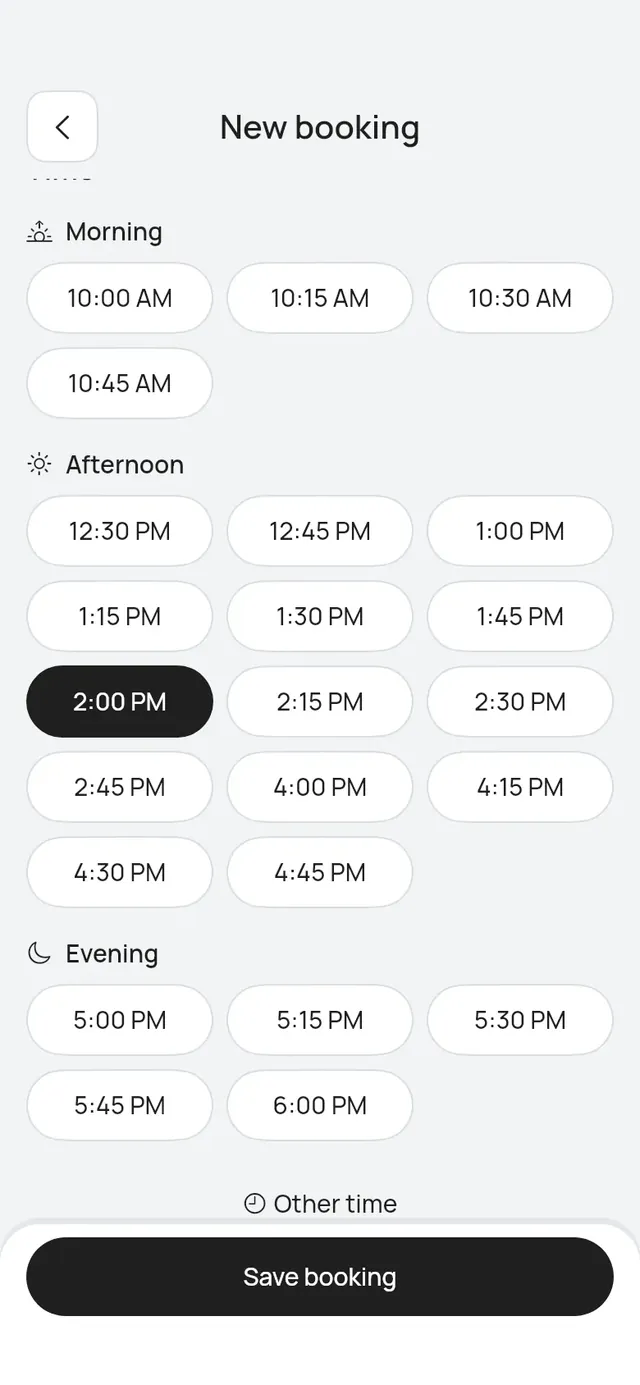
- Pick a time. Free times are grouped into Morning, Afternoon and Evening.
- Enter the Customer’s name, Country and Customer’s phone.
- Add an Email (optional). The booking confirmation goes there.
- Add a Note (optional).
- Tap Save booking.
The app says Booking saved. Tap See the day to see it in the calendar.
Several services in one visit
A customer can have up to 3 services in one booking, done one after the other by the same person.
- Choose the first service under Service.
- Tap Add another service and choose the next one under Service 2. Do the same for a third. Tap the × beside a service to take it off.
- With lists only the people who do every service you chose.
- The free times are for the whole visit, for example “Times for 2 hr in total”.
Only services done by a person, with one length and one price, can go together. Sports, tables and services priced by the hour are booked on their own. A service that would make the visit too long is not offered.
If nobody does all the services you chose, the app says Nobody here does all of these. Book them separately. Take one off, then make a second booking for it.
A time that is not in the list
Tap Other time under the free times to type any time. Switch on Outside working hours to book even when the person isn’t working then. A walk-in can start up to one hour ago, for a customer who is already in the chair.
The booking is still refused if it clashes with another booking, time off or a closure.
What the customer gets
The customer gets a confirmation by WhatsApp, or by SMS if WhatsApp does not reach them, and by email if you added one. The phone number you type is not verified by a code, so the booking shows Phone not verified (added by staff).
Before you have a service
If your business has no service yet, the app says Add a service first and offers Add a service.
Courts
A sports courts business books a sport and a court. See Courts.
A table
Who can do this: Owner, Admin
A restaurant or café books a table for a party. Staff logins don’t book tables.
- Choose Table under Service. It is already chosen when you have no other service.
- Tap how many people, from 1 to 8. For a bigger party, use More people and its + and − buttons.
- Pick a day in the row of days.
- Pick a time. Only the times when a table for the party is free are listed, for example “When a table for 4 is free · kept for 2 hr”. How long a table is kept comes from your table rules.
- Under Table, the best free table is already picked, for example Best fit: T3. Tap it to choose another free table instead. Each one shows its seats.
- Enter the Customer’s name, Country and Customer’s phone, and an Email (optional) if you like.
- Tap any Tags that apply, for example Birthday or High chair, and add a Note (optional).
- Tap Save booking. The app asks first, for example “Book a table for 4 for Aisha Rahman on Sat 10 Oct at 7:30 PM? Aisha Rahman gets a message.” Tap Book, or Cancel to go back to the form.
There is no Other time for a table: pick one of the free times. If the table you chose is booked by someone else while you are typing, the Table field says so, for example “T8 is no longer free at 7:30 PM. Choose a table.” Choose a table again before you save. If someone takes the table while you are booking, the app names the table and the time, and lists the free times again. If you just saved this booking, check the day first: it may already be on the calendar.
Branches
With two or more branches, New booking starts with Branch. See Bookings across branches.