Hours, people and prices per branch
Who can do this: Owner, Admin
Open More → Branches and tap a branch. Under Hours, people and services you set how that branch runs.
Opening hours
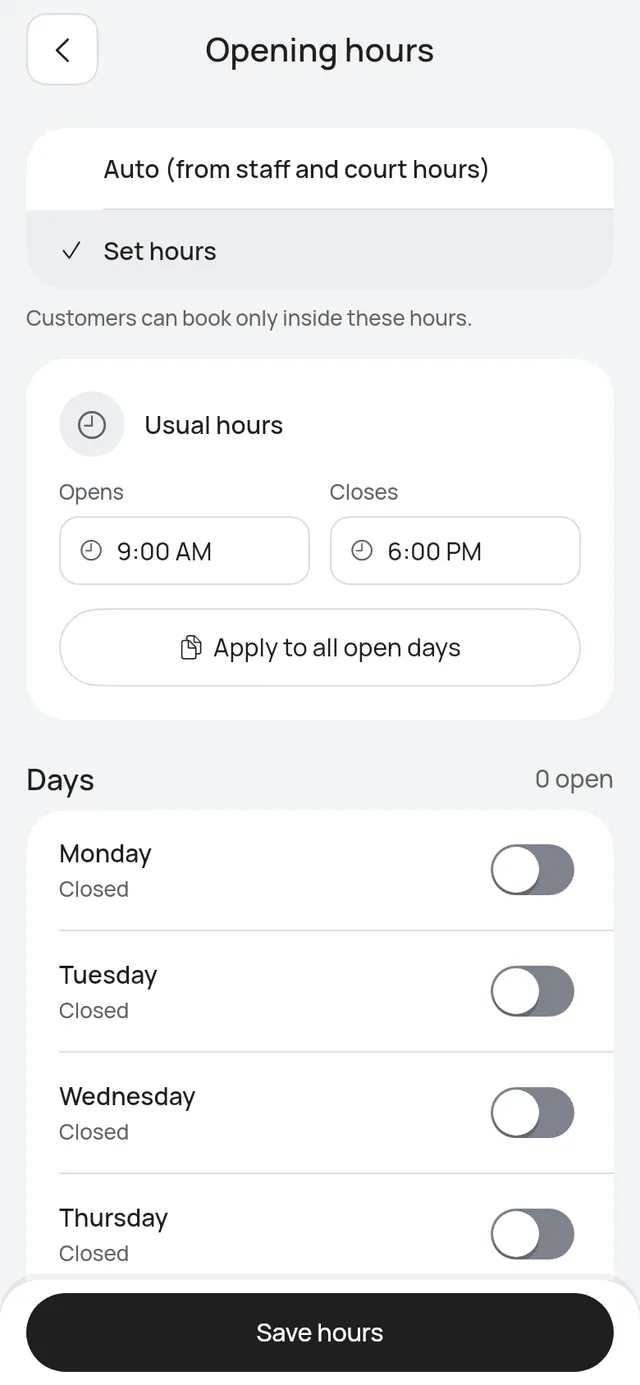
Tap Opening hours and choose:
- Auto: from your staff’s hours. Courts and tables use their own hours. The line names what your business books, for example Auto (from staff hours) for a salon or Auto (from table hours) for a restaurant. The branch is open whenever someone works here, or a court or table here is open.
- Set hours: customers can book only inside these hours. Set the Usual hours, switch each day on or off and tap Save hours.
With two or more branches, opening hours come from each branch, not from Business profile.
Closures
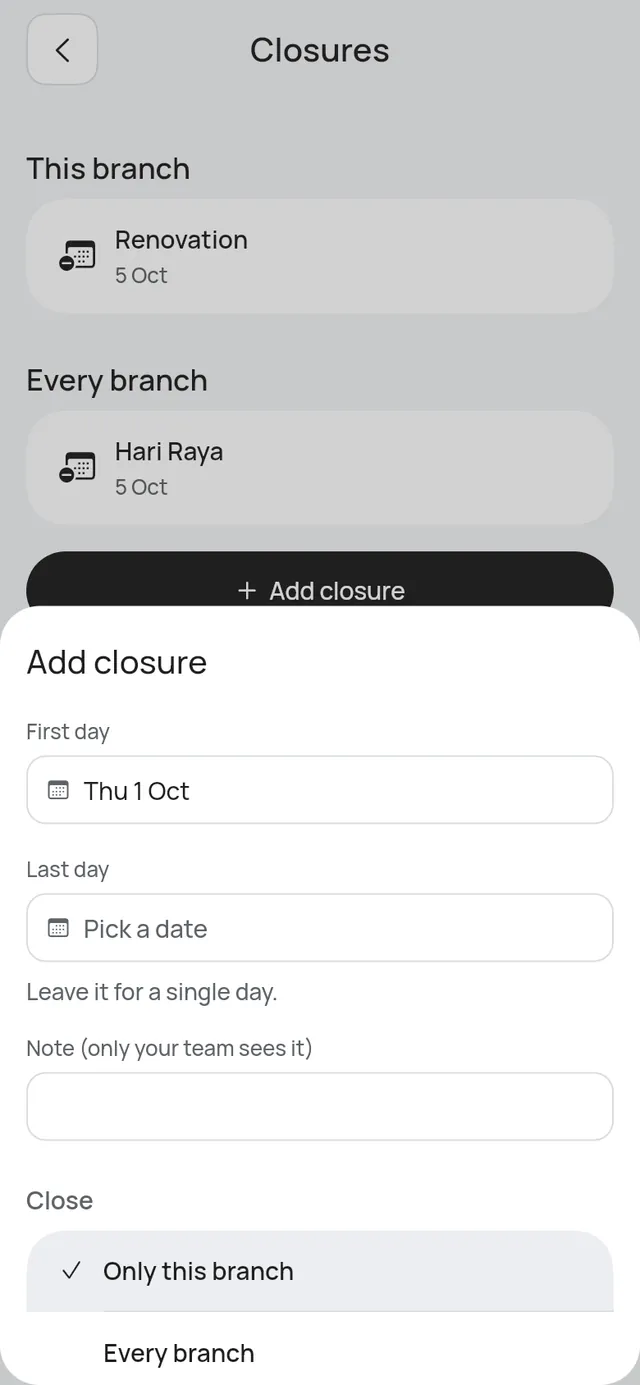
Tap Closures to see the days this branch is closed. This branch lists its own closures and Every branch lists the ones for the whole business.
Tap Add closure, pick the First day and, for more than one day, the Last day. Under Close, choose Only this branch or Every branch. Bookings already made stay.
Booking rules
Tap Booking rules. Each rule shows Same as business with a switch. Switch it off to give this branch its own value:
- Bookings need your OK
- Minimum notice
- Booking window
- Change and cancel cutoff
Switch it back on to follow the business again. Approval holds, time slots and “Anyone available” stay the same for every branch.
Staff
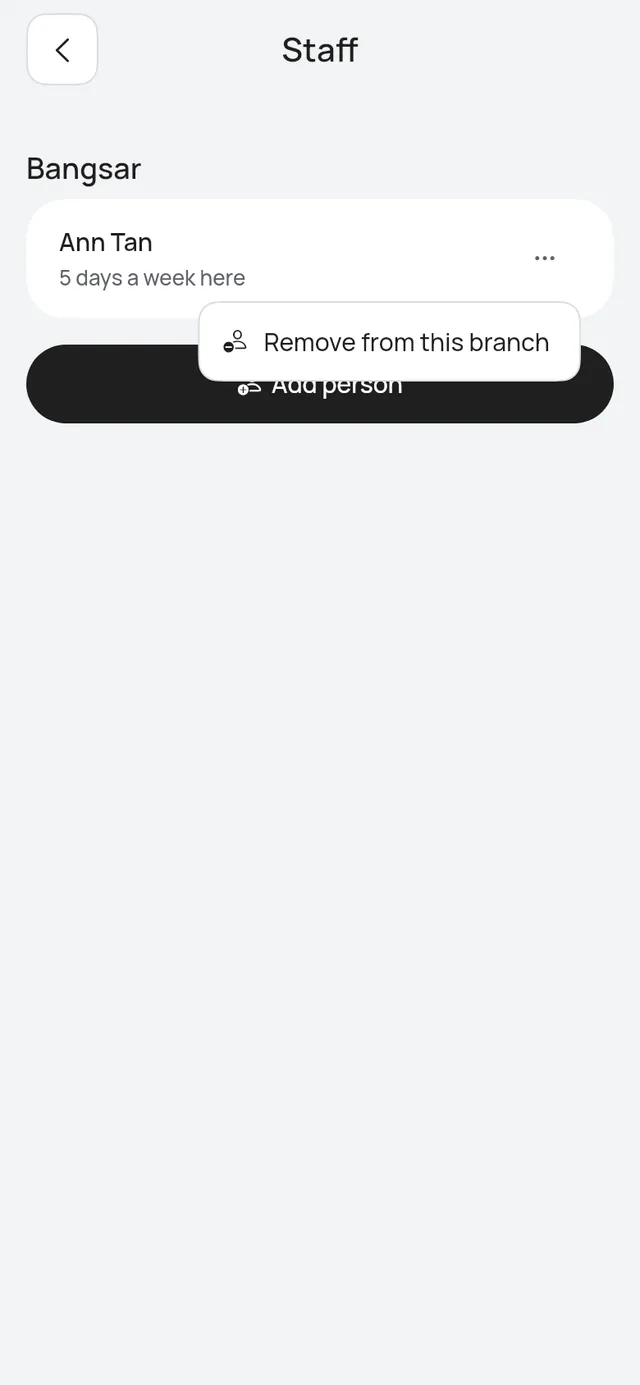
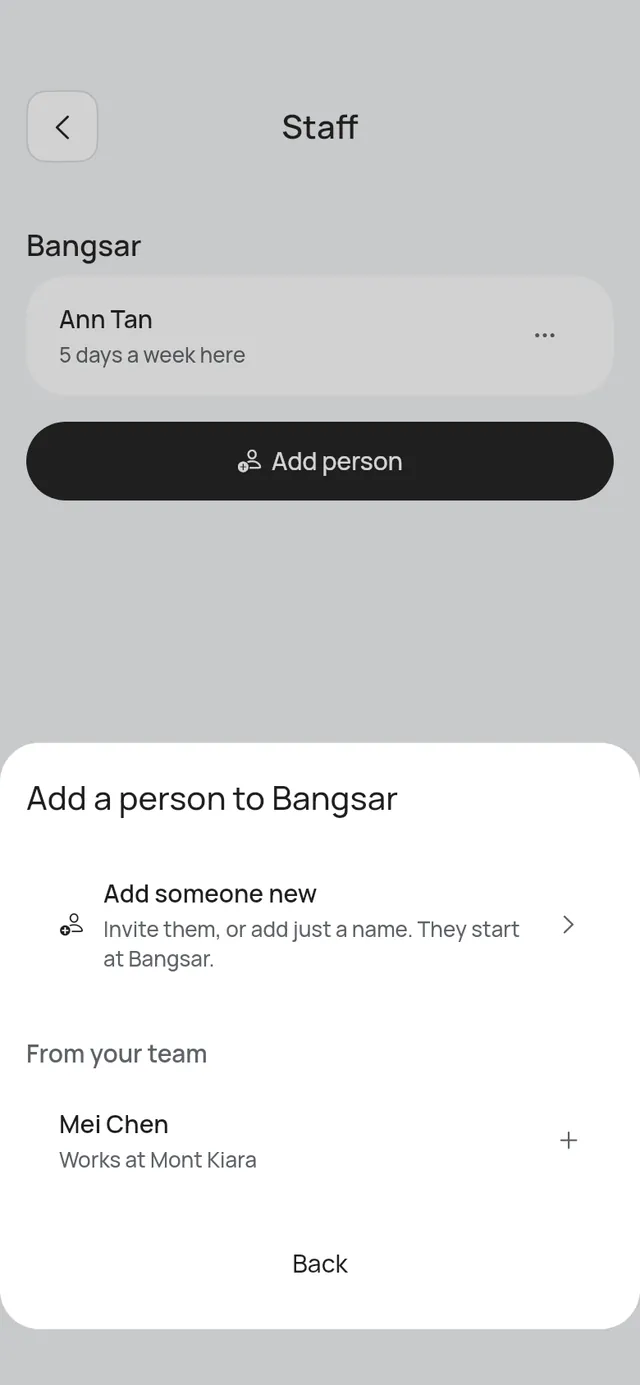
Tap Staff to see who works here, with how many days a week each person works here.
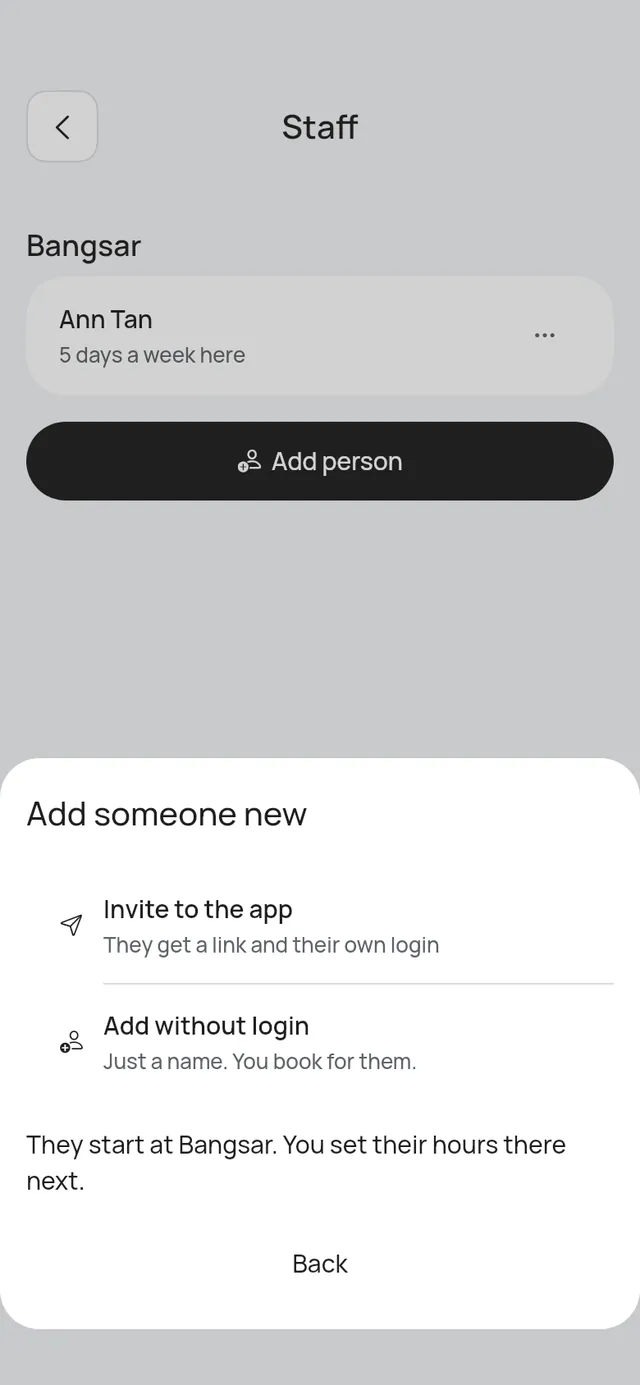
- Tap Add person. Add someone new is always first: choose Invite to the app or Add without login, as on Team. They start at this branch, and you set their hours here next. Below it, From your team lists people who don’t work here yet; tap one to add them.
- Tap … on a person and choose Remove from this branch. Their hours there are removed. Their bookings stay.
A person can work at more than one branch. On Team, a person who works at no branch yet shows Not at a branch.
A person’s hours at each branch
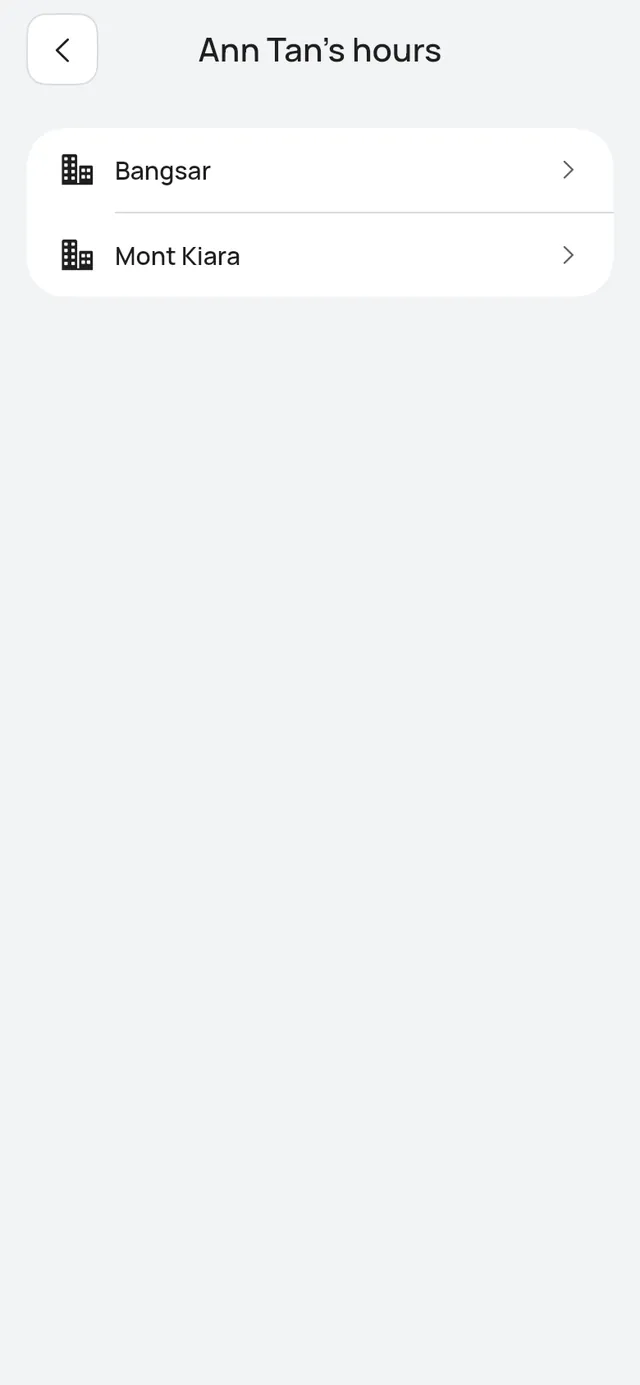
Open the person on Team and their hours. With two or more branches, you see one row per branch they work at. Tap a branch to set their hours there. Their hours at other branches show under each day, and the app stops you if two branches overlap. See Hours and services.
Services and prices
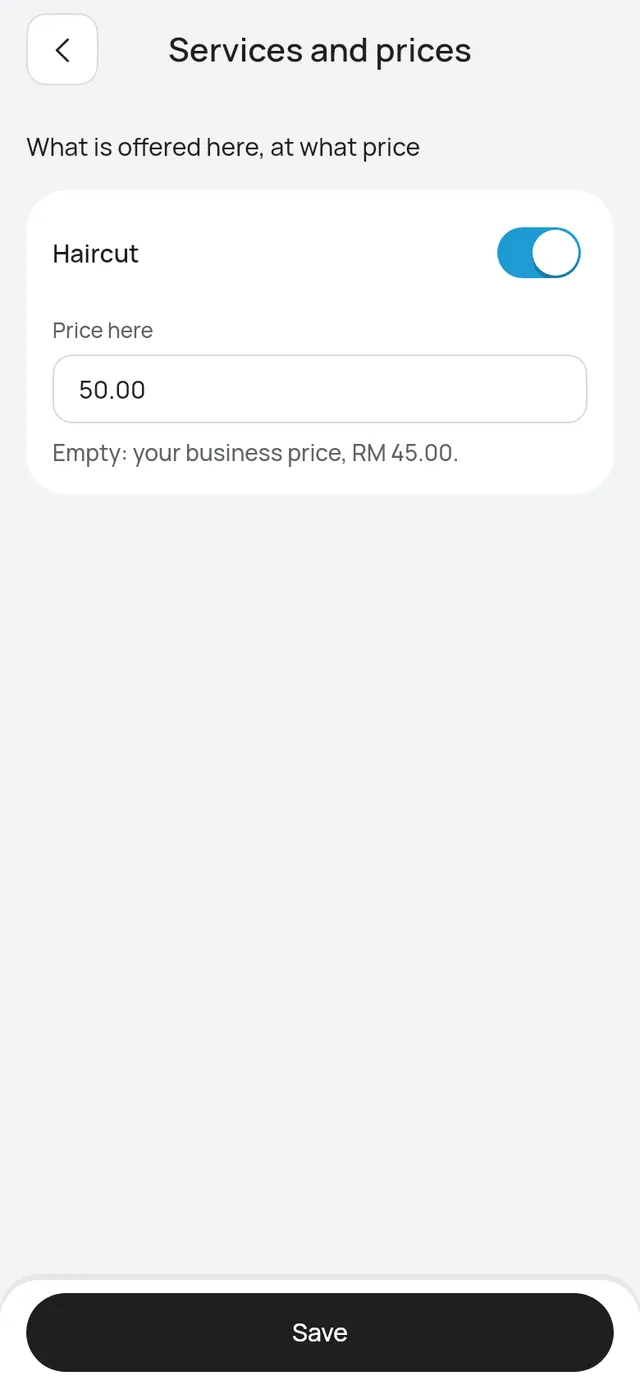
Tap Services and prices. Each service has a switch for whether it is offered here.
- Switch a service off to hide it at this branch. The app asks first. Bookings already made stay.
- Type a Price here to charge a different price at this branch. Leave it empty for your business price.
Tap Add or change services to open Services, where you add a service or change it for every branch.
Tap Save.
Courts
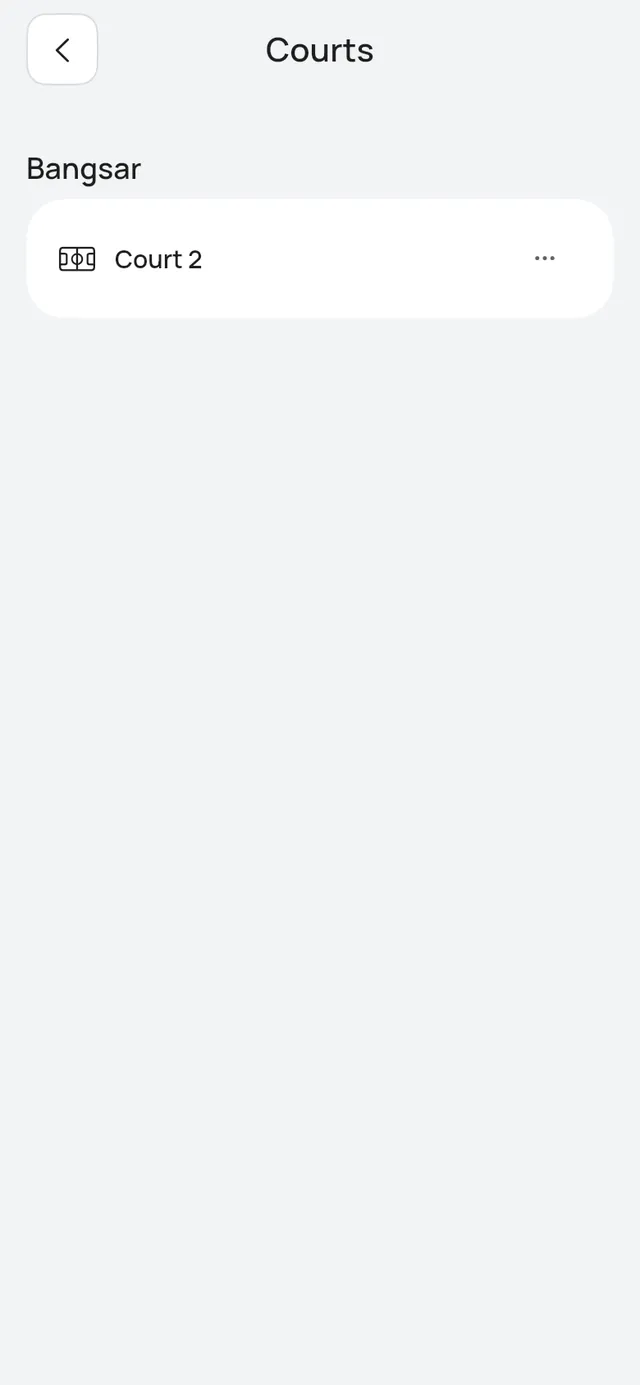
For a Sports courts business, tap Courts to see the courts at this branch. To move a court, tap … on it and choose Move to another branch, then the branch. The app asks first. The court’s hours move with it.
A court with bookings ahead can’t move. The app says This court has bookings ahead. Move or cancel them first.
A Restaurant or Café moves a table the same way: open the table in More → Tables, choose another Branch, then tap Move. Its hours move with it, and a table with bookings ahead can’t move. See Pause, move and remove a table.