Booking page
Who can do this: Owner, Admin
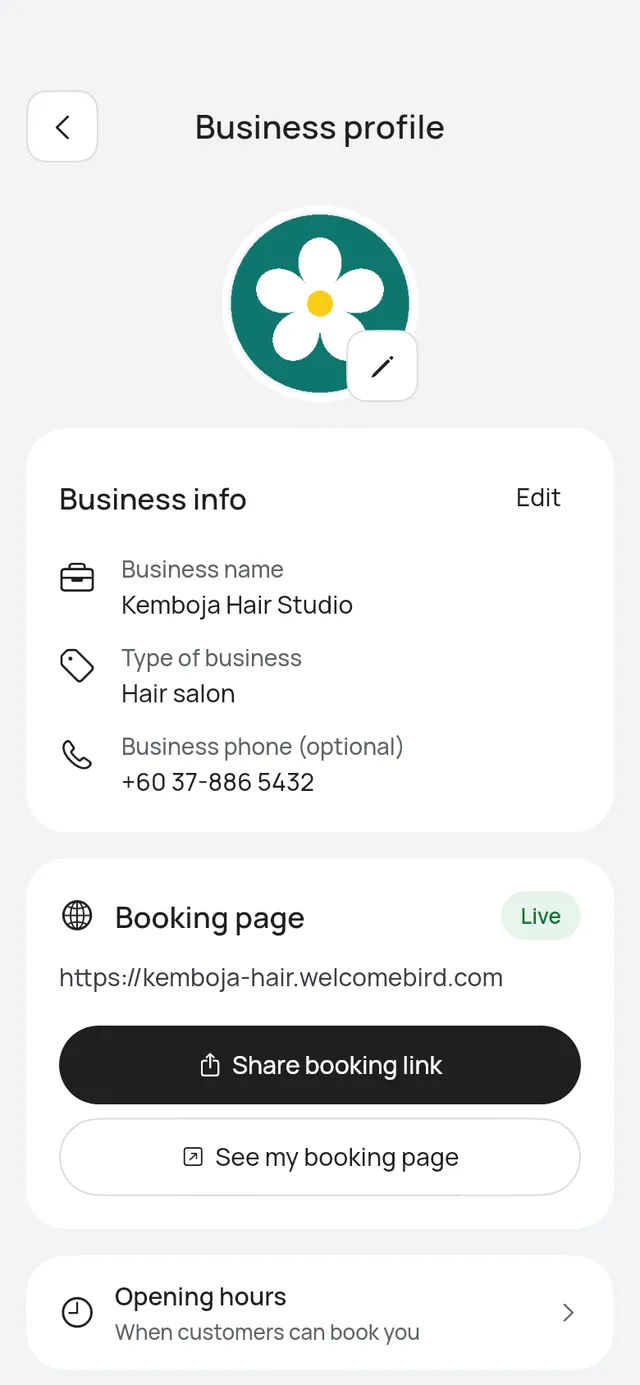
The Booking page card in More → Business profile shows your page’s address and Live or Not live yet.
- Put my page live: shows while the page isn’t live. See Go live.
- Share booking link: share the link, copy it or show the QR code.
- See my booking page: opens your page as customers see it.
Under Share your page, QR poster makes a poster or table stand with your booking QR code, or an image to share. See Print your QR poster. Share link opens the same sheet as Share booking link.
Under the card, Opening hours sets when customers can book you. See Services, opening hours and closures.
Your page’s colours, layout, cover photo, photos and service groups are in Your booking page’s look.
Template says your page’s colours and layout, such as Classic · Classic list. Your page looks as it always has until you choose another. Open it to pick the Colours (the chips show the colours for your kind of business, or Suggested, or Dark), then a Layout. A layout that needs something you haven’t added yet says so, with a link to add it, such as Add a cover photo or Make two or more service groups. The preview on top shows your page as you pick, and Show cover photo puts your cover across the top of any layout. Tap Use this template. It says Template changed, with Undo.
Cover photo says Added or Not added. Open it to add a wide photo of your place, at least 800 px on its short side. The Hero cover layout shows it at the top of your page. Tap Add a cover photo, or Change the cover photo to pick another. Changes show on your page at once. Remove the cover photo asks first: Remove the cover photo? Customers won’t see it on your booking page. Tap Remove, or Keep it.
Photos opens the pictures on your booking page. It shows when your business has one branch. With more than one branch, each branch has its own photos under More → Branches.
On the web
On the dashboard, open Booking link under Settings.
- Your booking page has the Live switch. On, it says Customers can book you online. Switching it off asks first: Turn off your booking page? Customers can’t book online until you turn it on again, and bookings already made stay. Tap Turn off, or Keep it on. Switching it on puts your page live again at once.
- Your page’s address, with Copy and Open, and the QR code with Download QR code. For a printed poster or table stand with your QR code, use QR poster in the app. See Print your QR poster.
- Change link: type a new link name. As you type it says This link is free., That link is taken. Please choose another. or That name is reserved. Please choose another. Tap Save link.
While your page is live, a new name shows Your old link stops working at once. Update it anywhere you shared it. under the field, and Save link asks first: Change your link? Your old link and any printed QR code stop working at once. No other business can take your old link for a while, so you can change back. Tap Change link, or Keep the old link. The page says Link saved.
See The dashboard.
What your page shows
Your page shows your logo and name, Book now and Find my booking, then your services with their prices, your team, your phone, your address with a map, and your social links. The team shows each person’s photo, name and About.