Booking rules
Who can do this: Owner, Admin
The rules every business starts with
These rules apply to your booking page.
| Rule | Starts as |
|---|---|
| Bookings need your OK | Off: bookings are confirmed at once |
| A request holds its time for | 2 hours |
| Customers can book up to | 60 days ahead |
| Customers can book from | 1 hour ahead |
| Customers can change or cancel until | 24 hours before |
| Start times every | 15 minutes |
| Customers choose a staff member | On |
| Customers can choose Anyone available | On |
| Upcoming online bookings per customer | 3 (not changed in the app) |
Bookings you add yourself in the app don’t count toward the limit of 3. They can start up to one hour ago, and you can book outside working hours. They can’t go further ahead than the booking window.
Change a rule
Open More → Business profile → Booking rules. Tap a rule and pick a value. It saves at once.
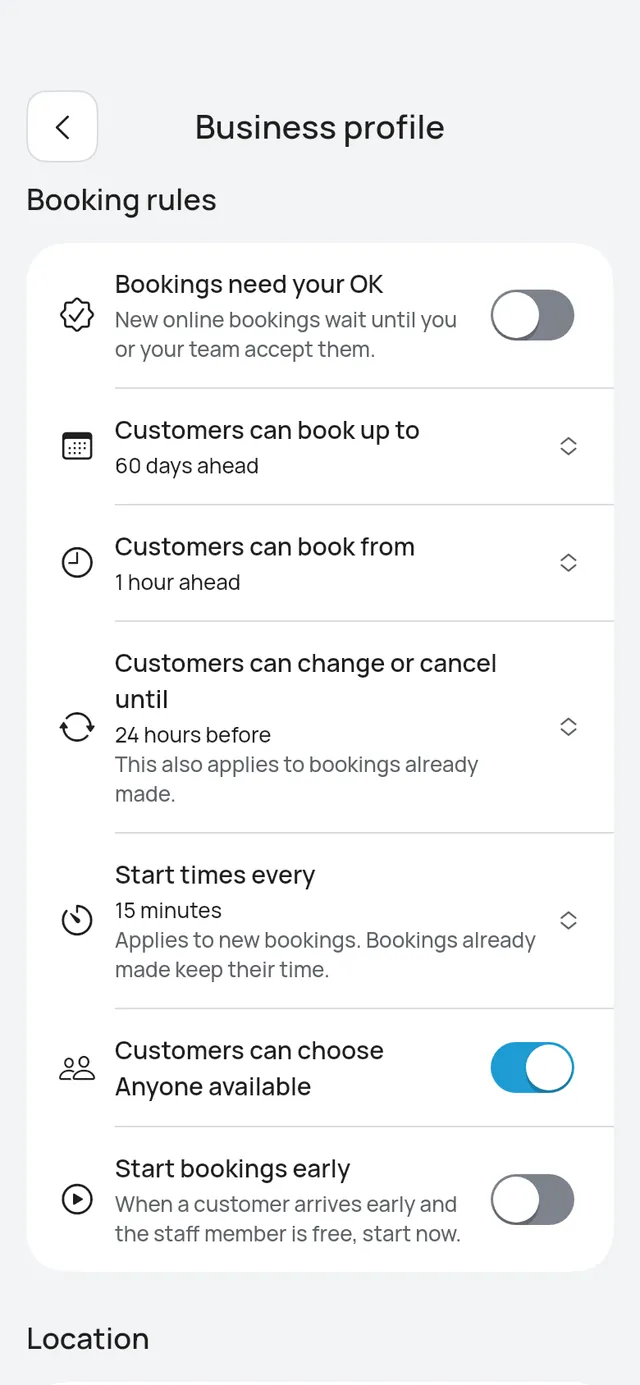
On the web, open Booking rules under Settings on the dashboard.
Change a rule on the web
On the dashboard, open Booking rules under Settings. The same rules, in the same words, each with a switch or a list. A change saves at once and says Booking rules saved under the rules. Turning Bookings need your OK on and making the cutoff longer ask first, as in the app.
Each change starts from the rules as they are saved now, so a change made meanwhile in the app is kept. At a restaurant or café, the page also shows which parties need your OK, such as Parties of 8 or more need your OK, with Set in the app under Table rules.
Bookings need your OK
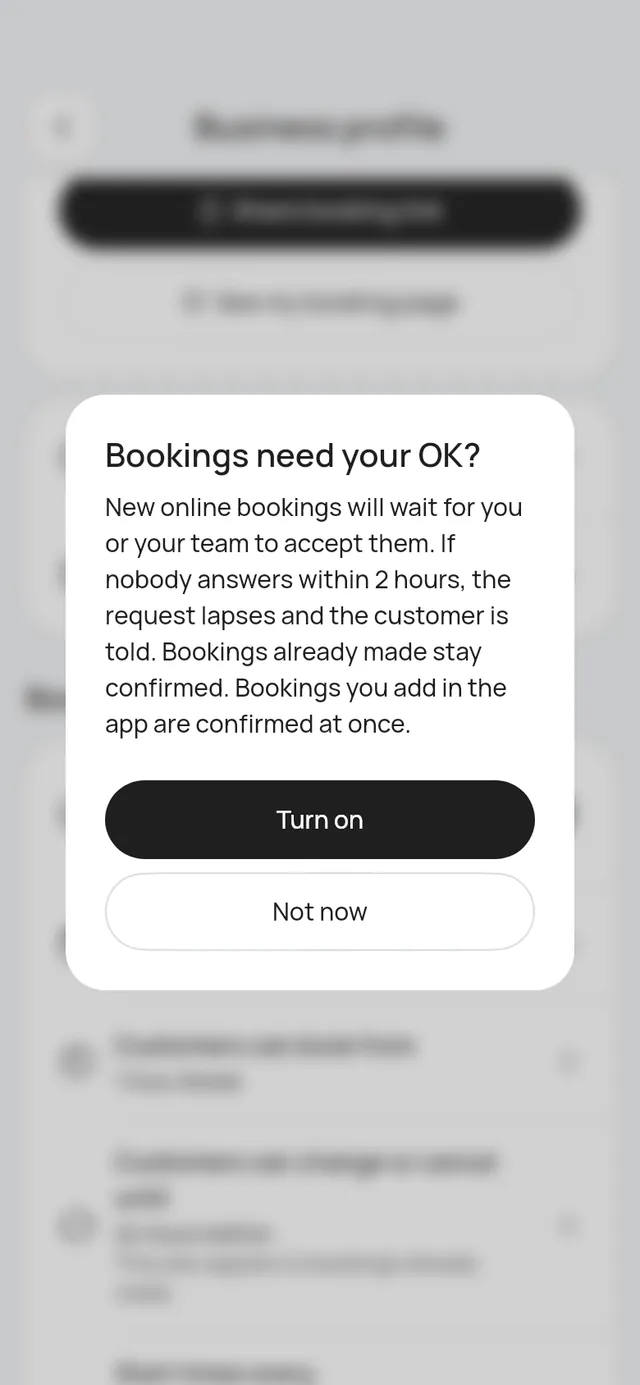
Starts off. Switch it on and new online bookings wait for you or your team to accept them.
More about Bookings need your OK
Off by default. Switch it on and the app asks first. New online bookings then wait for you or your team to accept them. If nobody answers within the hold time, the request lapses and the customer is told. Bookings already made stay confirmed. Bookings you add yourself in the app are confirmed at once.
Switch it off and new online bookings go straight to confirmed. Requests already waiting still need your answer.
A request holds its time for
Starts at 2 hours. How long a request’s time is held before it lapses.
More about A request holds its time for
Shown only while Bookings need your OK is on. This is how long a request’s time is held before it lapses. It applies to new requests only.
Customers can book up to
Starts at 60 days ahead. How far ahead customers can book online.
More about Customers can book up to
How far ahead customers can book online. This applies to new bookings and new searches. Bookings already made keep their time.
Customers can book from
Starts at 1 hour ahead. How soon customers can book online.
More about Customers can book from
How soon customers can book online, the minimum notice. This applies to new bookings and new searches. Bookings already made keep their time.
Customers can change or cancel until
Starts at 24 hours before. This one applies to bookings already made too.
More about Customers can change or cancel until
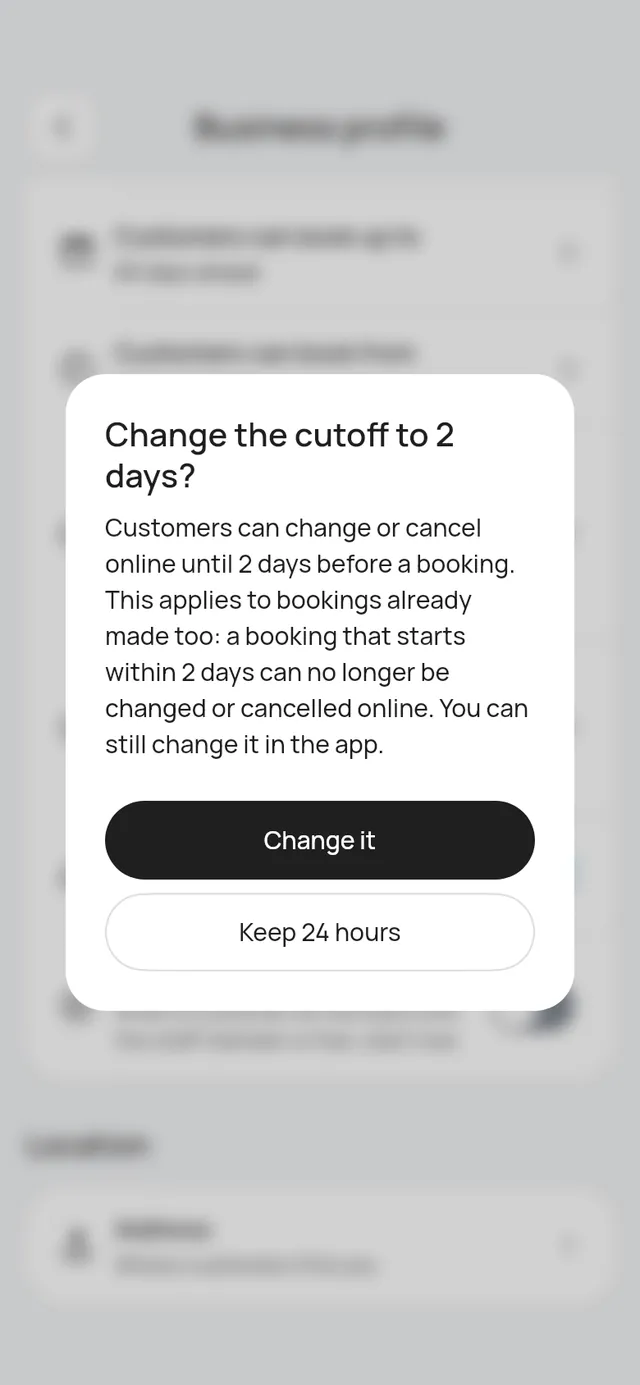
This applies to bookings already made too. Raising it stops online changes and cancels for a booking that starts within the new time, even one made under the old rule. You can still change it in the app. The app asks first when you make it longer, and says so: tap Change it to go ahead, or Keep 24 hours (the time you had) to leave it as it was.
Lowering it needs no question. It saves at once, and customers get more time right away.
The time a customer’s own booking page shows (“You can change this until…”) moves with the rule too.
Start times every
Starts at 15 minutes. The gap between the start times customers see.
More about Start times every
The gap between the start times customers see when they search for a free time. This applies to new searches. Bookings already made keep their time.
Customers choose a staff member
Starts on. Switch it off and your booking page has no Staff step: we give each booking to a free person who does the service.
More about Customers choose a staff member
On by default: customers pick a person, or Anyone available when you allow it. Switch it off and your booking page skips the Staff step. Customers pick the service, then a time from everyone who does that service. We give the booking to a free person who does the service: the one with the fewest bookings that day, then the first in your team order. The confirmation still says who, and so does the app.
While it is off, Customers can choose Anyone available doesn’t show and isn’t used. Its setting is kept: switch this back on and it works as before.
When a customer moves a booking online while it is off, they keep the same person when that person is free at the new time. Otherwise the booking goes to another free person who does the service. You and your team still choose the person for bookings you add or move in the app.
Bookings already made don’t change. At a sports-courts business this rule doesn’t show: it is about people, not courts. See How customers book.
Customers can choose Anyone available
Starts on. Customers can pick Anyone available instead of a staff member.
More about Customers can choose Anyone available
On by default. Customers can pick Anyone available instead of a staff member. Switch it off and customers must pick a person. This applies to new bookings. It shows only while Customers choose a staff member is on.
At a sports-courts business this rule doesn’t show: a court is never a person, so there is no “anyone” to offer.
Start bookings early
Starts off. Switch it on and your team can start a booking now when the customer arrives early.
More about Start bookings early
Under Booking rules in More → Business profile, switch on Start bookings early. When a customer arrives early and the staff member (or the court) is free, your team can tap Start now. At a restaurant or café the line reads “When a customer arrives early and their table is free, start now.”: the table must be free until the booking would end, and any extra tables it holds move with it. It is off until you turn it on. See Start bookings early.
Branches
A branch with its own rule keeps it. A business-wide change reaches only the branches that follow the business. See Branches.