Location
Who can do this: Owner, Admin
- Open More → Business profile.
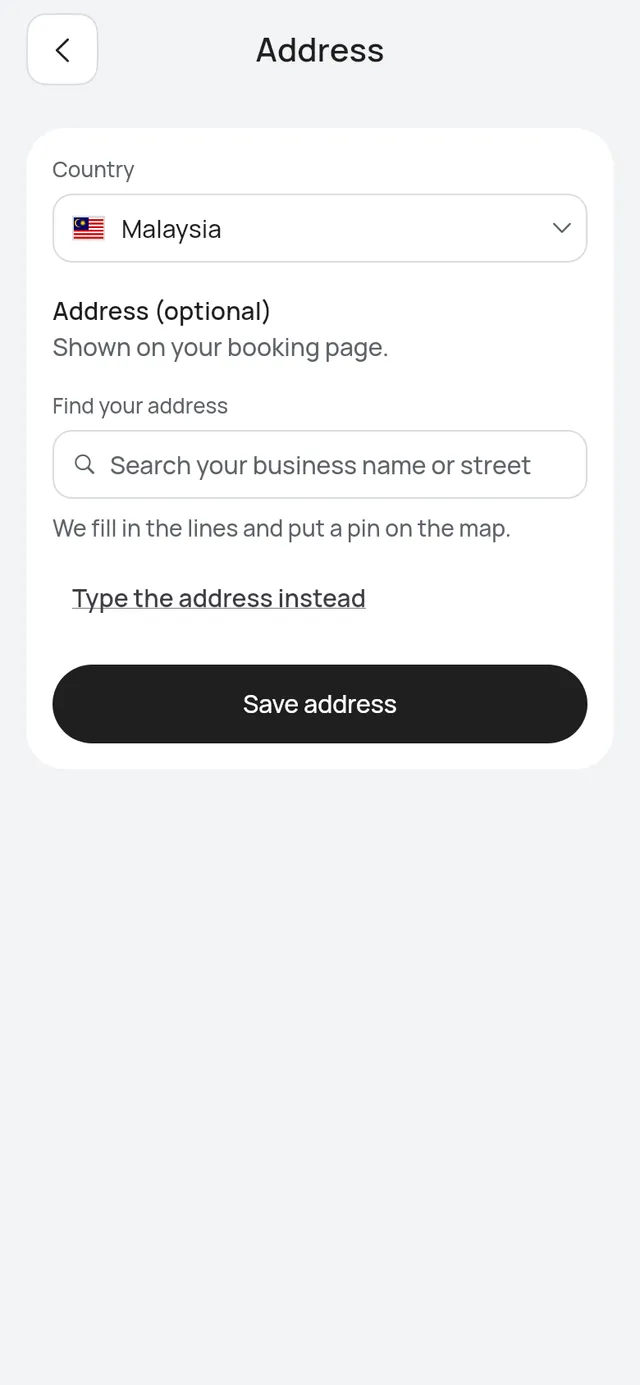
- Under Location, tap Address.
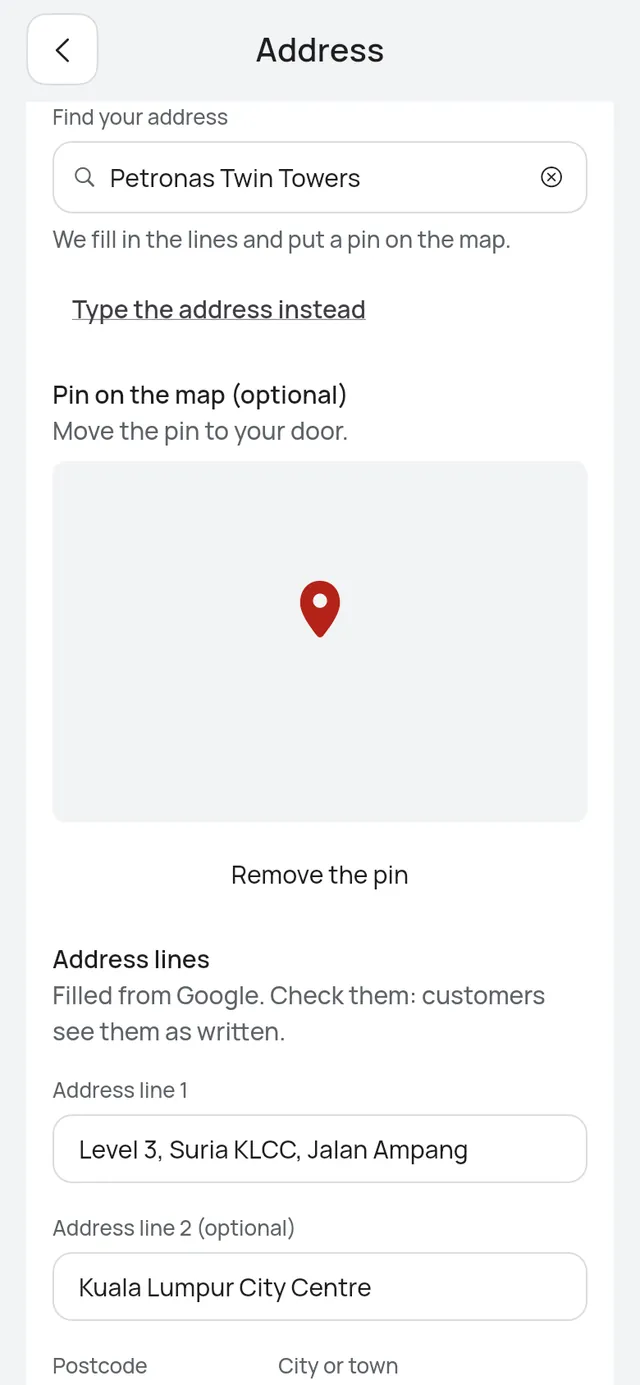
- Type your business name or street in Find your address and tap a result. The address lines fill in and, on a phone, the map shows a pin there.
- On a phone, drag the pin to your door if it isn’t there already.
- Check the lines under Address lines, and fix any that are wrong. Customers see them as written.
- Tap Save address.
Typing the address yourself
Tap Type the address instead at any time, or Type the address when the search says No match. Fill in Address line 1, Address line 2 (optional), Postcode, City or town and State. Anything you already filled stays. To search again, tap Search for it instead.
On a phone you can add a pin too: tap Add a map pin. A pin appears in the middle of the map; move the map until it sits on your door. The pin is saved only once you have moved the map. It is optional, and moving it never changes the lines. Remove the pin takes it off and closes the map.
When you open an address you saved before, it opens on its lines and its pin.
If the search isn’t available, the screen shows the lines only. The web preview has no map.
Customers see the address on your booking page and in their WhatsApp messages and emails, with Open in Google Maps.
To take it off, tap Remove the address, then Remove. Customers won’t see it on your booking page.