Profile
Who can do this: Owner, Admin
Business info
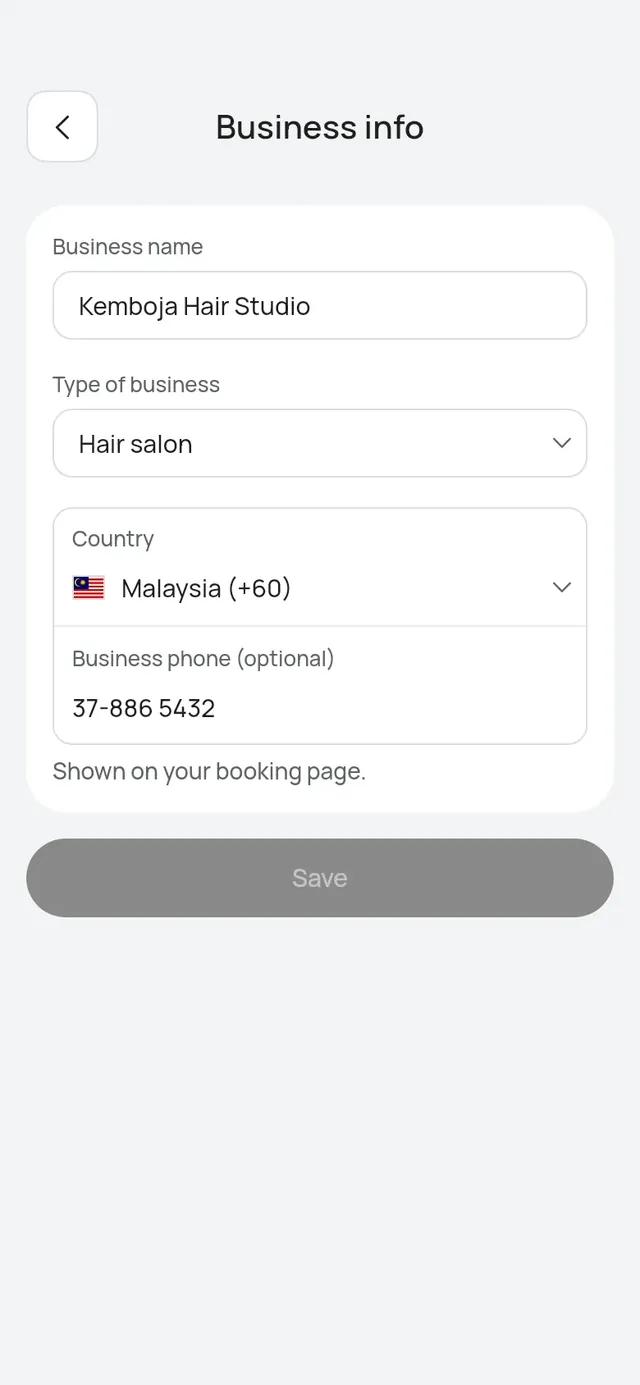
- Open More → Business profile.
- Next to Business info, tap Edit.
- Change the Business name, the Type of business, the Country or the Business phone (optional). Customers see the phone on your booking page.
- Tap Save.
The app says Business info saved.
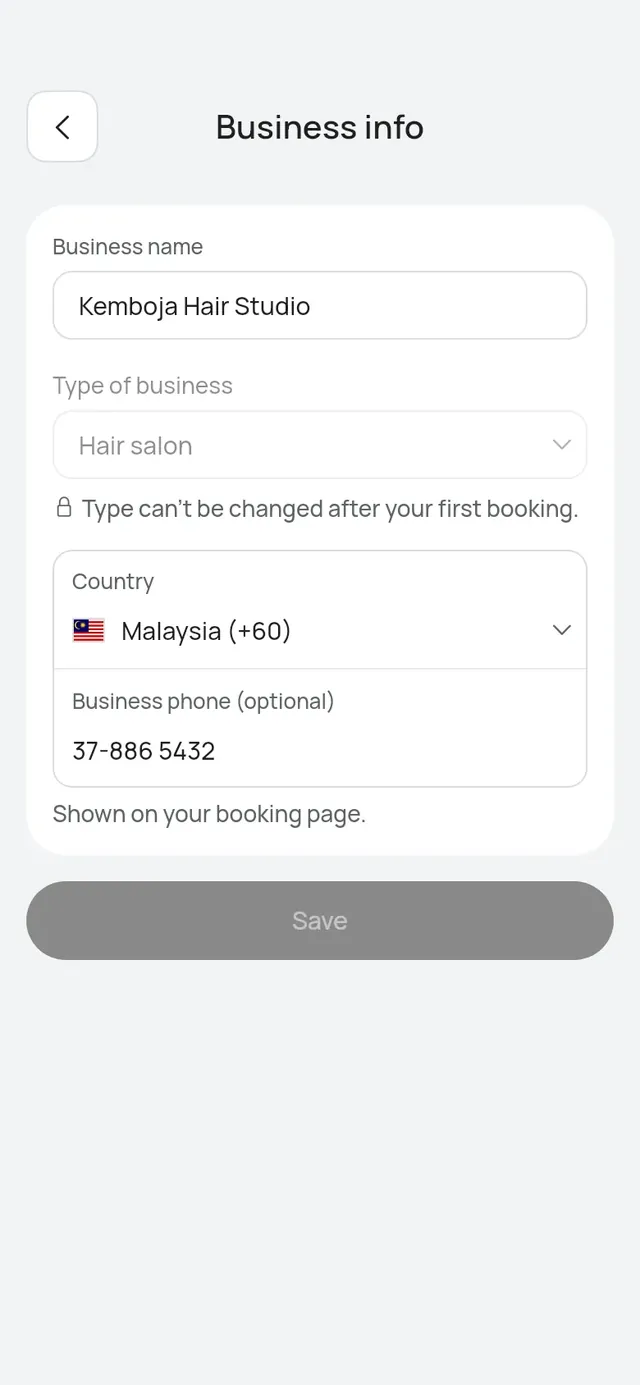
You can’t change the type after your first booking. The field shows “Type can’t be changed after your first booking.” Write to support@welcomebird.com if you chose the wrong type.
On the web
On the dashboard, open Business details under Settings. Change the Business name, the Type of business or the Business phone (optional), then tap Save details. The page says Details saved.
- After your first booking the type can’t be changed here either: it shows “Type can’t be changed after your first booking.”
- Time zone and Currency show but can’t be changed. Ask us if this needs to change. opens Help and support.
- Your address and logo are changed in the app.
See The dashboard.
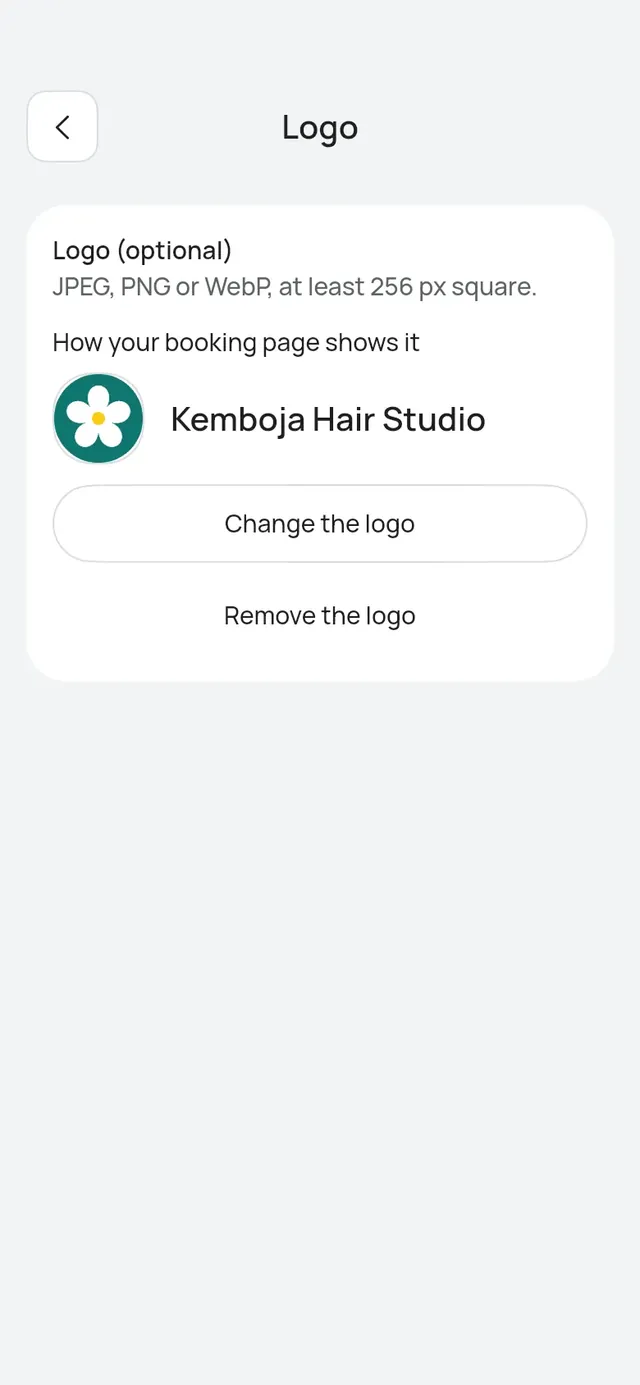
Logo
Tap the logo, or your initials, at the top of Business profile.
- Add a logo or Change the logo: choose a JPEG, PNG or WebP picture, at least 256 px square. How your booking page shows it shows a preview. Tap Save logo.
- Remove the logo: your booking page shows your name without it. The app asks first.