Print your QR poster
QR poster
Who can do this: Owner, Admin
Open More → QR poster (in Growth tools), or More → Business profile → Share your page → QR poster. If you have more than one branch, choose the Branch at the top: each branch has its own poster and its own link.
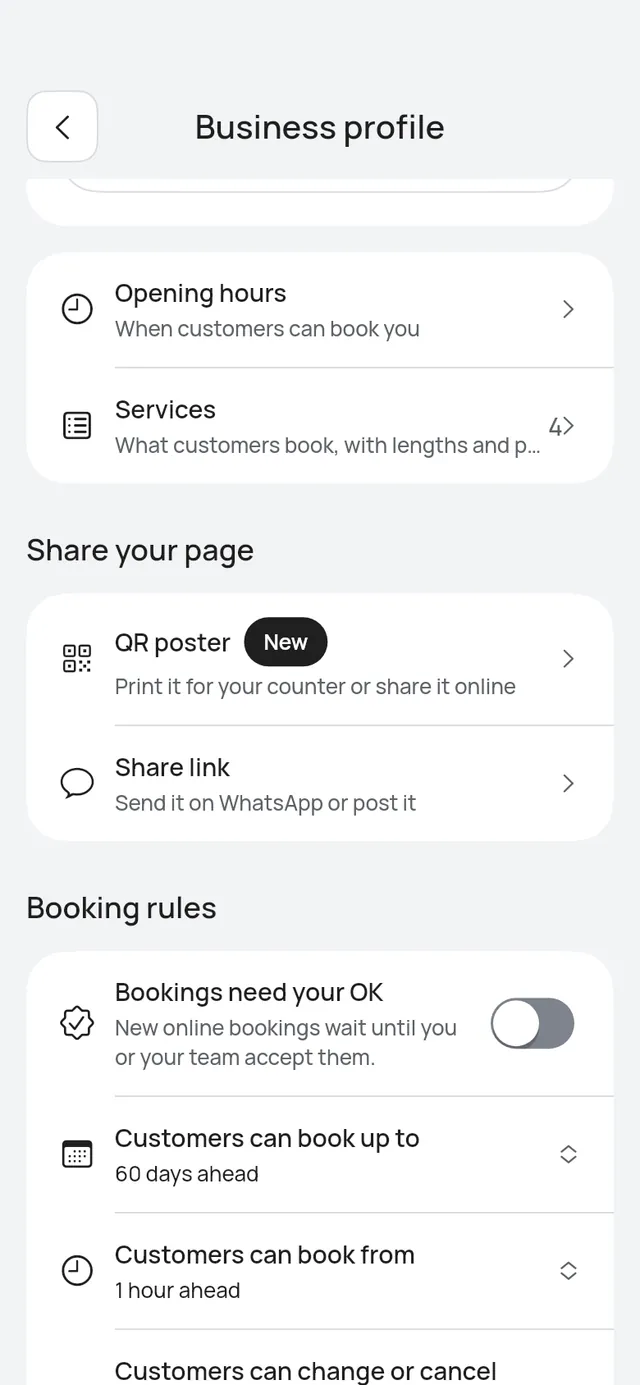
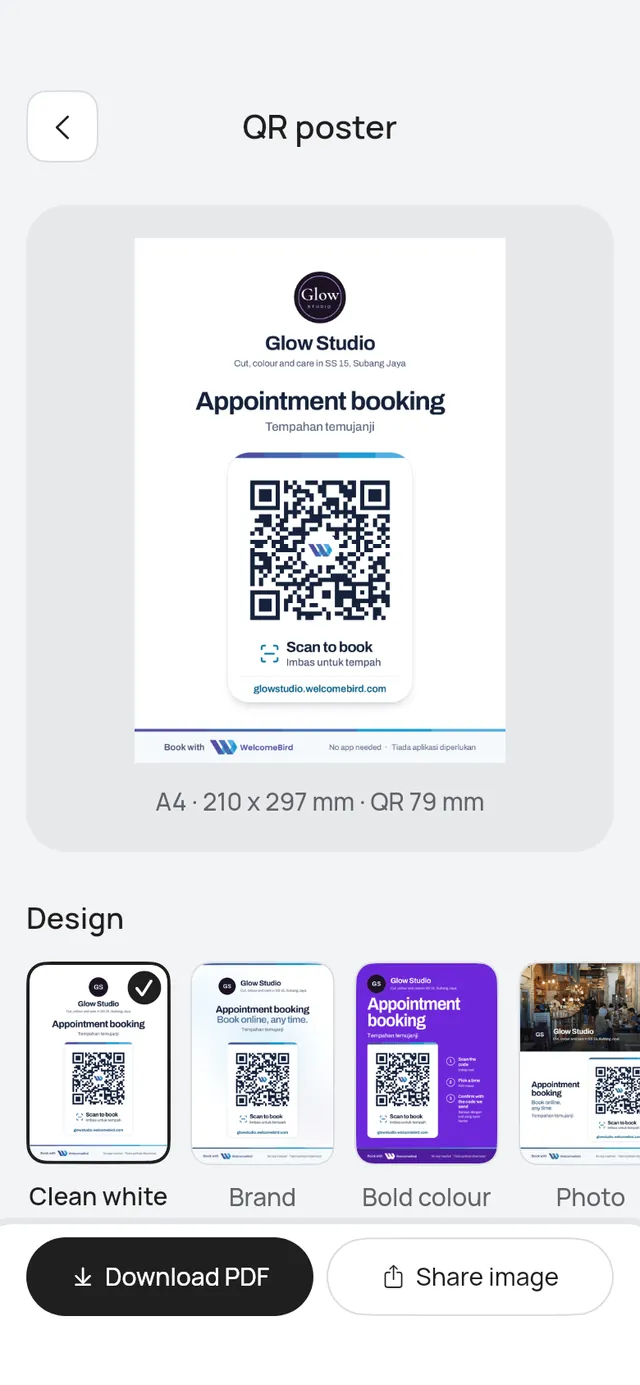
It is also on the web: on the dashboard at app.welcomebird.com, open Settings → QR poster (or Make a poster with this QR on Booking link). It has the same choices, and the poster you save on one shows on the other. On the web, Download PDF and Download image save the file to your computer.
Choose how it looks
- Design: Clean white, Brand, Bold colour, Photo, Elegant or Plain QR. Photo uses your booking page’s cover photo. Without one, it says Add a cover photo first.
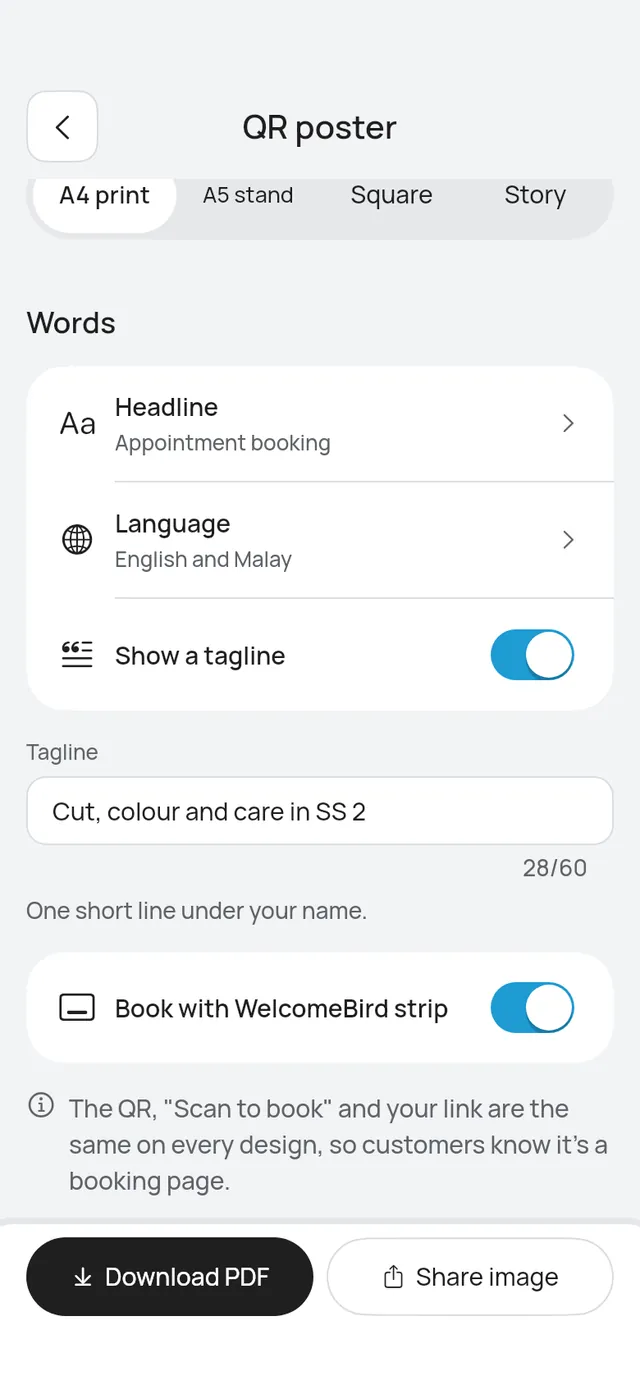
- Size: A4 print and A5 stand are for printing (A5 fits the usual acrylic table stands). Square and Story are images for WhatsApp, Instagram and Facebook.
- Headline: pick one made for your type of business, or Write my own (up to 28 letters in each language).
- Language: English and Malay, English only or Malay only. It changes the headline, “Scan to book”, the steps on Bold colour and the bottom line.
- Show a tagline: a short line under your name. Turn it off if you don’t want one.
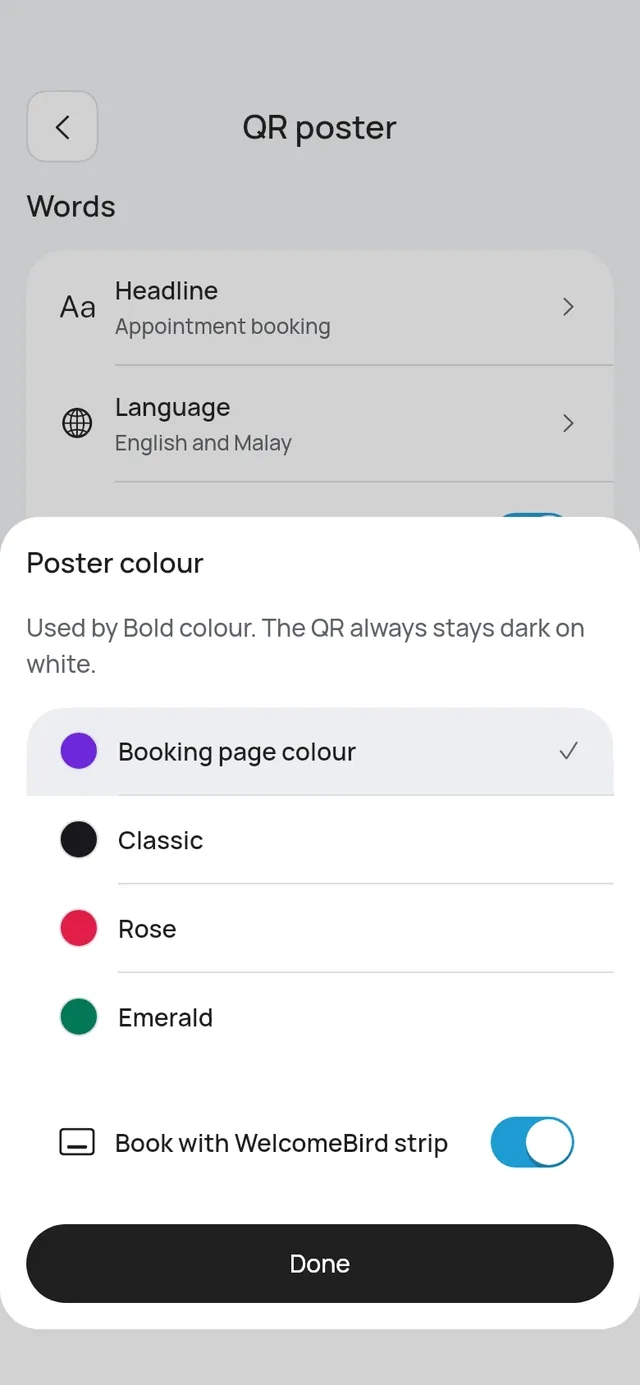
- Colour (Bold colour only): Booking page colour or another preset. Very light colours are darkened a little so the words stay easy to read.
- Show https://: off, the link under the QR reads like
yourshop.welcomebird.com. Turn it on to print it ashttps://yourshop.welcomebird.com. The QR code opens your page either way. This switch is for the files you make now and is not saved with your poster.
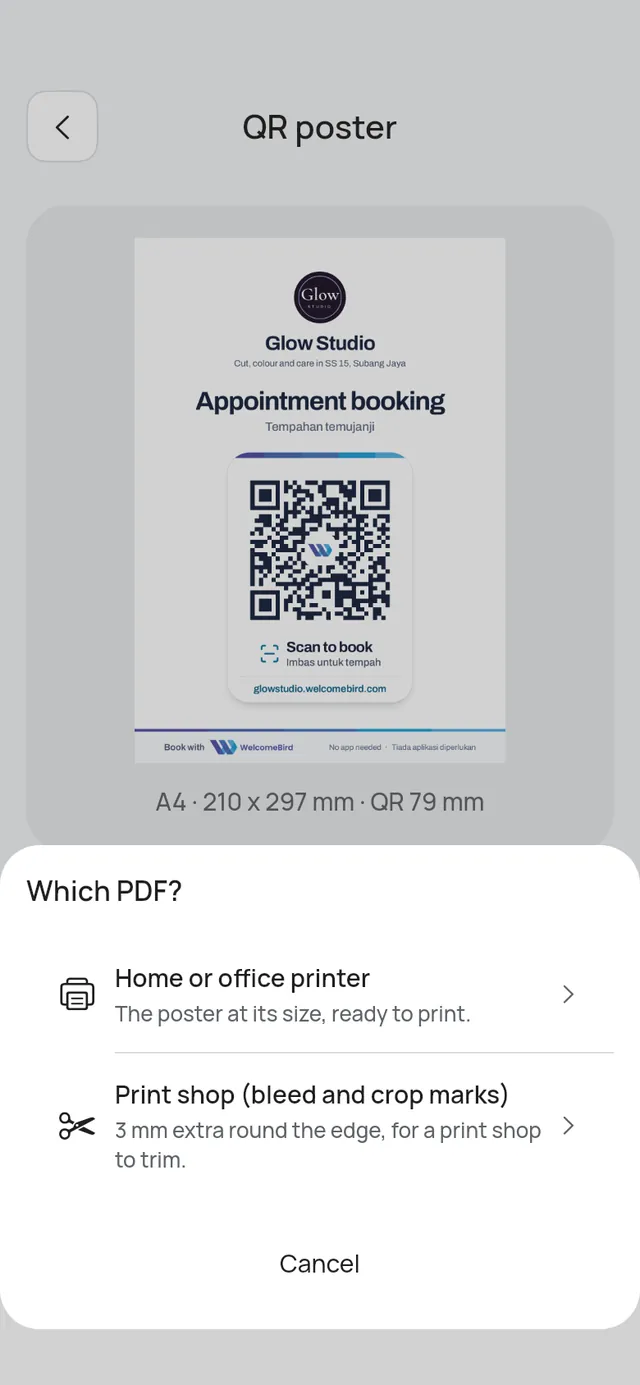
The preview under the title shows the poster as it will print, with its size, for example A4 · 210 x 297 mm · QR 79 mm. Your choices are saved for each branch, so the next time it opens on the same poster.
Tap the preview to see it full screen and zoom in. Pinch, or double-tap, to zoom in and out, and tap Close to go back.
Print it
Tap Download PDF, then choose:
- Home or office printer: the page as it is.
- Print shop (bleed and crop marks): with 3 mm extra around the edges and crop marks. Give this one to a print shop.
Keep the QR code at least 4 cm wide. Printed colours can look a little different from your screen.
Share it
Tap Share image and pick WhatsApp, Instagram, Facebook, or save it to your phone. Square and Story have only Share image.
What always stays the same
The white card with the QR code, Scan to book and your link look the same on every poster, so customers know it’s a booking page. On the Free plan the “Book with WelcomeBird” strip is always at the bottom. On Pro and Business you can hide it with the Book with WelcomeBird strip switch.
If your booking page isn’t live yet, you can still print the poster; customers who scan will see that it isn’t live until you put it live. If the branch is paused, the QR poster screen says so: customers who scan can’t book it until you resume it.