Pause and Remove
Who can do this: Owner, Admin
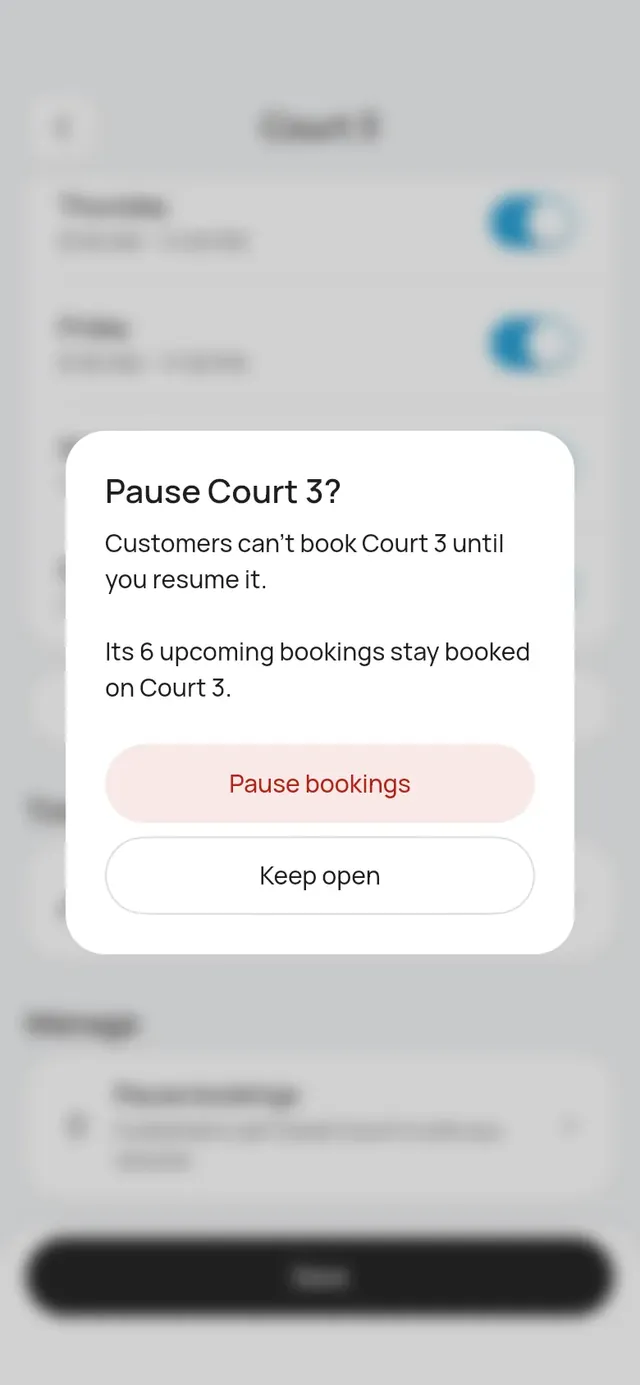
Pause bookings
- Open the court.
- Under Manage, tap Pause bookings.
- The app says how many upcoming bookings the court has. They stay booked. Tap Pause bookings.
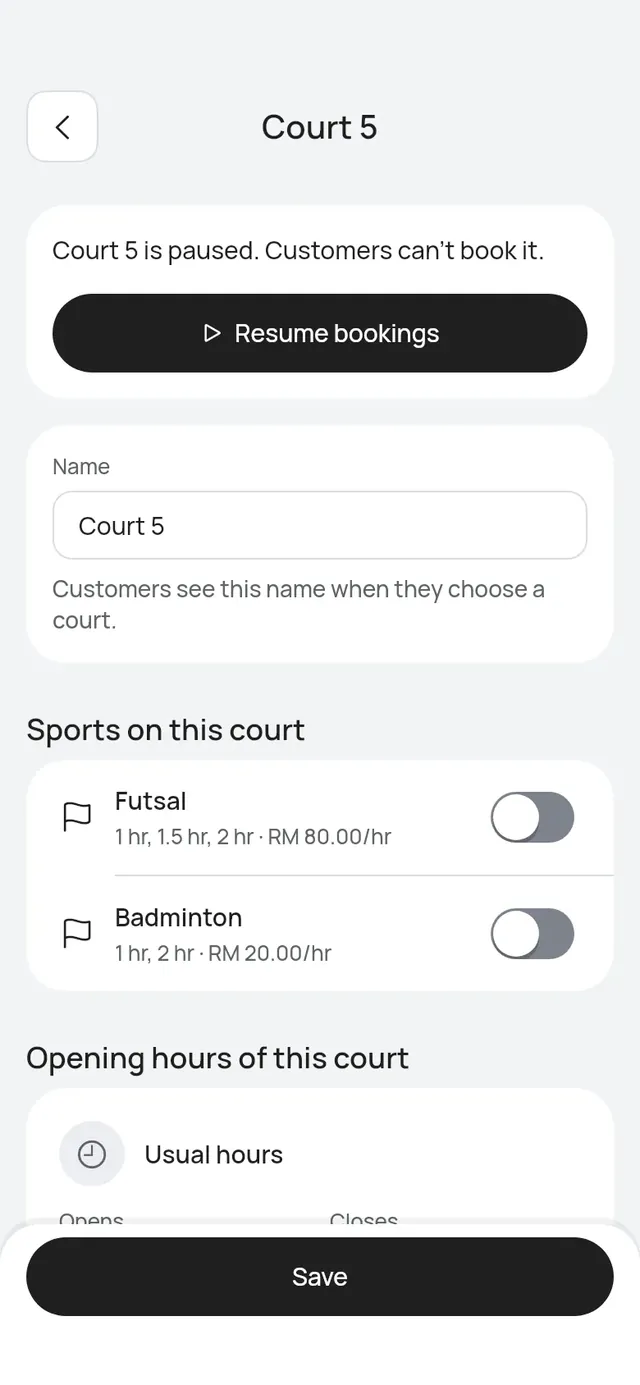
The court shows Off in the list and is gone from the booking page. A paused court still counts toward your 50 courts.
To open it again, open the court and tap Resume bookings.
Remove a court
Removing a court is for good. You can’t undo it.
- Pause the court first. Remove court works only on a paused court.
- Move or cancel its upcoming bookings. A court with upcoming bookings can’t be removed.
- Open the court and tap Remove court, then Remove.
Past bookings keep the court’s name. A removed court no longer counts toward your 50 courts.