Sports
Who can do this: Owner, Admin
- Open More → Courts.
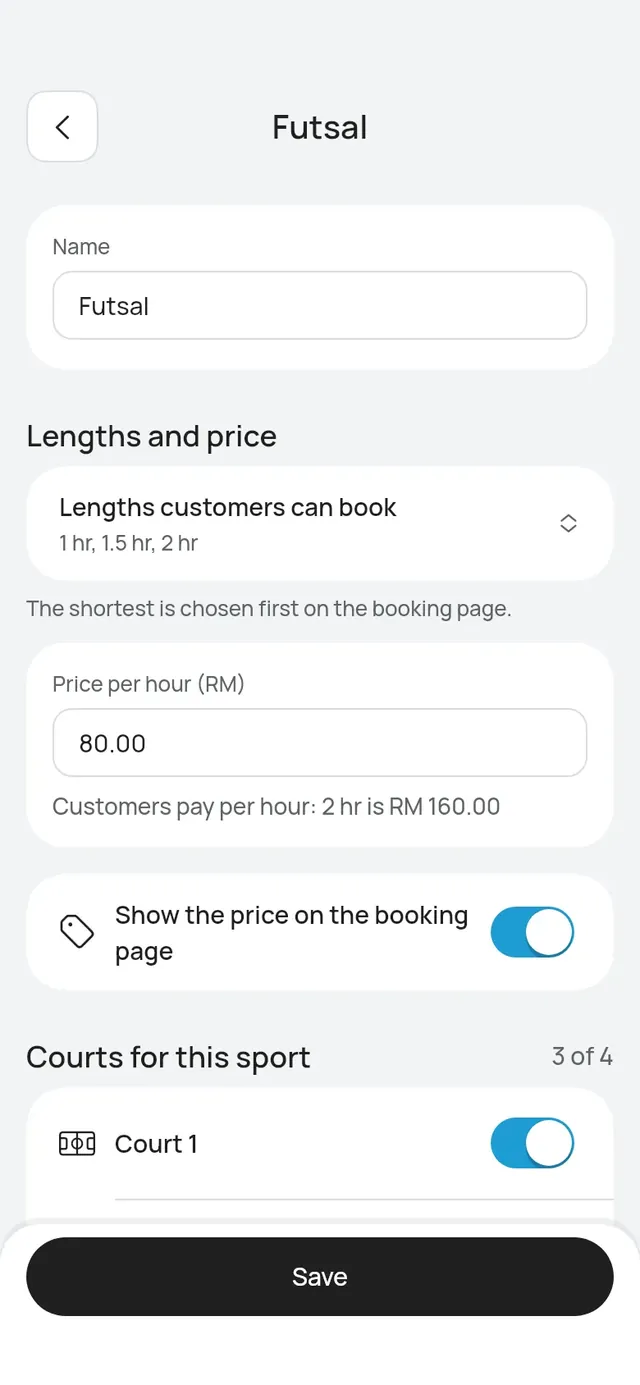
- Tap the add button, then Add a sport.
- Enter the Name, for example Futsal.
- Set the lengths and the price. See Lengths and prices.
- Under Courts for this sport, switch on each court that hosts it.
- Tap Save.
Photos
Add up to 3 photos of the sport. They are optional.
- On the sport’s page, find Photos (optional).
- Tap Add photo and choose a picture. Use one at least 600 px on its short side. A smaller one says That picture is too small for your booking page.
- Tap Save. Photos are saved with the rest of the page.
The first photo, marked First, is the one customers see beside the sport on your booking page. To change the order, hold a photo and drag it. Or tap the … on a photo and choose Make first.
On the same … menu, Replace photo swaps a picture and Remove photo takes it away. Remove this photo? asks first. Tap Remove and the photo is gone once you save. When you have 3, the card says 3 of 3. Remove one to add another.
A new sport sends its photos when you tap Add. After that, Save sends any change.
Take a sport off the booking page
Open the sport and tap Take Futsal off the booking page, then Take off. Customers can no longer book it. Bookings already made stay. Tap Put Futsal back on the booking page to bring it back.