How customers book
Who can do this: Your customers
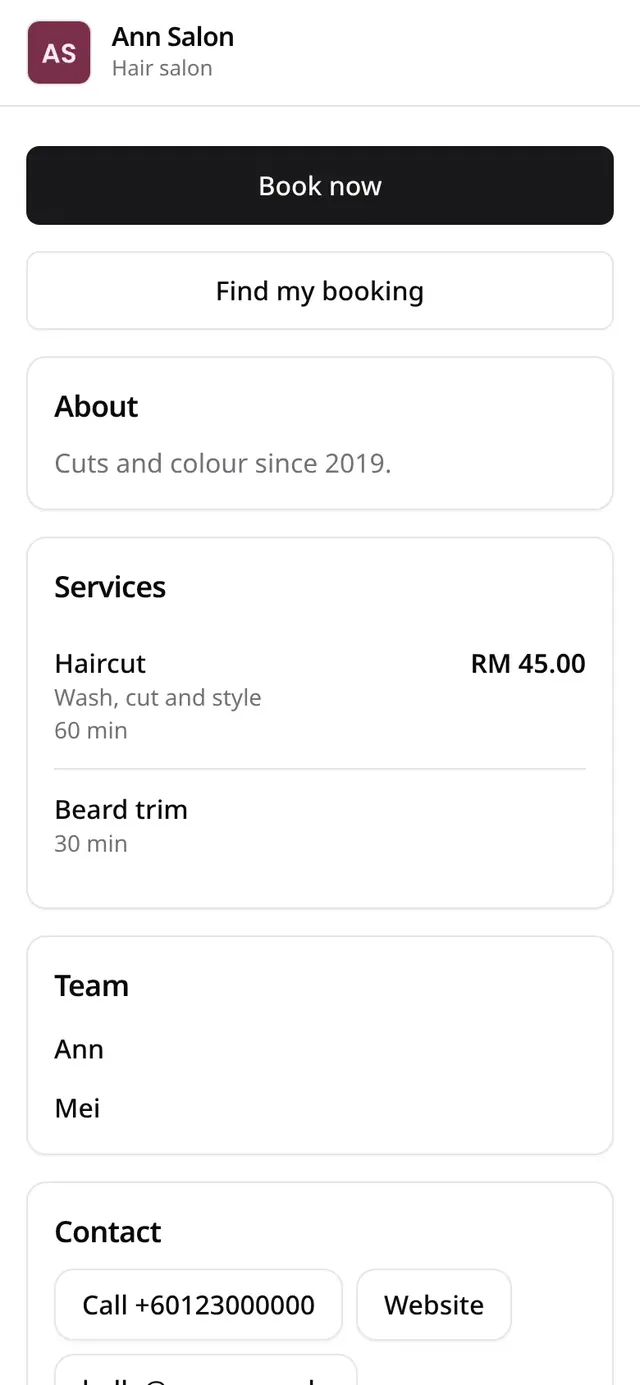
Customers open your link or scan your QR code. Your page shows your name, Book now, Find my booking, your services, your team, your contact details and your address. They tap Book now.
Your page wears the template you chose, so it may look different from another shop’s page. The booking steps below are the same on every page.
The steps
- 1Choose
Service, person, day and time
- Service
- Staff
- Date & time
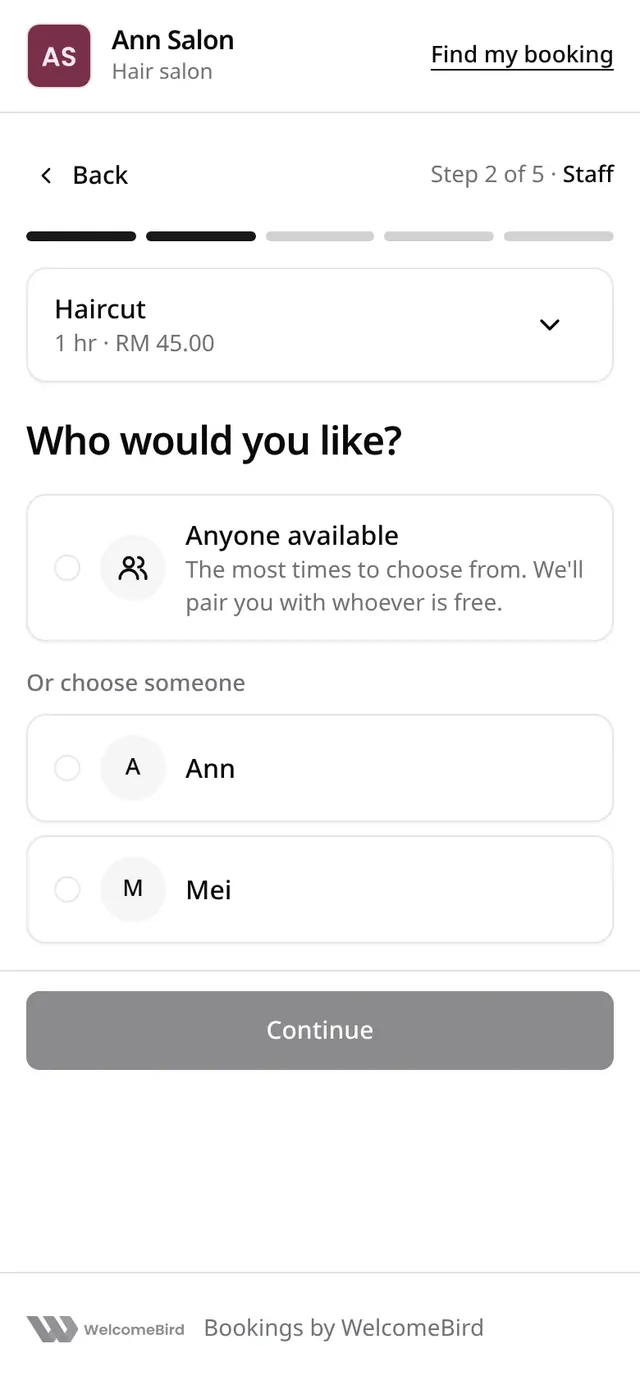
Anyone available shows the most times. No Staff step when your shop chooses the person.
- 2Your details
Name, mobile number and email
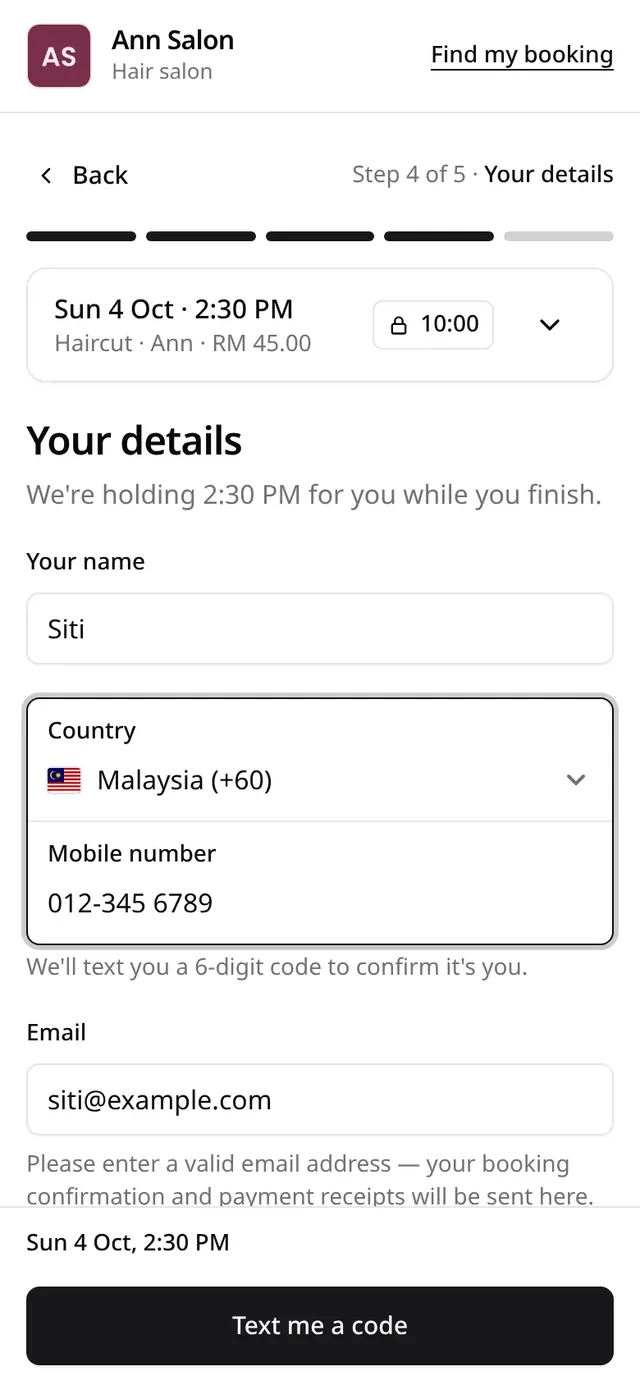
The time is held for 10 minutes.
- 3Confirm
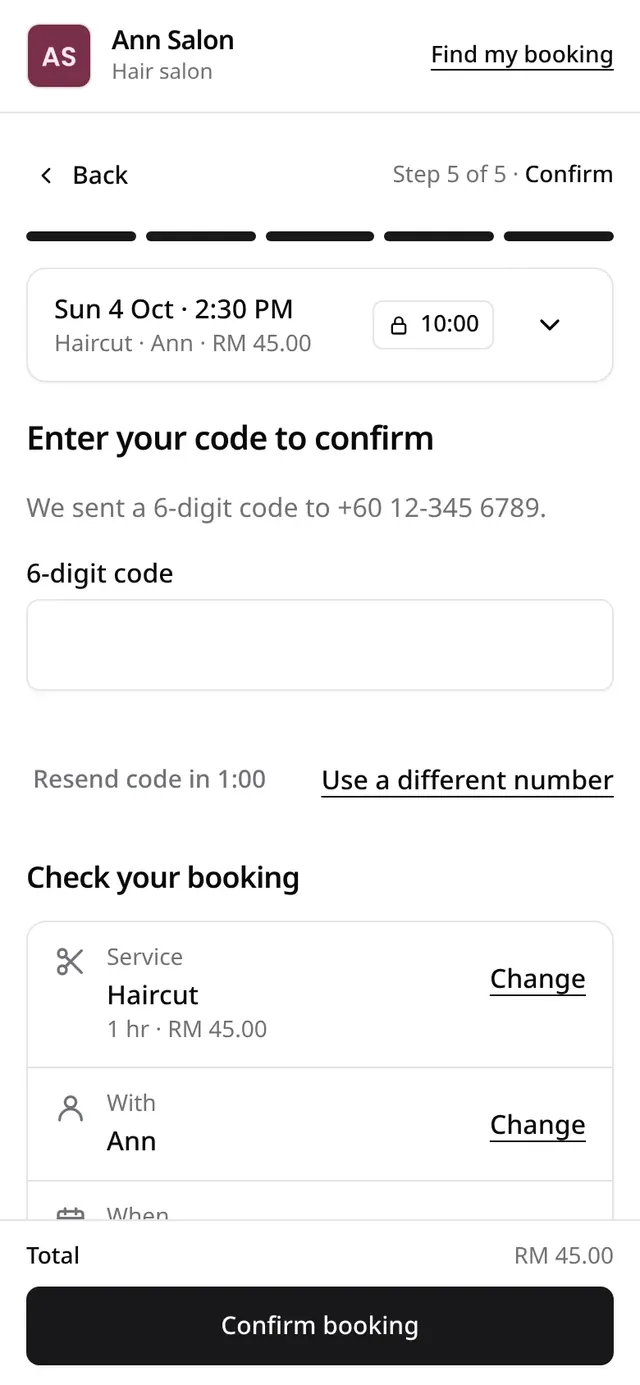
The 6-digit code from a text
Then Confirm booking.
- 5Manage
Reschedule or cancel
Until 24 hours before, by default.
- CancelledThe customer cancels
- Changes closedAfter the cut-off
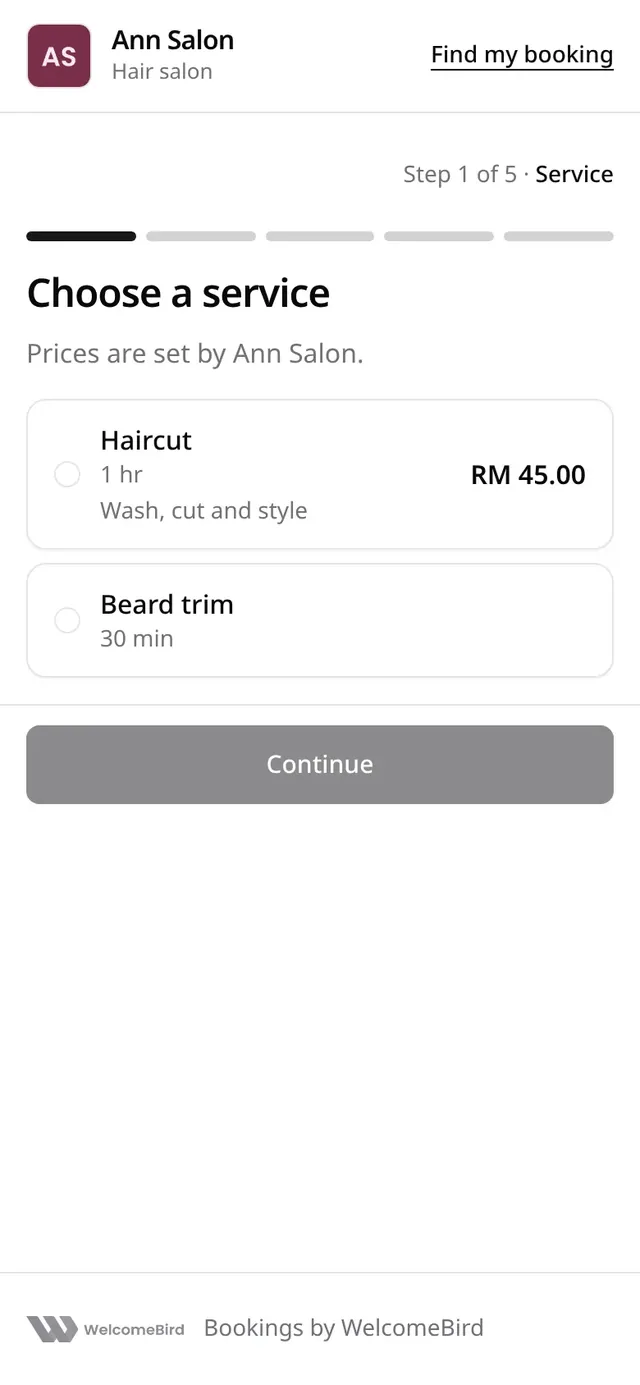
- Service: they choose a service. Prices are shown as you set them. They can choose up to 3 services for one visit, done one after the other by one person. See Several services in one booking.
- Staff: they choose Anyone available or a person. Anyone available shows the most times. This step shows only when your shop lets customers choose.
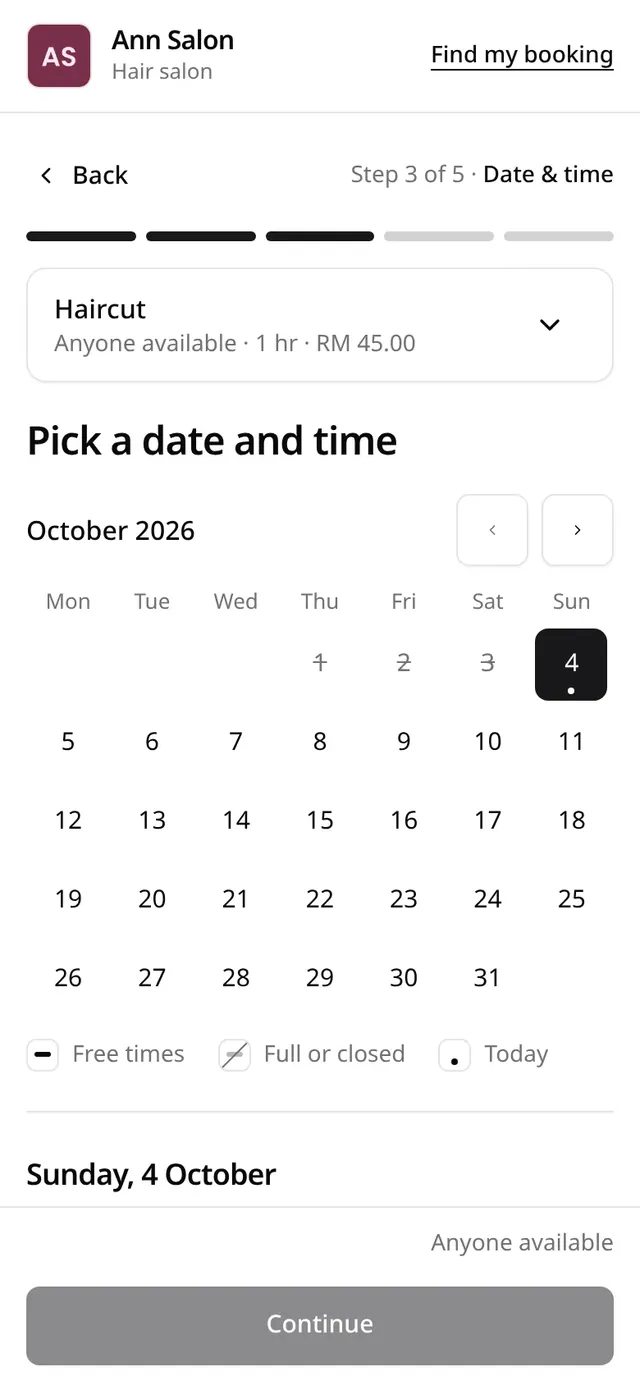
- Date & time: a month calendar marks the days with free times. They pick a day, then a time under Morning, Afternoon or Evening.
- Your details: their name, mobile number and email. The email is required: the confirmation goes there. They can add a note for you. They tap Text me a code.
- Confirm: they type the 6-digit code, check the booking and tap Confirm booking. If your business confirms bookings by hand, the button says Send request.
From step 4, the time is held for them for 10 minutes while they finish.
When your shop chooses the person
If you turn off Customers choose a staff member in Booking rules, there is no Staff step. Your page has four steps: Service, Date & time, Your details and Confirm. The times are everyone’s who does the service. When they pick a time, we give the booking to a free person who does the service: the one with the fewest bookings that day, then the first in your team order. From Your details on, the page names that person, and so do You’re booked! and the confirmation.
When they reschedule from Manage booking, they don’t choose a person either. They keep the same person when that person is free at the new time.
If a customer had your page open before you changed the setting, the page reads your rules again when they continue, and goes on with the right steps.
After they book
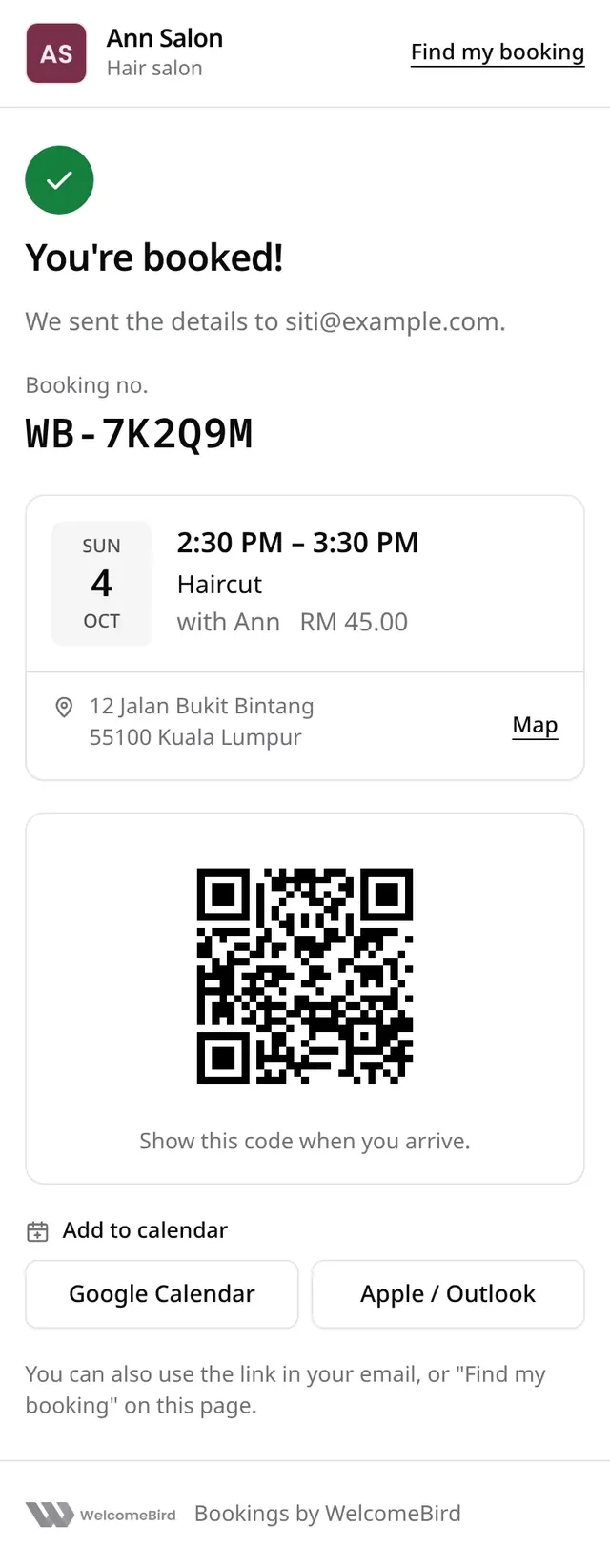
- You’re booked! shows the booking number, the time, each service of a booking of several with its start and price, your address, a check-in code to show when they arrive, Add to calendar and Manage booking. They get a confirmation by WhatsApp or SMS, and by email.
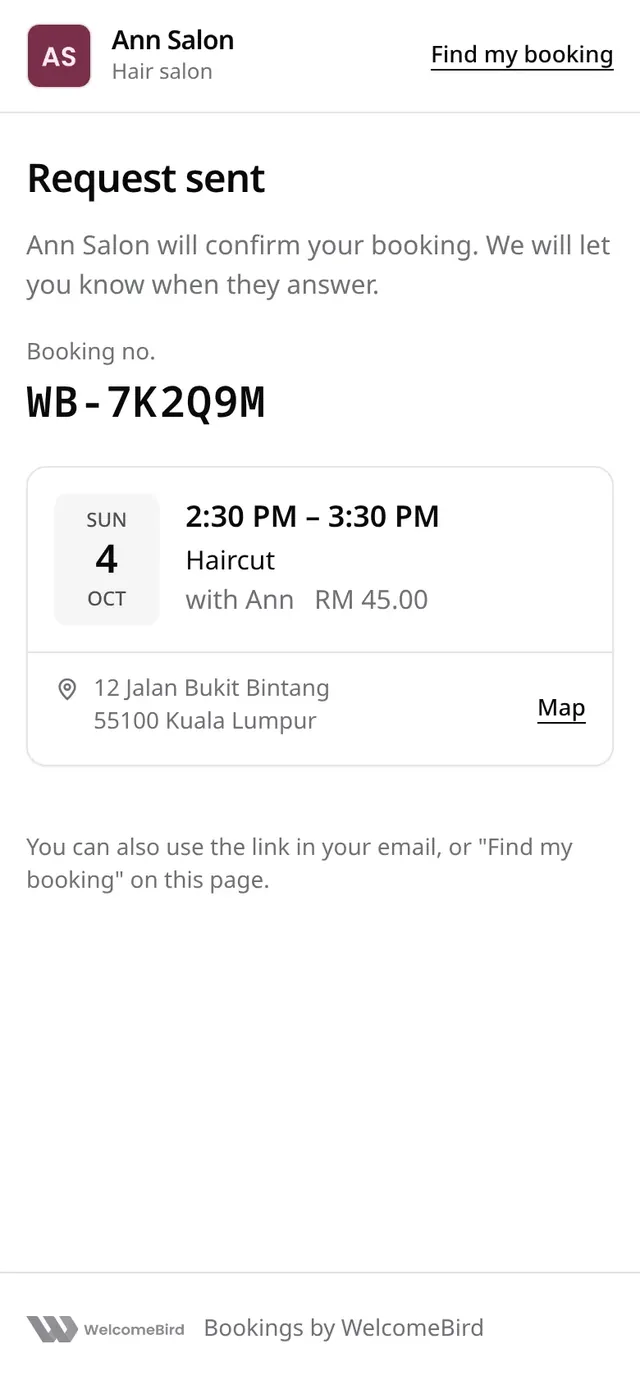
- Request sent shows when your business confirms by hand. The customer is told when you answer. See Requests.
Booking a table
At a restaurant that takes only table bookings, your page shows Book a table instead of Book now, and each branch page shows Book a table at the branch instead of Book at the branch. The table is not listed under your services. There are four steps:
- Party size: How many people? They pick 1 to 8, or use More people for a bigger party. Above your largest party, the page asks them to call the branch, or to contact the restaurant when the branch has no phone of its own.
- Date & time: the calendar and the times are for that many people. The page says how long the table is kept, for example Table kept for 2 hr.
- Your details: their name, mobile number and email, then the tags they want, such as Birthday or High chair, and a note. Tags are shared only with the restaurant.
- Confirm: they check the booking and type the 6-digit code. The table is held only after the code, then booked.
- 1Party size
How many people?
1 to 8, or More people.
- 2Date & time
Times for that many people
It says how long the table is kept.
- 3Your details
Name, number, email and tags
Tags such as Birthday or High chair.
- 5Booked
Table for 4 · Sat 7:30 PM
No table name, number or area.
- Request sentA large party, 7 or more to start with
Large parties (7 or more unless you change Parties that need your OK) send a request: the button says Send request and the page says Request sent and that the restaurant will confirm by message. Otherwise the page says You’re booked! with Table for 4 and the day and time, for example Table for 4 · Sat 7:30 PM.
The customer never sees which table they get. No table name, number or area is shown on the booking page or in their calendar.
If someone takes the time while they type the code, the page says That time was just taken and takes them back to the times. Their party, details and tags are kept, and they don’t need a new code.
Limits that protect you
- One customer can hold up to 3 upcoming online bookings at your business. Bookings you add yourself don’t count.
- Customers book from at least 1 hour ahead and up to 60 days ahead. These are the starting rules. Owners can change them in Booking rules. See Booking rules.