Go live: your booking link and QR
Who can do this: Owner, Admin
Your booking page lives at its own address, for example https://glowstudio.welcomebird.com. Customers book there without an account.
- 1Sign up
Email or phone, then a 6-digit code
Where On the web or in the app
One account for both.
- 2Choose
Set up my business
Where Right after you sign up
An invite waiting shows first.
- Joining a teamSomeone invited you
- 3Set up
Four short steps
- About
- Hours
- Services
- Link
Where On the web or in the app
Saved as you go. Finish later if you like.
- 5Share
Your link and QR code
Where On Today or Your page is live
Customers book with no account.
Choose your link
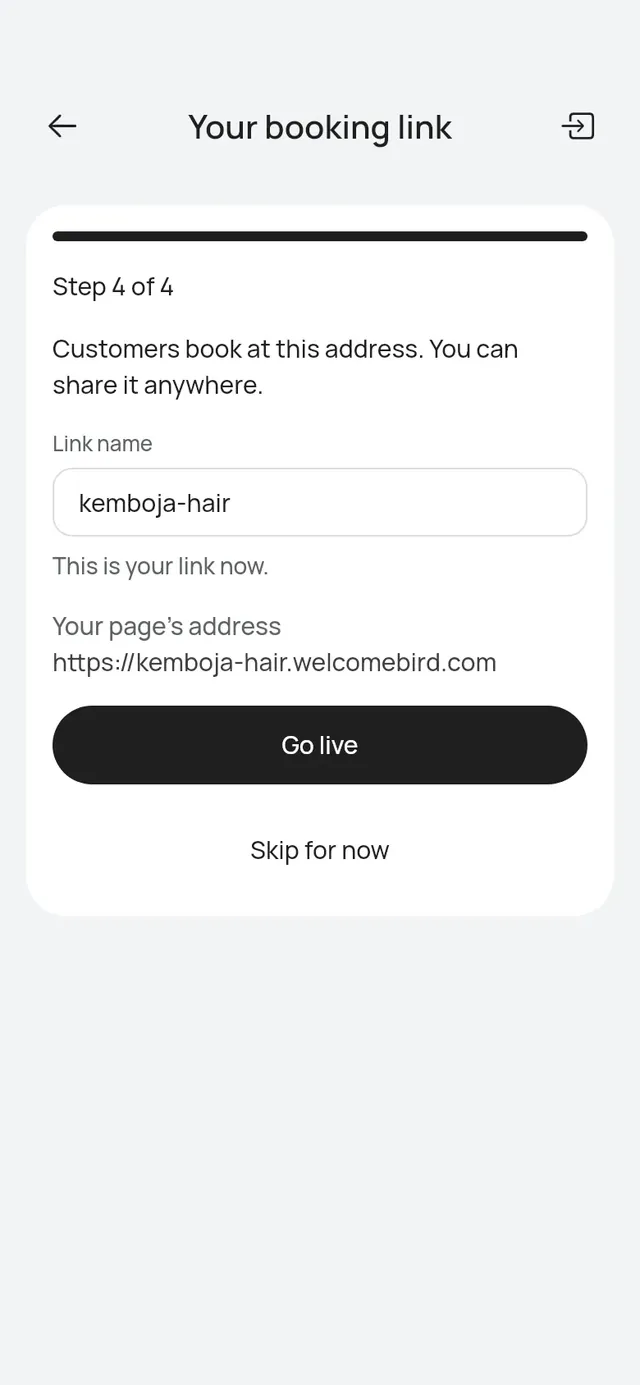
On the last step of setup, Your booking link, type a Link name. Use 3 to 30 lower-case letters, numbers and single dashes. On the web, the name sits in front of .welcomebird.com, and the preview’s address bar shows it as you type.
- This link is free. means you can use it.
- That link is taken. or That name is reserved. means you need another name.
In the app, Your page’s address shows the full link.
Put your page live on the web
Tap Go live. Your page goes live, and Your page is live opens:
- Share your link: your address with Copy, which says Link copied. Share sends it with another app, on a phone or computer that can. QR code opens the QR code large with your whole link under it, and Download saves it as a picture to print. On a computer the QR code also shows on the page. Open my page opens your booking page in a new tab.
- Get the app: the App Store and Google Play buttons. Log in to the app with the same account to run the day from your phone. The app is coming soon to the stores: until then, the buttons open Coming soon.
- Go to dashboard opens the dashboard’s Overview.
During your free trial, the page also says until when Pro is free.
If you signed up on the web, or your phone number is confirmed, Go live goes straight through.
If Go live asks you to confirm or wait
If neither your email nor your phone is confirmed yet, Go live asks you to confirm your email: open the link in our email (or tap Send the link again), then tap Try again.
If the page says We’re finishing your account, your confirmation has not reached your page yet: wait a few seconds and tap Try again.
Put your page live in the app
Tap Go live.
If you signed up with your phone, the code you typed already confirmed you.
If the app asks you to confirm your email
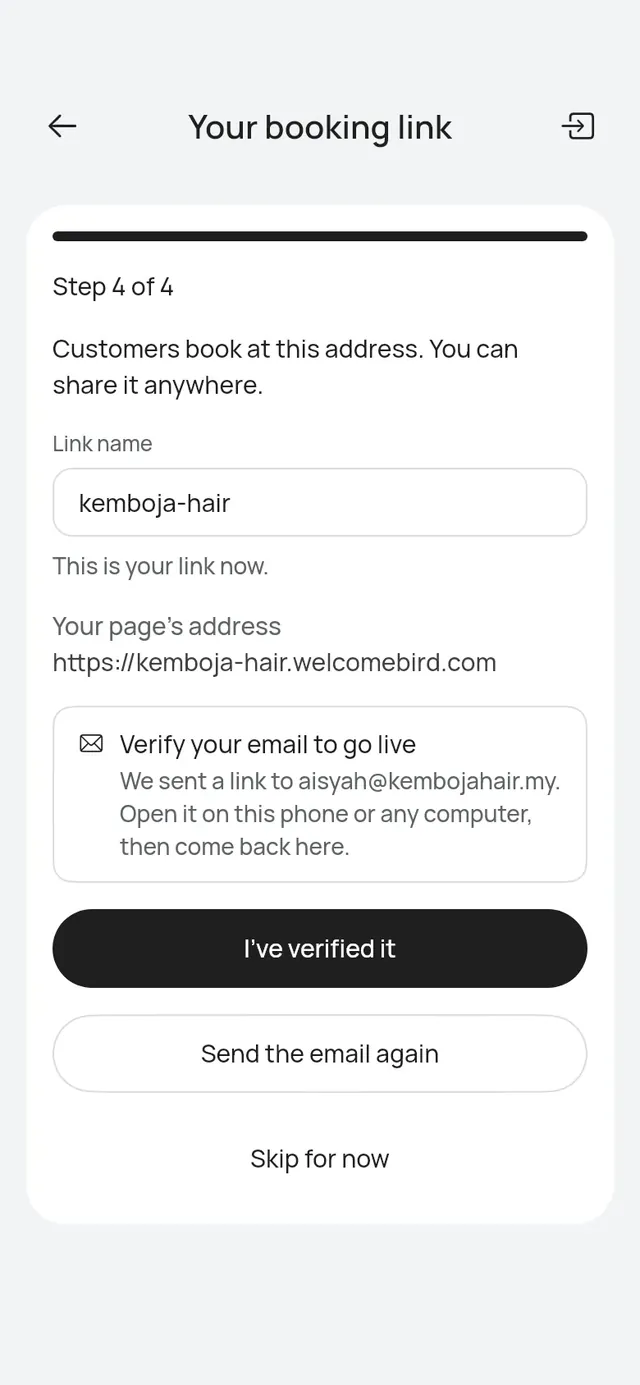
If you signed up with your email and have not confirmed it yet, the app shows Confirm your email to go live, with your address in bold:
- Type the 6-digit code from our email in Code from the email and tap Confirm email. Or open the button in the email, on this phone or any computer, and tap I’ve opened the link.
- Go live runs again.
A code works for 30 minutes, and only the code in the latest email works. If the email did not arrive or the code is old, tap Send the email again. If the app says Codes are off for this email now. Open the button in the email to confirm it., use the button in the email.
When the page is live, the app says Your page is live.
You can also put the page live later: open More → Business profile and tap Put my page live on the Booking page card.
Share your link
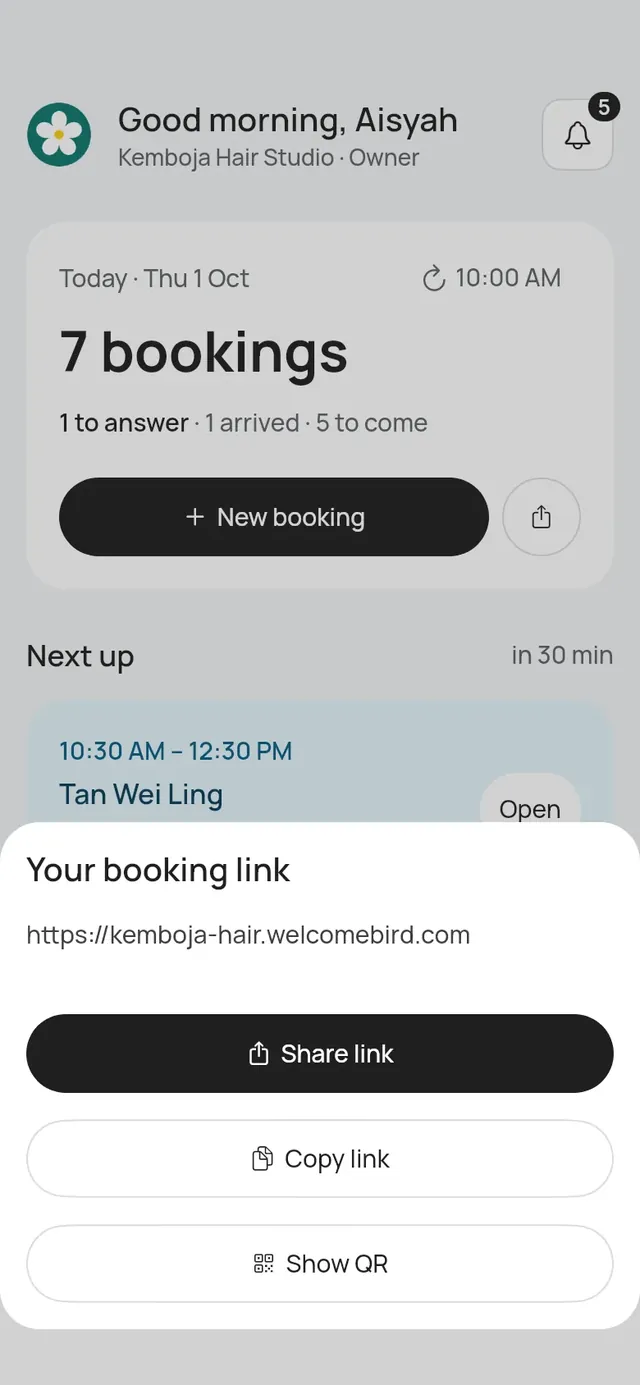
- On Today, tap the share button next to New booking.
- Choose Share link to send it with any app on your phone, or Copy link to paste it yourself.
You can also share it from More → Business profile → Share booking link. On the web dashboard, Overview shows your booking page link.
Show or print the QR code
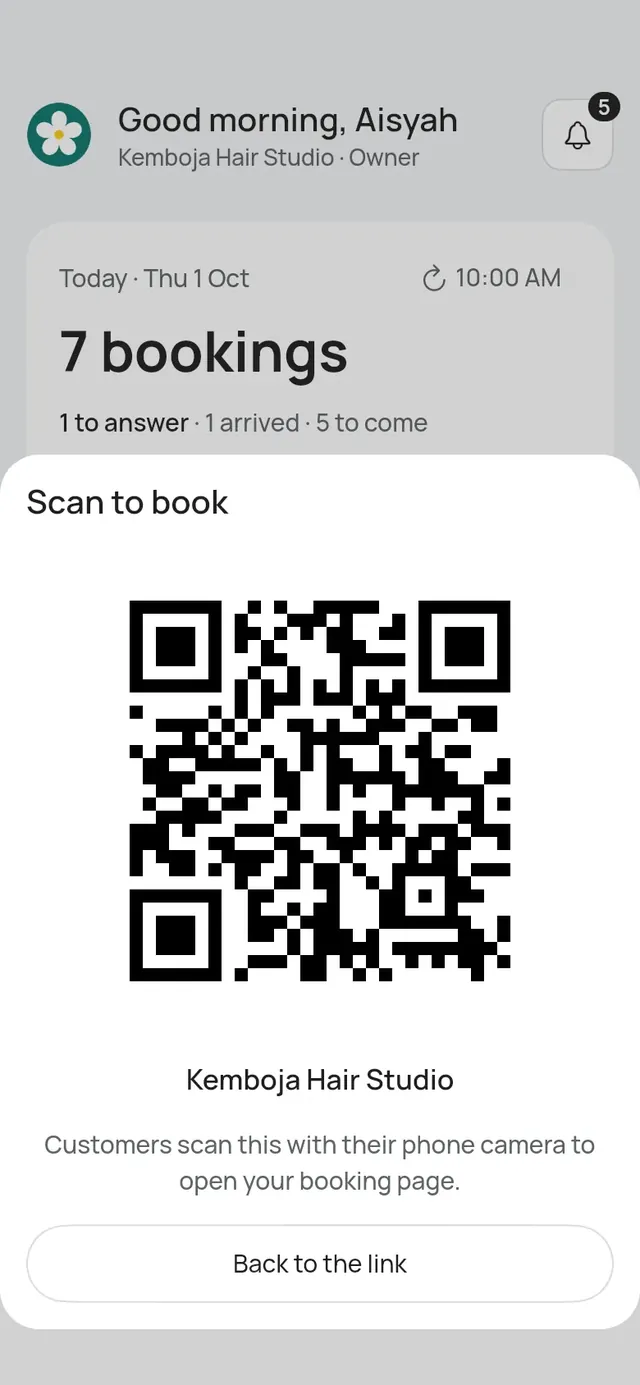
In the same sheet, tap Show QR. Customers scan it with their phone camera to open your booking page. Show it on your screen, or take a screenshot and print it for your counter.
On the web, QR code on Your page is live opens the QR code large, with your whole link (starting https://) under it. Download saves it as a picture, ready to print, and Close closes it.
Staff can share a live page too. If the page isn’t live yet, staff see Ask the owner to put it live.