Sign up
Who can do this: Owner
You need an account before you can set up your business. You can sign up in two places:
- On the web, at app.welcomebird.com/sign-up, on a computer or a phone. See Sign up on the web.
- In the WelcomeBird app. See Sign up in the app.
It is the same account either way. You use the same login in the app and on the web dashboard, and you can start on one and finish on the other.
- 1Sign upThis page
Email or phone, then a 6-digit code
Where On the web or in the app
One account for both.
- 2Choose
Set up my business
Where Right after you sign up
An invite waiting shows first.
- Joining a teamSomeone invited you
- 3Set up
Four short steps
- About
- Hours
- Services
- Link
Where On the web or in the app
Saved as you go. Finish later if you like.
- 4Go live
Your page is live
Where The last setup step
Confirm your email first if asked.
- 5Share
Your link and QR code
Where On Today or Your page is live
Customers book with no account.
Sign up on the web
Open app.welcomebird.com/sign-up. The page shows Create your account with two tabs: Email and Phone number. If you already have an account, tap Log in under the form.
With your email
- Enter Your name, your Email and a Password. The password needs at least 10 characters.
- Type the password again in Confirm password.
- Tap Create account.
- Check your email opens. We email you a 6-digit code. Type it and tap Continue.
If the email doesn’t come, or you typed the wrong email
The code works for 30 minutes. The same email also has a Confirm my email button. Either one confirms your email, so use whichever is easier.
If the email did not arrive, wait for Send a new code and tap it. If you come back to this page later, Send a new code is ready at once. Only the code in the latest email works. If you typed the wrong email, tap Start again next to Wrong email?. The page asks first. The account you made stays, unused.
With your phone
- Tap the Phone number tab.
- Enter Your name, choose your Country and type your Mobile number.
- Tap Send code.
- Type the 6-digit code from the text message and tap Create account.
A code works for 5 minutes. If it does not arrive, wait for Send a new code and tap it. If you typed the wrong number, tap Change number next to Wrong number?.
If something goes wrong
The page says what went wrong and what to do. Most of the time you wait, send a new code, or log in instead.
Every message, and what to do
- This email already has an account: tap Log in instead, or Forgot password? if you don’t remember the password. Or use another email.
- This number already has an account: the code proved the number is yours. Tap Log in with a code, or use another number.
- That code isn’t right. Check the latest email and try again. (or the latest text): type the code from the newest message.
- That code can’t be used again. Send a new code and try again.: tap Send a new code and type the new one.
- Codes are off for this email now. Open the button in the email to confirm it.: too many wrong codes were typed. Open the Confirm my email button in the email instead.
- Too many tries. For your security, wait and a time: wait that long, then type the code again.
- Too many codes for this number: wait the time the page shows, or tap Use email instead.
- Too many tries from this network: too many sign-ups or tries came from the same internet connection. Wait the time the page shows.
- Your number is confirmed, but too many accounts were made from this network today.: wait the time the page shows, then send a new code and try again.
- We can’t text numbers in this country yet. Create the account with your email.: use the Email tab.
- We couldn’t check this browser. Reload the page and try again.: the page checks that a person, not a program, is signing up. Reload it. If a small box asks you to tick it, tick it.
Sign up in the app
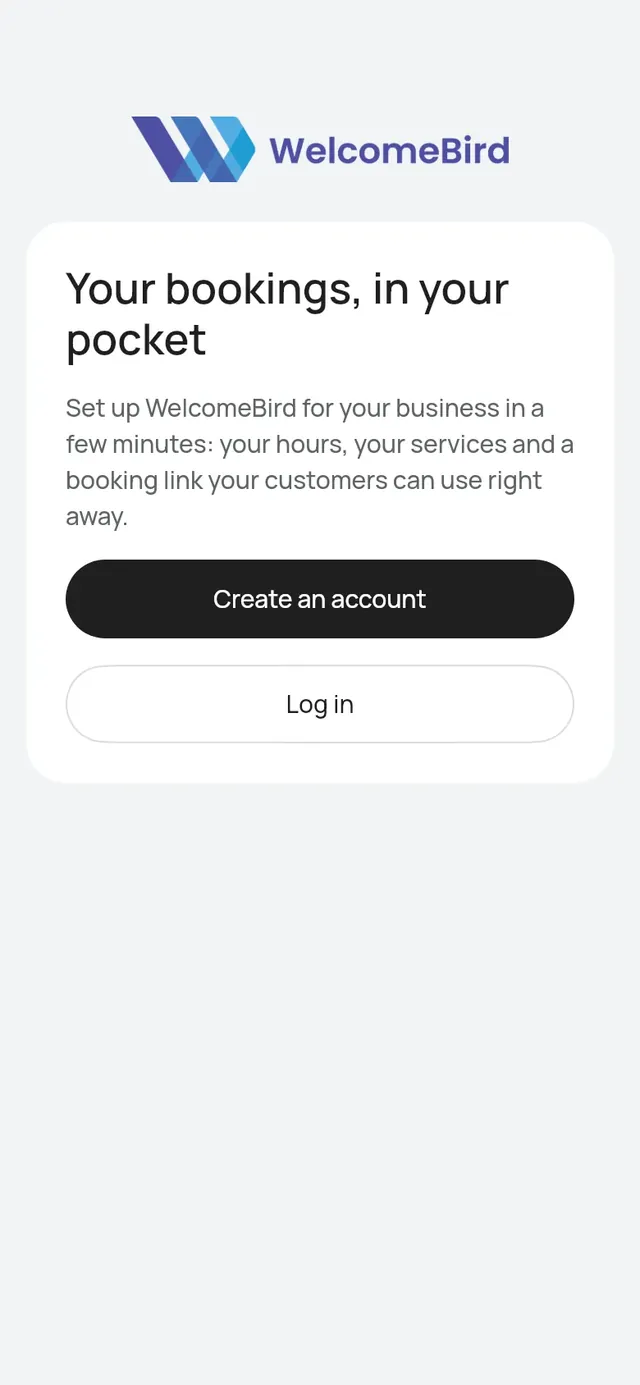
Download the WelcomeBird app and open it. The first screen has two buttons: Create an account and Log in.
If someone invited you to their team, the line under the buttons says what to do: Joining a team? Sign up with the email or phone number they invited. Their invite is waiting once you sign up.
Each page has a title and one line saying what it is for. The other way to sign up is the button under or. If you already have an account, tap Log in next to Already have an account? at the bottom of the page.
With your email
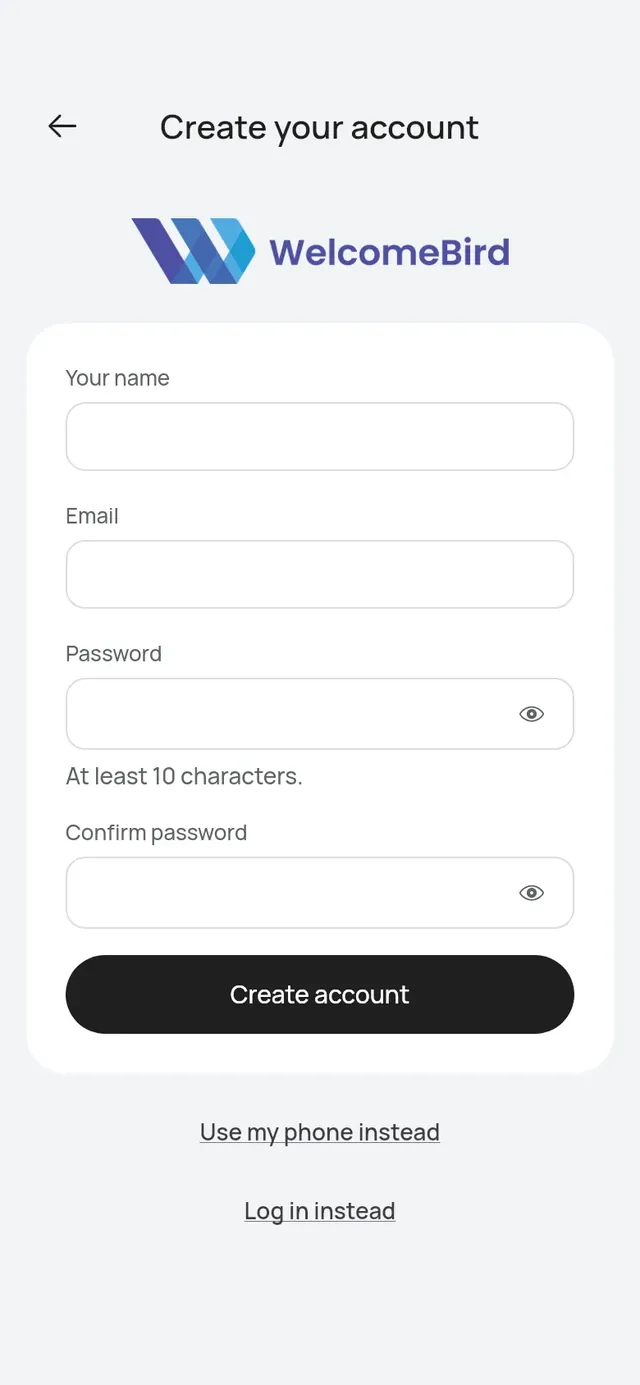
- Tap Create an account.
- Enter Your name, your Email and a Password. The password needs at least 10 characters.
- Type the password again in Confirm password.
- Tap Create account.
If the email already has an account, the page says so. Tap Log in instead.
We send you an email with a Confirm my email button and a 6-digit code. You confirm it before your booking page can go live.
When and how to confirm your email
You can set up your business before you confirm, but you need to confirm before your booking page can go live. When you tap Go live, the app asks for the code. You can also open the button in the email, on your phone or on any computer. See Go live.
With your phone
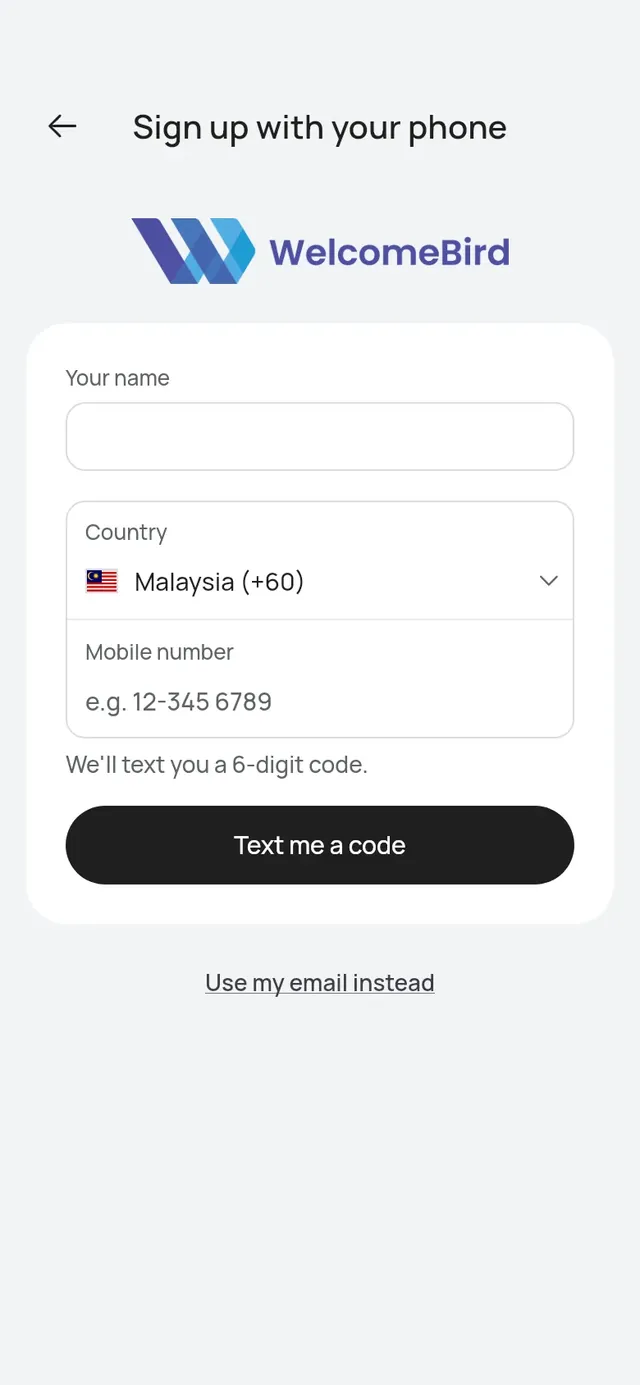
- Tap Create an account, then Sign up with a phone code.
- Enter Your name, choose your Country and type your Mobile number.
- Tap Text me a code.
- Enter the 6-digit code opens. Type the code from the text message and tap Create account.
A code works for 5 minutes. If it does not arrive, wait for Resend code to become active and tap it. If you typed the wrong number, tap Change number next to Wrong number?.
To log in with a code instead of a password, tap Log in, then Log in with a phone code. The code page’s button then says Log in.
Choose how you will use WelcomeBird
After you sign up, the app and the web ask the same thing. If someone has already invited you to their team, you see You’ve been invited first, with Join the team. See Invite someone.
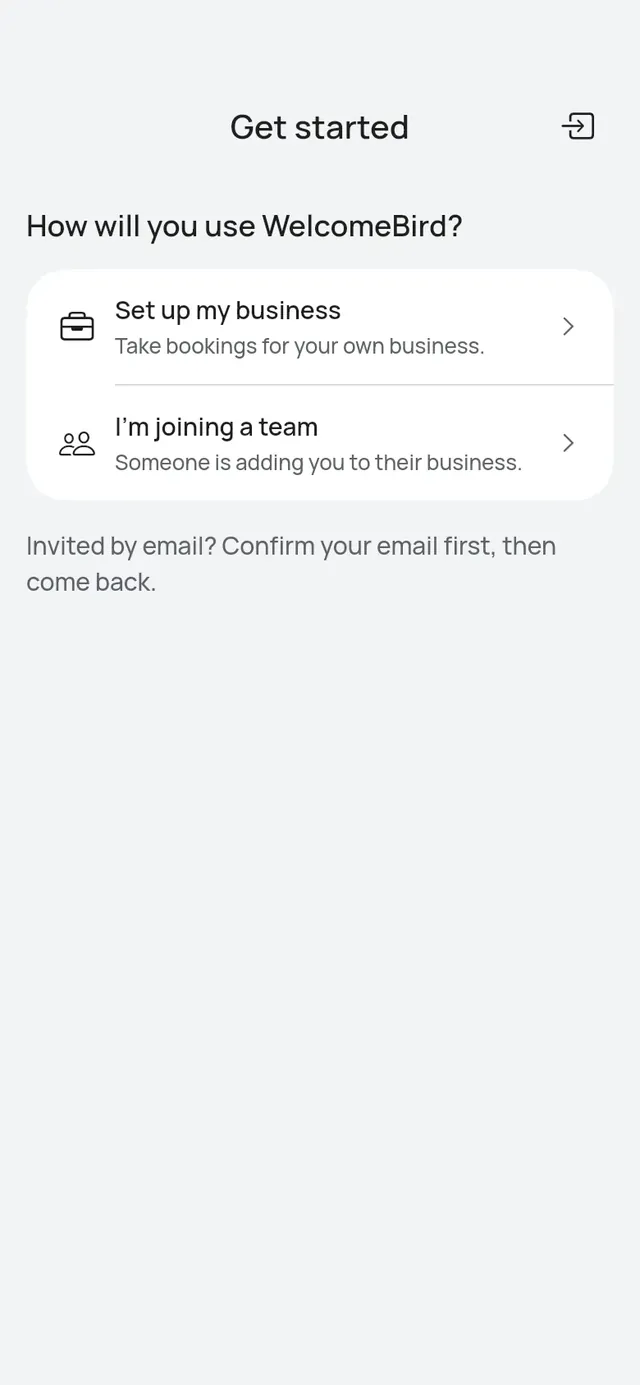
With no invite waiting, you see How will you use WelcomeBird?
- Set up my business: you take bookings for your own business. The setup steps open. See Set up your business.
- I’m joining a team: someone is adding you to their business. Give them the email or phone number you signed up with. Their invite shows up in the app. On the web, tap Check again once they have sent it. See Invite someone.
Forgot your password
Tap Forgot password? on Log in, and we email you a link to choose a new one.
Reset your password, step by step
- On Log in, tap Forgot password?. In the app it sits right under the Password field.
- Enter your email and tap Email me a link in the app, or Send link on the web.
- In the app, Check your email opens. Tap Back to log in, or Use a different email if you typed the wrong one. The email you typed stays in the field.
- Open the link in the email. It opens a web page where you choose a new password. Then come back and log in.
When you save the new password, every other phone or computer you were logged in on is logged out.