Services, opening hours and closures
Who can do this: Owner, Admin
Services
Your first service comes from the setup wizard. Each service has a name, how long it takes and a price. To choose who does each service, open the person on More → Team and switch it on under Services. See A person’s hours and services.
Open More → Business profile → Services to add, edit, pause and remove services. See Services.
A sports courts business has sports in place of services. See Courts.
Services on the web
On the dashboard, open Services under Settings. The list shows each service with its Length, Price and whether it is Shown or Paused on your booking page.
- Add service: the name, how long it takes and the price, as in setup. A new service is yours: you do it, until you add someone in the app. If you couldn’t be put on it, the page says so with Put me on it: tap it to try again. It never makes a second service. A service nobody does shows Nobody does it yet. Set who does it in the app.
- Edit: the name, the length, the price, Show the price on the booking page and a Description (optional). Tap Save service. Closing it with changes asks first: Discard your changes? Tap Discard, or Keep editing.
- Pause: asks first. Customers can’t book it until you show it again, and bookings already made stay. Tap Pause, or Keep it on.
- Show again puts a paused service back on your booking page.
- Remove is there for a paused service. It asks first: it goes from your services for good, and past bookings keep its name. A service with bookings ahead stays paused until they pass.
Who does each service, free time after and deposits are set in the app. A sports courts business or a restaurant sees Courts and sports are set up in the app. or Tables are set up in the app.
Opening hours
Opening hours set when customers can book you.
- Open More → Business profile.
- Tap Opening hours.
- Set Usual hours, then switch each day on or off. A day can have its own times: tap it.
- Tap Save hours.
Apply to all open days puts every day with its own times back on the usual hours, and the app says how many days changed. When no open day has its own times, the button is off and the app says All open days use these hours.
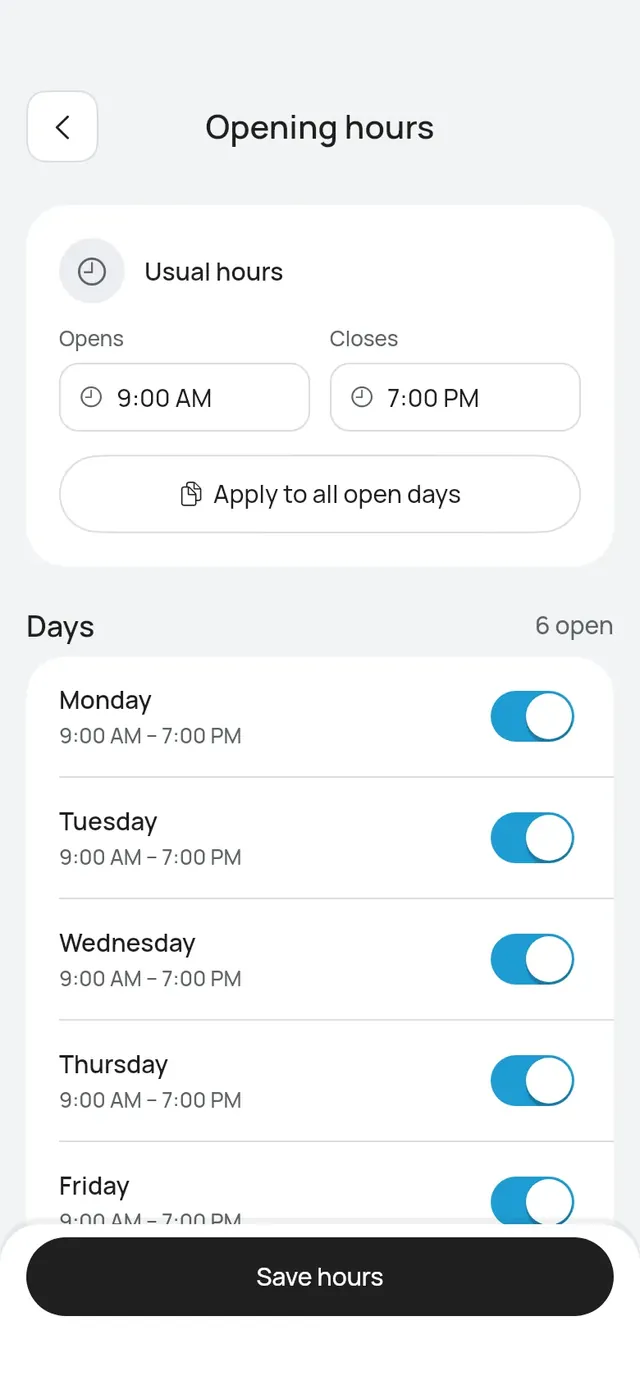
The opening hours in Business profile are the owner’s own working hours. Each person on the team has their own. See A person’s hours and services.
If some days have a break, the app warns that saving keeps only the first time range on each day.
Opening hours on the web
On the dashboard, open Opening hours under Settings. It is the same editor as setup: Usually opens, Usually closes, each day on or off with its own times, and Apply to all open days. Tap Save hours. It says Opening hours saved.
- A day with a break shows its times with This day has a break. Change it in the app. Saving on the web keeps that day as it is.
- A business with branches sees Each branch has its own opening hours. and Set them for each branch in the app.
Closures and time off
- A person’s time off: on their page in Team, under Time off. Customers can’t book them on those days.
- A court’s closed days: on the court’s page, under Closed for repairs or events. See Courts.
- Closing the whole business for a day or more, such as a public holiday: on the dashboard, under Closed days on Opening hours. See below.
Closed days on the web
Closed days lists the days ahead your business is closed. Nobody can book these days.
- Tap Add closed days.
- Choose From, and To for more than one day. Leave To for a single day.
- Add a Reason (optional).
- Tap Add. It says Closed days added.
The days are whole days in your business’s time zone, wherever you are when you add them. A business with branches sees These close every branch. Days a branch closed on its own show with Set in the app.
Remove asks first: Remove these closed days? Customers can book those days again. Tap Remove, or Keep.
Bookings already made on a closed day stay. Move or cancel them yourself.