Add and edit a service
Who can do this: Owner, Admin
Add a service
- Open More → Business profile → Services.
- Tap Add service.
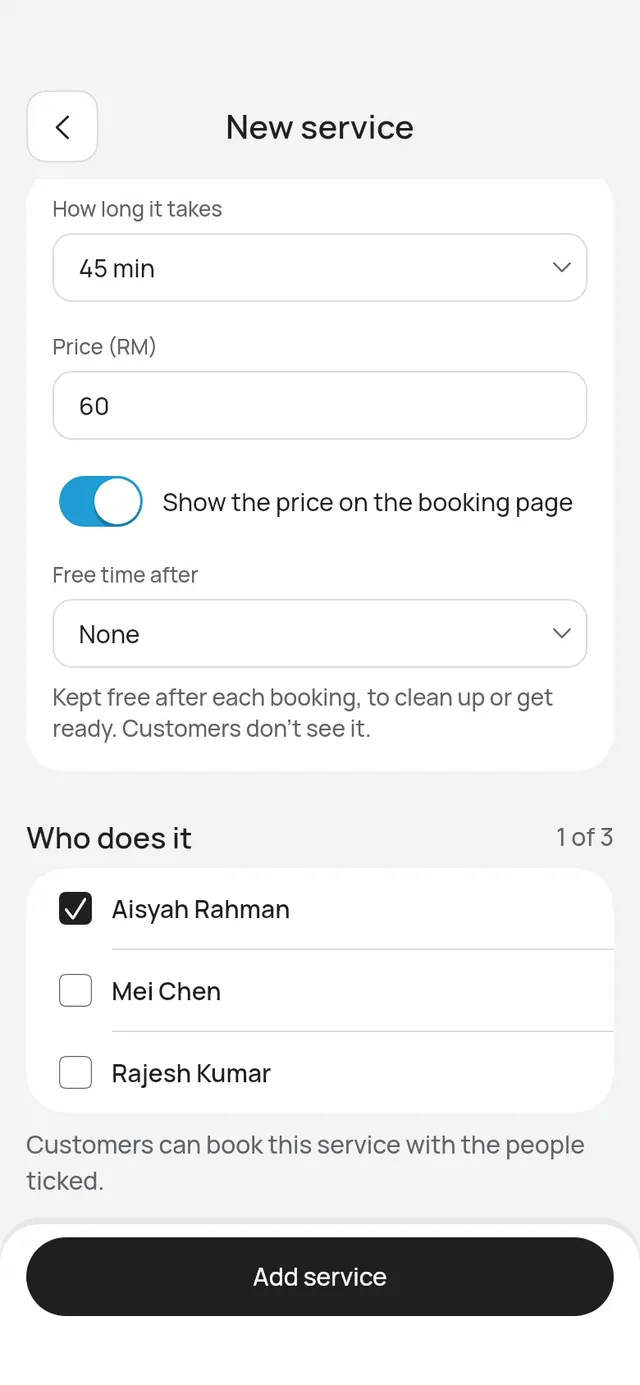
- Enter the Service name, and About this service if you like. Customers read it on the booking page.
- Pick How long it takes. For a length not in the list, pick Another length and type the minutes.
- Enter the Price. Switch off Show the price on the booking page to hide it.
- Pick Free time after if you need time to clean up or get ready after each booking.
- Under Who does it, tick at least one person.
- Tap Add service.
The service opens, and customers can book it with the people you ticked.
Edit a service
Open the service, change what you need and tap Save. Only what you changed is saved. Leaving with changes not saved asks first.
With two or more branches, Branches shows each branch with Offered and its price, or its own price. Tap a branch to change it there.
Photos
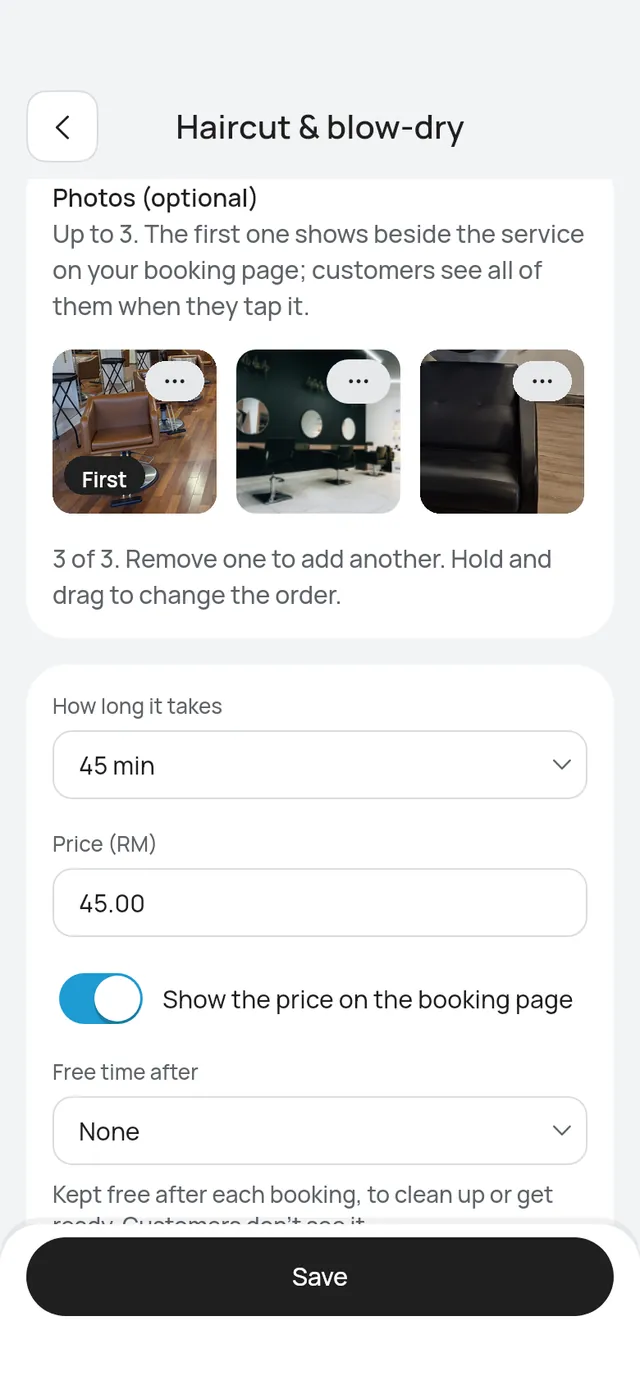
Add up to 3 photos of the service. They are optional.
- On the service’s page, find Photos (optional).
- Tap Add photo and choose a picture. Use one at least 600 px on its short side. A smaller one says That picture is too small for your booking page.
- Tap Save. Photos are saved with the rest of the page.
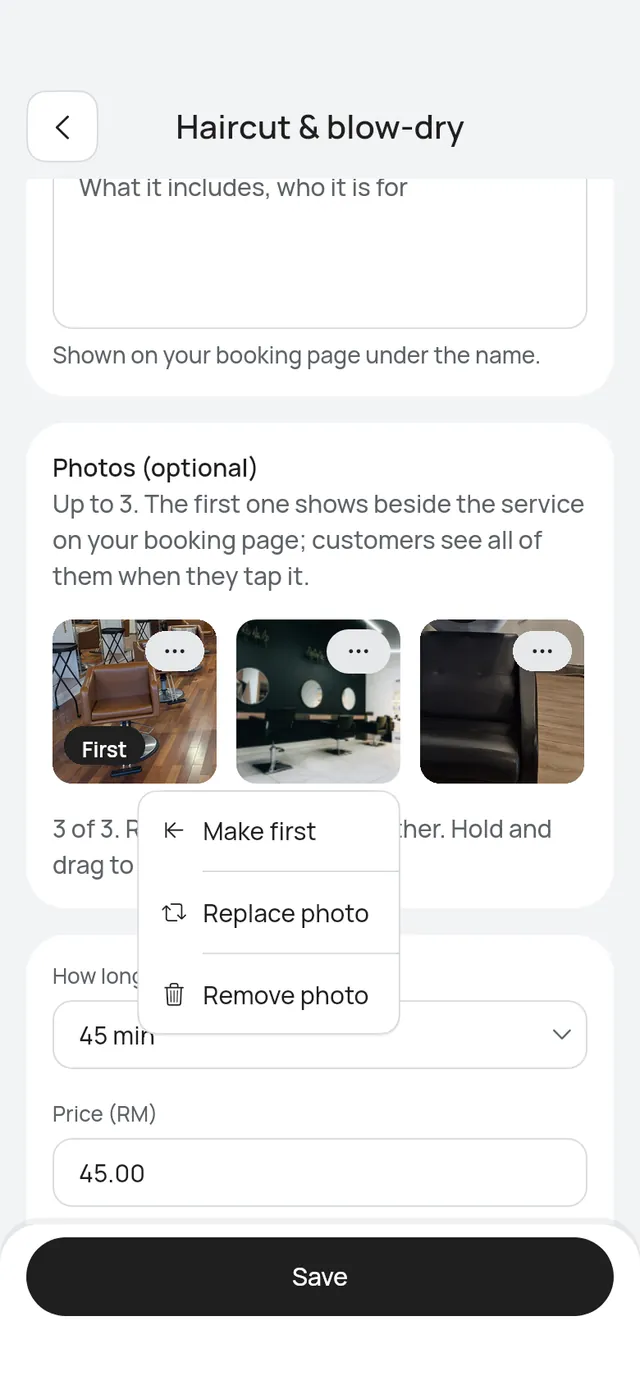
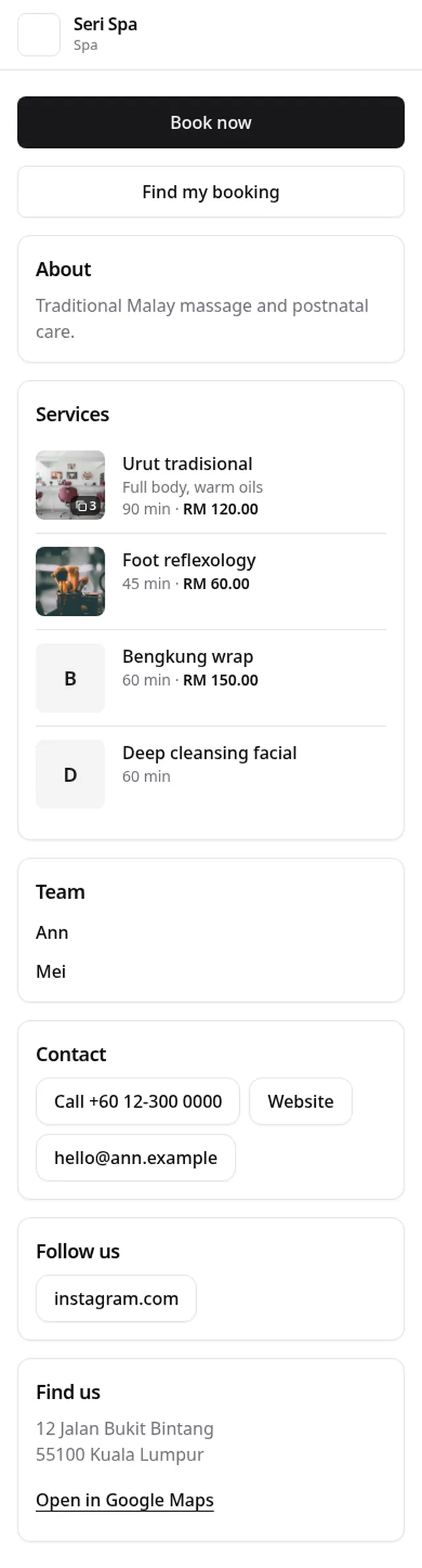
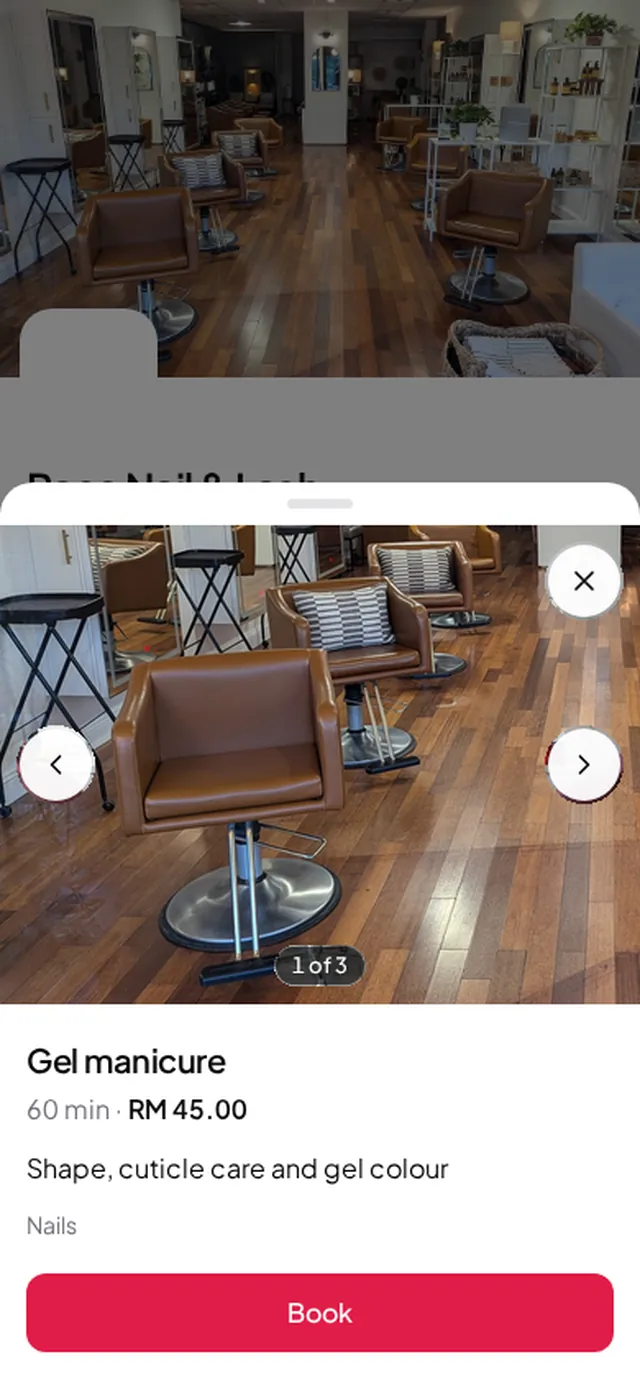
The first photo, marked First, is the one customers see beside it on your booking page, and the first photo shows in your list of services. To change the order, hold a photo and drag it. Or tap the … on a photo and choose Make first.
On the same … menu, Replace photo swaps a picture and Remove photo takes it away. Remove this photo? asks first. Tap Remove and the photo is gone once you save. When you have 3, the card says 3 of 3. Remove one to add another.
Customers tap a service’s photo on your booking page to see them all. A service with no photo shows a letter in a coloured square.
If you remove a photo, a customer who has already seen it may still see it on their own phone for up to a day. New visitors never see it.
Nobody does it
If everyone who did a service left the team, the service shows Nobody does it. Customers can’t book it until you tick someone under Who does it.
Service groups
Groups put your services under headings on your booking page, such as Hair, Colour and Nails. The Tabs and Category grid layouts show them.
Under your services, Service groups says how many groups you have. Open it to see each group with how many services it has.
- Add a group: type the Group name and tap Save. The group opens, so you can tick its services. A name you already use says You already have a group with this name.
- Services in this group: tick the services, then tap Save. A service in another group shows that group’s name under it. Ticking it moves it to this group.
- To rename a group, change its Group name and tap Save.
- The arrows beside a group move it up or down. Your booking page shows the groups in this order.
- Delete the group asks first: its services stay on your booking page, without a group. Tap Delete, or Keep it.