A person's hours and services
Who can do this: Owner, Admin
Owners and admins set this for everyone on the team, themselves included. Staff can’t change their hours in the app yet: an owner or admin does it for them.
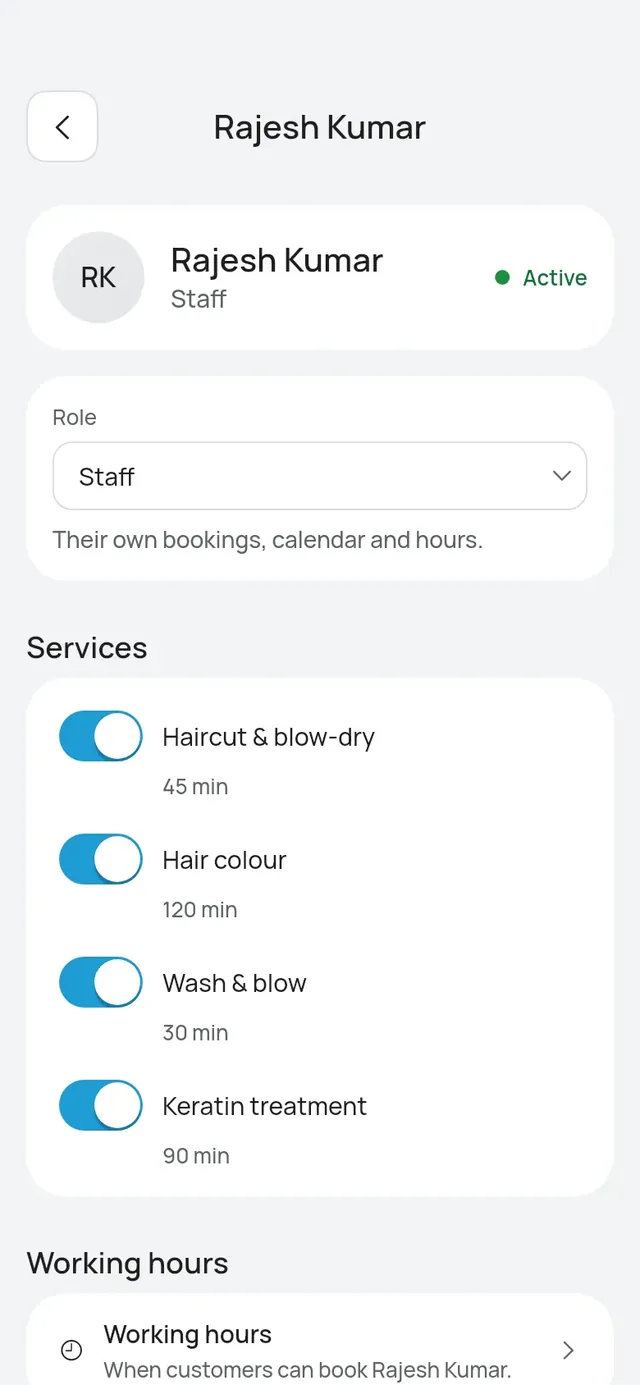
Open More → Team and tap the person.
Name and About
Name customers see shows on your booking page, in their messages and in the app. About (optional) shows under the name when customers choose someone. Tap Save name and About.
Services
Switch on each service the person does. Customers can book a person only for their services. The app says Services saved.
To add a service or change its length or price, open More → Business profile → Services. See Services.
Working hours
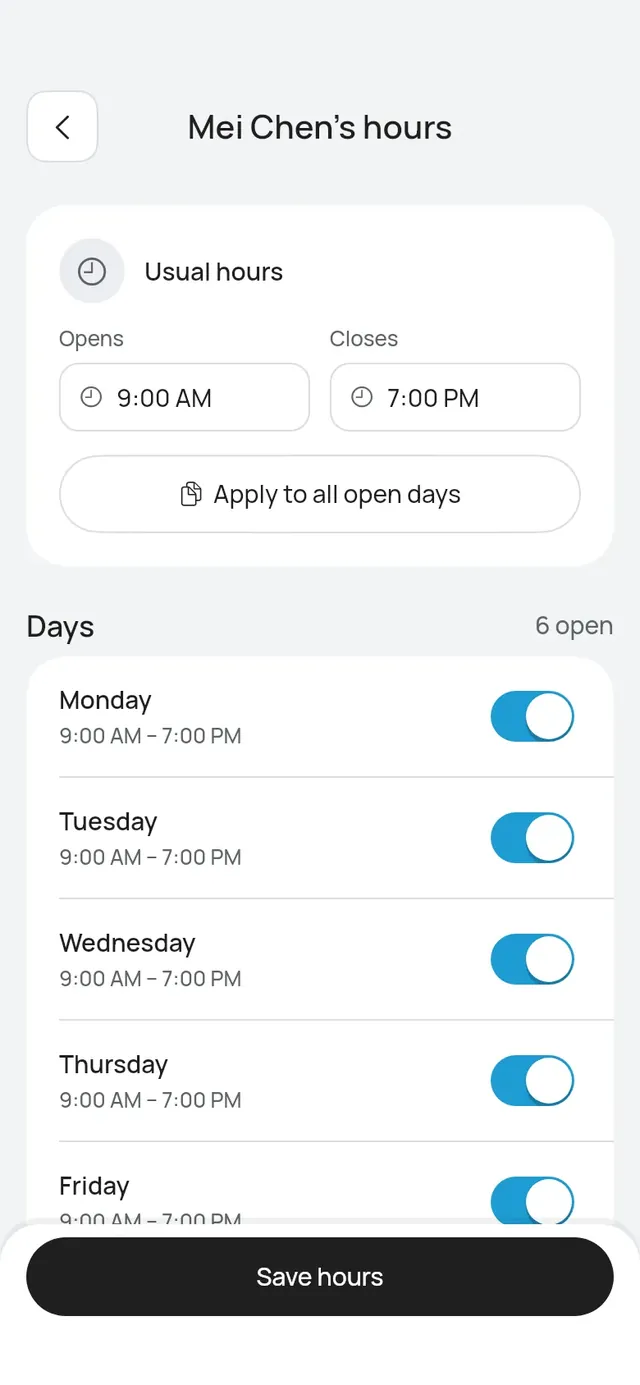
Tap Working hours. Set Usual hours, then switch days on or off. Apply to all open days puts a day with its own times back on the usual hours. Tap Save hours.
Time off
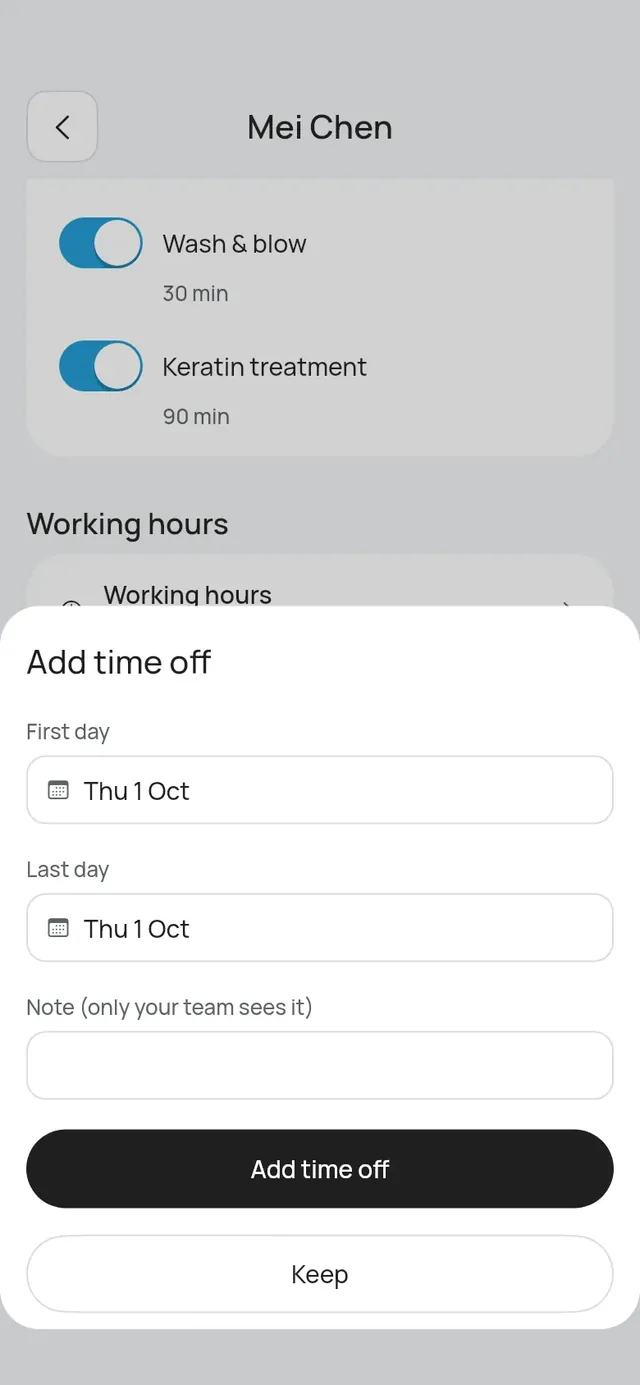
- Under Time off, tap Add time off.
- Pick the First day and the Last day.
- Add a Note (only your team sees it) if you like.
- Tap Add time off.
Customers can’t book the person on those days. Bookings already made stay: move them yourself. To remove time off, tap it and confirm. Customers can book those days again.
Photo
Tap Add a photo to show the person on your booking page. Use a JPEG, PNG or WebP picture.