Invite someone
Who can do this: Owner, Admin
An invited person gets their own login. They see their bookings, their calendar and their hours in their own app.
- 1Send invite
Name, email or phone, role
Who You, in the app or on the web
Only the owner invites an admin.
- Add without loginFor someone with no login
- 2Invite arrives
By email or text message
Who WelcomeBird sends it
It works for 7 days.
- ExpiredAfter 7 days. Send it again.
- CancelledYou. The link stops working.
- 3Sign up or log in
With the invited email or phone
Who The person
No invite code is needed.
- 4Join the team
On the first screen after log in
Who The person, in the app or on the web
The team works in the app.
- 5On your team
Their own login
They see their bookings, calendar and hours.
Send the invite
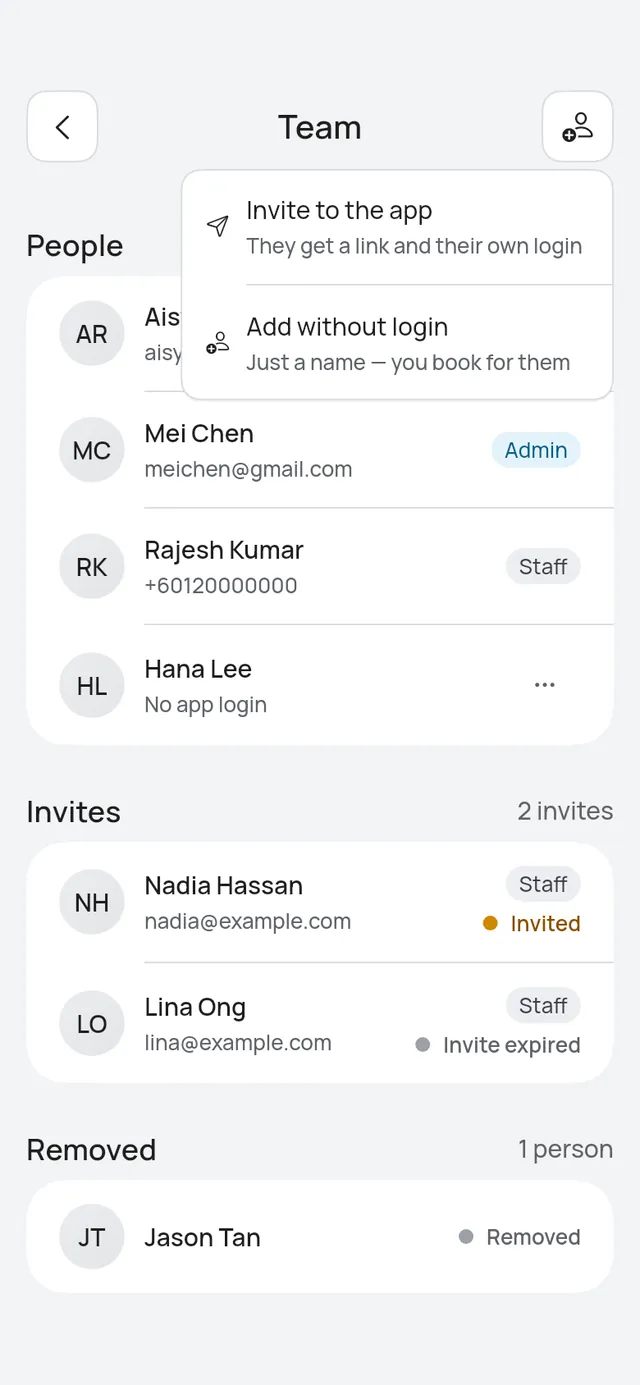
- Open More → Team.
- Tap the add button at the top, then Invite to the app.
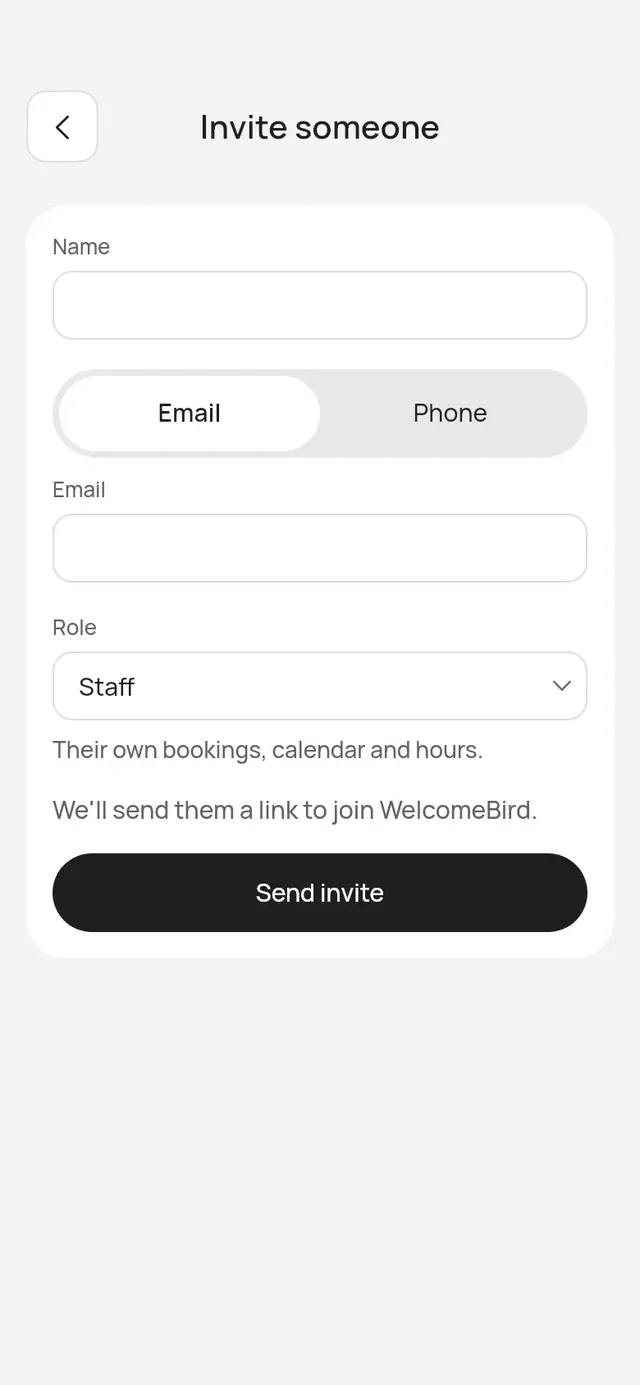
- Enter their Name.
- Under Send the invite by, choose Email or Phone and enter it.
- Choose the Role: Staff or Admin. Only the owner can invite an admin.
- For an admin, Takes bookings decides whether customers can book them. Switch it off for a helper nobody books.
- Tap Send invite.
From a branch’s Staff, Add someone new → Invite to the app opens with that branch chosen.
The app says Invite sent. The person shows under Invites with Invited.
Invite on the web
On the dashboard, open Team under Settings, tap Invite someone, and fill in the same details.
Invite on the web, step by step
On the dashboard, open Team under Settings. On your team lists who has joined, with their role. Waiting invites lists the invites not accepted yet, with the day each was sent and when it expires.
- Tap Invite someone.
- Enter their Name.
- Choose Email or Phone number and enter it.
- Choose the Role: Staff (takes bookings and sees their own bookings in the app) or Admin (runs the business with you, except billing).
- For an admin, Takes bookings decides whether customers can book them.
- Tap Send invite.
The page says Invite sent to and their email or number. A business with branches sees Choose their branch in the app.: set their branch in the app after.
If the invite can’t go, and the waiting invites
If the invite can’t go, the dialog says why and keeps what you typed:
- Already on your team.
- An invite to them is waiting. Send it again from the list.
- Free plan: 1 staff member (with the next plan up): your plan has no room for another person. Add without login tells you before its form opens. See Plan limits.
- Too many invites just now. Try again in a few minutes.
Closing the dialog with something typed asks Discard your changes? first.
On Waiting invites:
- Send again asks first, then sends a new invite. The link in the earlier message stops working. An expired invite shows Expired and Send again.
- Cancel invite asks first. The link in their message stops working.
Changing a role, removing someone and their hours stay in the app.
What the person does
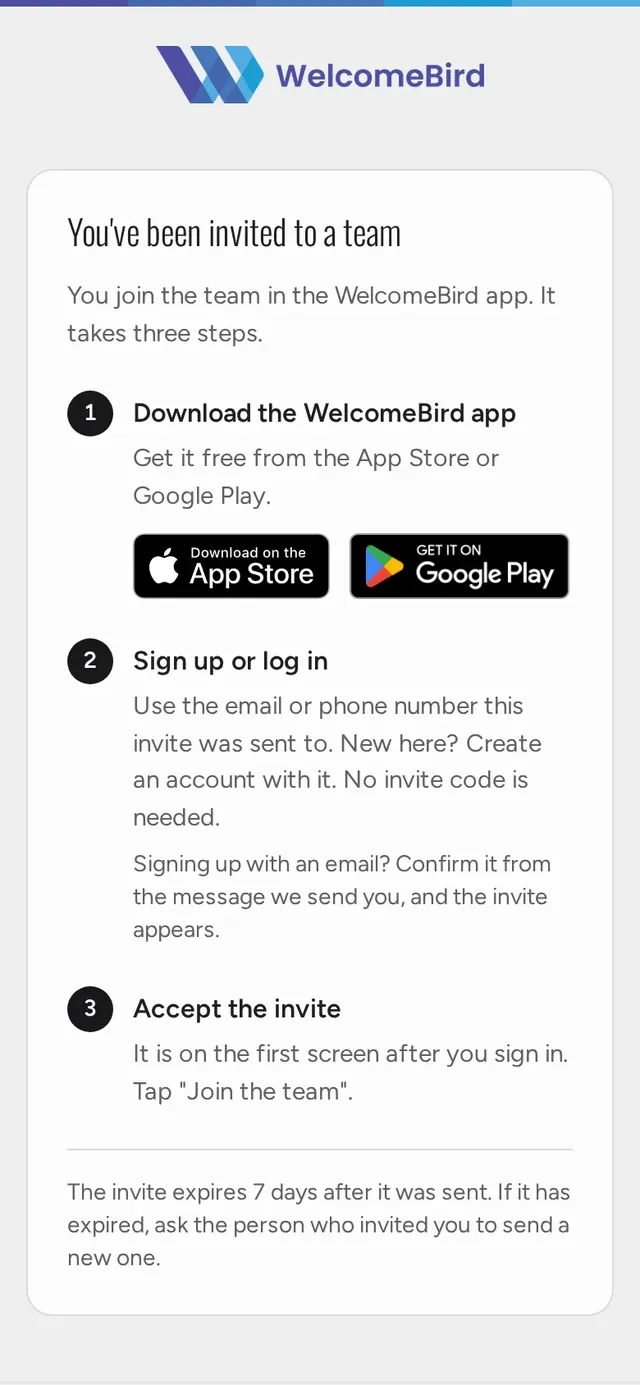
The invite has a link to a page with three steps:
- Download the WelcomeBird app.
- Sign up or log in with the email or phone number the invite was sent to. No invite code is needed. If they sign up with an email, they confirm it first.
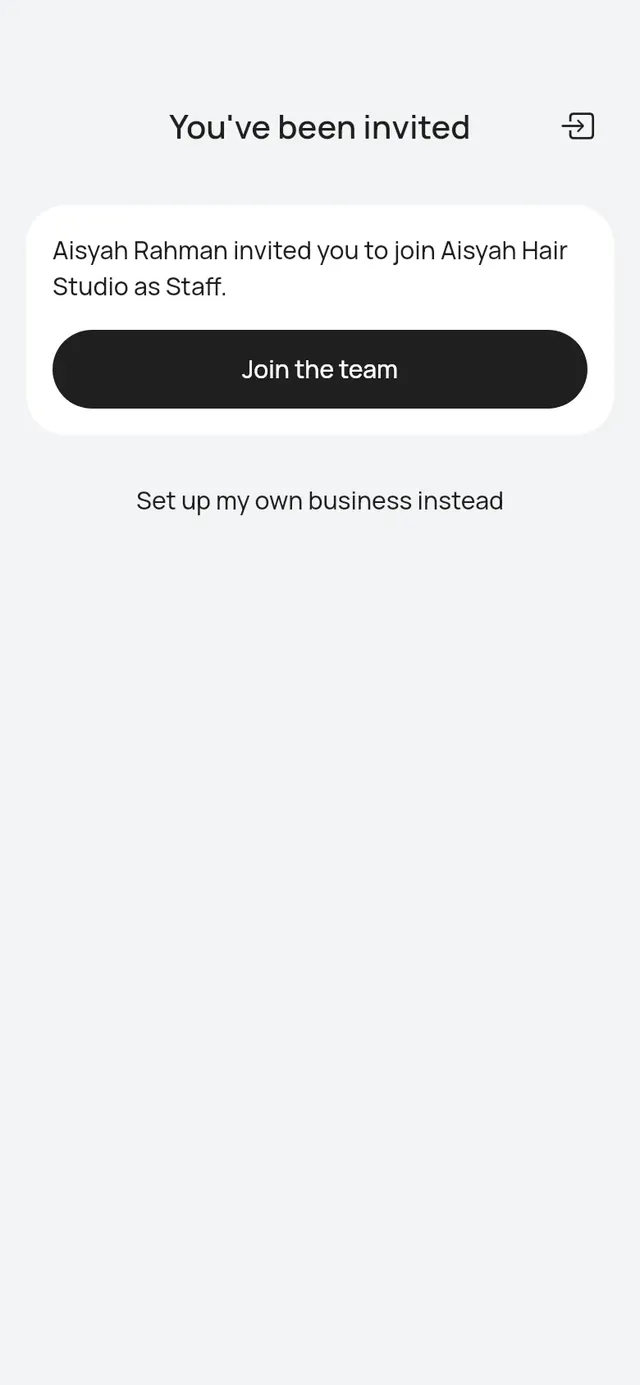
- Tap Join the team on the first screen after they log in.
The WelcomeBird app is coming soon to the App Store and Google Play. Until then, the store buttons open Coming soon.
If they sign up on the web
Someone can also sign up at app.welcomebird.com/sign-up, on a computer or a phone. The invite shows first there too: You’ve been invited, with your business, who invited them and the role, and Join the team. If they signed up with an email, they type the code from our email before the invite shows.
After Join the team, the page says the team works in the app, with the App Store and Google Play buttons. They log in to the app with the same account. The web dashboard is for the owner only.
Set up my own business instead is for someone who also runs a business of their own. The invite stays waiting.
Expired, resent or cancelled
An invite works for 7 days. After that, send it again.
Send again or cancel an invite
An invite works for 7 days. Open the person on Team to:
- Send the invite again: the same invite goes to the same email or phone.
- Cancel invite: the link stops working. The person stays on the team with no login. Remove them too if they won’t work with you.
Someone with no login yet
A person you added without login can get a login later. Tap … on their row, or open them, and tap Invite to the app. See Add without login.