Roles
Who can do this: Owner, Admin
Every person on the team has one role.
| Owner | Admin | Staff | |
|---|---|---|---|
| Bookings and calendar | Everyone’s | Everyone’s | Their own |
| New booking | For anyone | For anyone | For themselves |
| Analytics | Yes | Yes | No |
| Activity | The bell | The bell | A tab |
| Team | Yes | Yes, staff only | No |
| Business settings and courts | Yes | Yes | No |
| Put the booking page live | Yes | Yes | No |
| Notifications | Every booking | Every booking | Their own bookings |
- Owner: the person who set up the business. The owner’s role can’t be changed. If the owner deletes their account, the business closes and is deleted after 30 days. See Delete your account.
- Admin: full access except deleting the business. Only the owner can make someone an admin or change an admin.
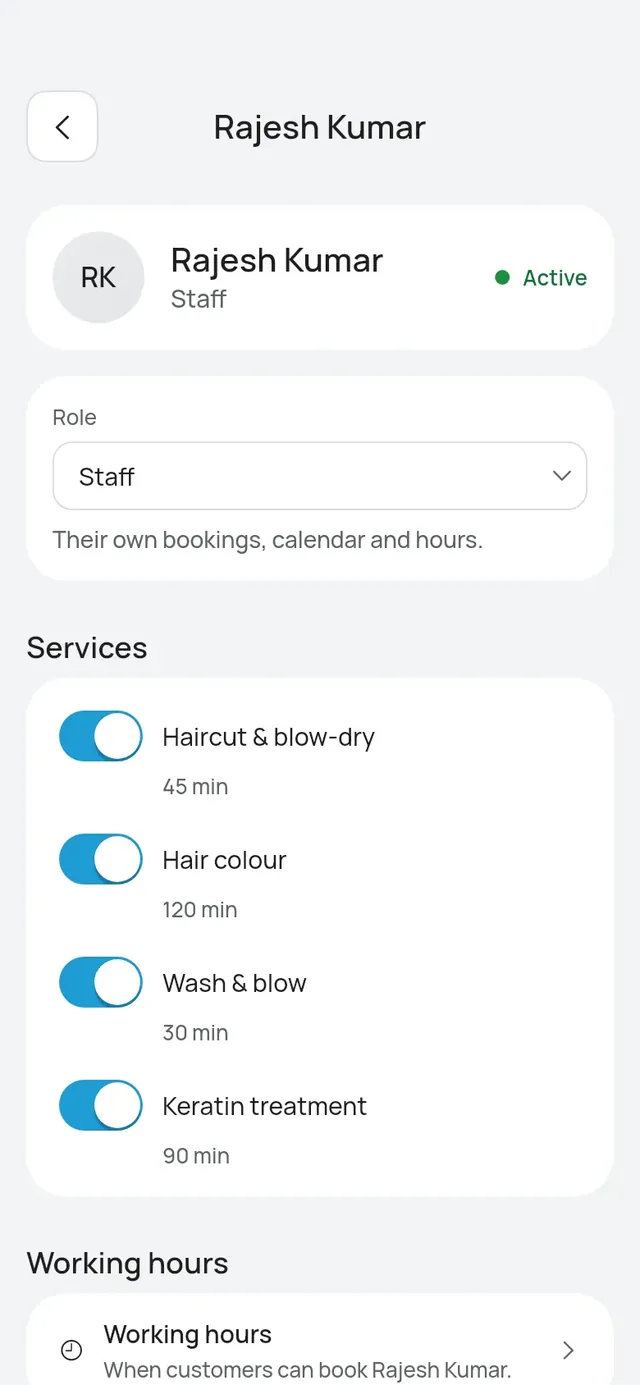
- Staff: their own bookings and calendar. An owner or admin sets their services and hours.
Change a role
- Open More → Team and tap the person.
- Change Role.
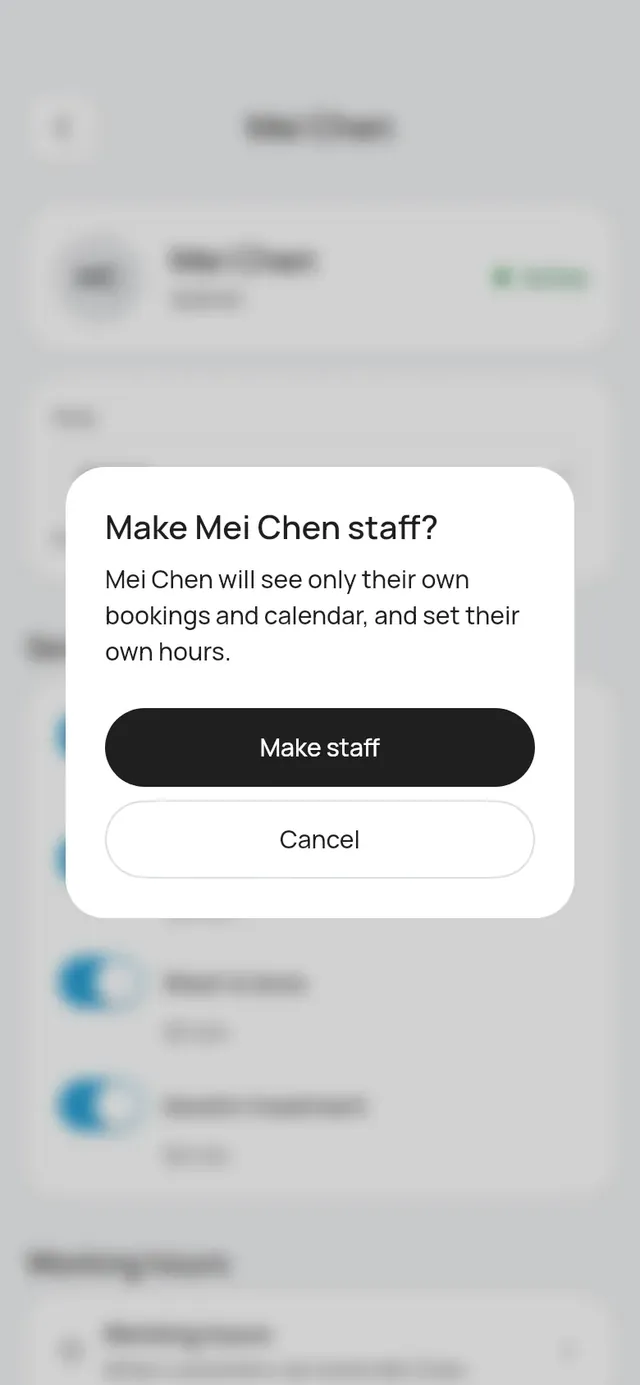
- The app asks first, for example Make Mei Chen staff? Tap Make staff or Make admin.
You can’t change your own role.
Remove someone
Open the person and tap Remove from team, then Remove. They can’t log in for this business any more, and customers can’t book them. Their past bookings stay. Upcoming bookings stay booked with them: open each one to move it to someone else.
A removed person shows under Removed. Open them and tap Bring back to add them again.
When someone deletes their account
Anyone on the team can delete their own account. They leave the business at once, and their past bookings show Former staff. Their upcoming bookings stay, and owners and admins see them under Bookings need a person on Today, to give each one to someone else. See Delete your account and Today.